---
schema_version: "1"
id: f0798c9be61cc37f8050af4d773413633ab8bcd1520616600d22be6c291525c7
title: View and Manage Your Permission Set Licenses
collection: admin
version: current
locale: en-us
portal_url: https://docs.salesforce.com/admin/current/en-us/platform/264-0-0/users_permissionset_licenses_view.md
canonical_url: https://help.salesforce.com/s/articleView?id=platform.users_permissionset_licenses_view.htm&release=264.0.0&type=5
source_site: help.salesforce.com
content_type: documentation
content_hash: ccfdf878b68f85c38d98125fce8d6a2900de1bd3b47f292c43c89333774281cc
description: View information about the permission set licenses that you purchased and manage user assignments.
products:
- Security
- Salesforce Platform
release: "264"
---
# View and Manage Your Permission Set Licenses
View information about the permission set licenses that you purchased and manage user assignments.
### Required Editions
Available in: both Salesforce Classic and Lightning Experience
Available in: Professional, Enterprise, Performance, Unlimited, and Developer Editions
User Permissions
Needed
To view permission set licenses:
View Setup and Configuration
To learn how to check your remaining licenses, watch [How Many Licenses Have I Used? (English Only)](https://salesforce.vidyard.com/watch/SCaWwN9J9rCi673iicuT72).
1. From Setup, in the Quick Find box, enter Company Information, and then select **Company Information**.
2. View the Permission Set Licenses related list.

Note When you add licenses, remove licenses, activate users, or deactivate users, it can take Salesforce up to 24 hours to refresh the license count shown on the Company Information page. If more than 24 hours have passed since you made changes and the number of licenses on the Company Information page still appears to be incorrect, contact Salesforce Customer Support.
3. Click the name of the permission set license to see more details. On this page, you can see information on available seats and the permissions included in the license.
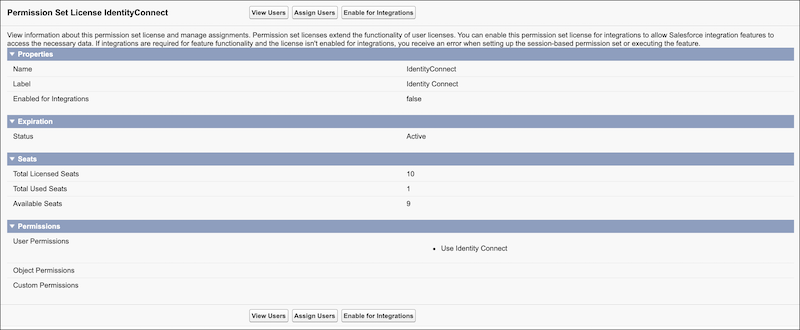
4. To view users already assigned to this permission set license, click **View Users**.
5. To assign users to the license, click **Assign Users**. You can assign multiple users at the same time.
6. Optionally, to enable this permission set license for integrations and allow Salesforce integration features to access data, click **Enable for Integrations**.

Note If integrations are required for feature functionality and the license isn't enabled for integrations, you receive an error when setting up the session-based permission set or executing the feature. Only enable integrations if necessary for the feature.
For information on purchasing permission set licenses, contact your Salesforce account representative.
#### See Also
- [Permission Set Licenses](https://help.salesforce.com/s/articleView?id=platform.users_permissionset_licenses_overview.htm&release=264.0.0&type=5 "Permission set licenses entitle users to access additional features not included in their assigned user license. Users can be assigned any number of permission set licenses.")
- [Assign a Permission Set License to a User](https://help.salesforce.com/s/articleView?id=platform.users_permissionset_licenses_assign.htm&release=264.0.0&type=5 "You might need to assign a permission set license to a user before you can assign certain permissions.")