---
schema_version: "1"
id: 4e62b7254ecbfab2b47c05ca3603a7ea2a9c8cf5fa0edf4ca8f6cd8a8d9abd3b
title: View a User’s Access Summary
collection: admin
version: current
locale: en-us
portal_url: https://docs.salesforce.com/admin/current/en-us/platform/264-0-0/users_access_summary.md
canonical_url: https://help.salesforce.com/s/articleView?id=platform.users_access_summary.htm&release=264.0.0&type=5
source_site: help.salesforce.com
content_type: documentation
content_hash: 7ed69e4f452286679f33e702e23cab1d9cd1a43baffc06c3a5a328c91b569fb3
description: To make managing permissions and troubleshooting access easier, in the User Access Summary, you can see a consolidated view of a user’s key details and assigned permissions and tabs. You can also manage the user’s assigned permission sets, permission set groups, public groups, and queues.
products:
- Security
- Salesforce Platform
release: "264"
---
# View a User’s Access Summary
To make managing permissions and troubleshooting access easier, in the User Access Summary, you can see a consolidated view of a user’s key details and assigned permissions and tabs. You can also manage the user’s assigned permission sets, permission set groups, public groups, and queues.
### Required Editions
Available in: both Salesforce Classic and Lightning Experience
Available in: all editions
User Permissions Needed
To view a user’s User Access Summary:
View Setup and Configuration

Note In some situations, updates to the user’s assignments aren’t displayed immediately. To make sure you have the most up-to-date data, refresh the summary page in your browser.
The user can be assigned other access features not listed in this summary.
1. From Setup, in the Quick Find box, enter Users, and then select **Users**.
2. Select a user.
3. Click **View Summary**. To make sure you have the most up-to-date data, refresh the summary page in your browser.
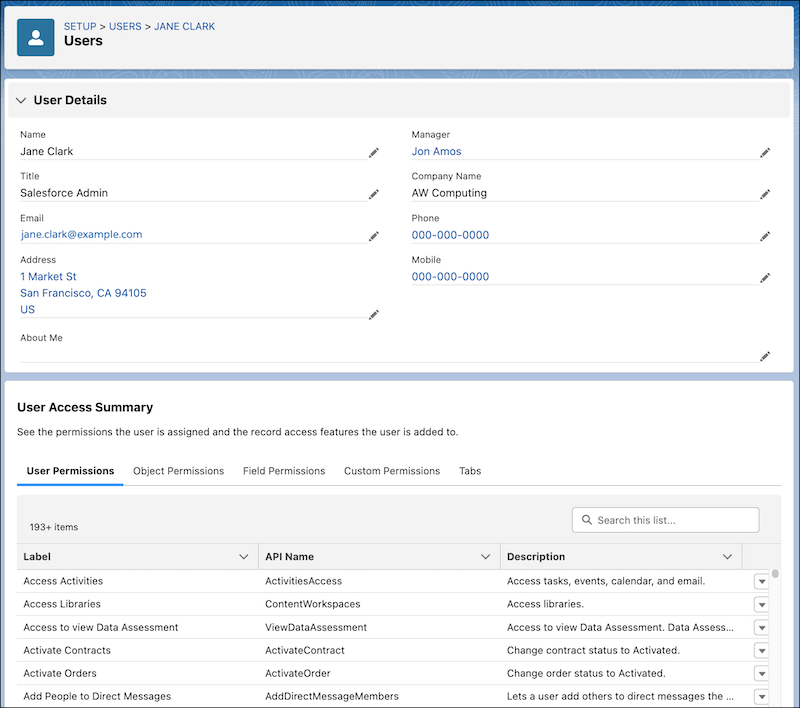
The standard and custom user fields that are displayed match the User Details section of the user’s assigned user profile page layout.
4. Review the user’s assigned permissions and tabs. To see which profile, permission sets, or permission set groups are granting the user a specific permission, click the permission's row-level action, and then click **Access Granted By**.
You can also view and update the permission sets, permission set groups, public groups, and queues that the user is added to.

Note In the Field Permissions tab, only fields whose access can be configured are displayed. Fields that don’t support field-level security aren’t displayed.
#### See Also
- [Manage Permissions in the Permission Set and Permission Set Group Access Summaries](https://help.salesforce.com/s/articleView?id=platform.perm_sets_summary_page.htm&release=264.0.0&type=5 "To help you manage your users’ permissions, you can see and update all object, user, field, and custom permissions that are enabled for a permission set or permission set group in its summary page. You can also manage which permission set groups the permission set is included in and vice versa.")
- [Manage Object Access in Object Manager](https://help.salesforce.com/s/articleView?id=platform.perm_object_access_summary.htm&release=264.0.0&type=5 "See the permission sets, permission set groups, and profiles that grant access to an object, and the level of access granted. You can also update the object permissions enabled in custom permission sets and profiles.")