---
schema_version: "1"
id: 54584309fc0c6740cb422b03ea31e265e39442437c7930f5b416e227476e2a79
title: Add or Edit Picklist Values
collection: admin
version: current
locale: en-us
portal_url: https://docs.salesforce.com/admin/current/en-us/platform/264-0-0/updating_picklists.md
canonical_url: https://help.salesforce.com/s/articleView?id=platform.updating_picklists.htm&release=264.0.0&type=5
source_site: help.salesforce.com
content_type: documentation
content_hash: e2285302aa547b702ea954bfe948a3fc915712483e6e7f7d43a88b52422fdfb1
description: Add new values or rename existing values in a custom picklist from the fields area of an object. If the picklist uses a global picklist value set, you can change its values only by editing the global value set. Your changes affect all picklists that inherit their values from that global value set.
products:
- Salesforce Platform
- Security
release: "264"
---
# Add or Edit Picklist Values
Add new values or rename existing values in a custom picklist from the fields area of an object. If the picklist uses a global picklist value set, you can change its values only by editing the global value set. Your changes affect all picklists that inherit their values from that global value set.
### Required Editions
Available in: both Salesforce Classic and Lightning Experience
Available in: All Editions
User Permissions Needed
To change picklists:
Customize Application

Note You can view changes to picklist values in Setup Audit Trail. To see the audit history: From Setup, in the Quick Find box, enter View Setup Audit Trail, and then select **View Setup Audit Trail**.
To modify Campaign Member Status picklist values, see the list of considerations at the end of this topic.
1. For Lightning Experience:
1. From Setup, click the Object Manager tab. If you don’t see the Object Manager tab, in the Quick Find box, enter Objects, and then select **Objects**.
2. Click the object name.
3. Click **Fields & Relationships**.
For Salesforce Classic:
1. From Setup, in the Quick Find box, enter the name of the object, and then select the object from the menu.
2. On the object page, select **Add a custom field in objectname**.
2. Click the name of the picklist field to update.
3. In the Values section, next to a value, click **Edit**.
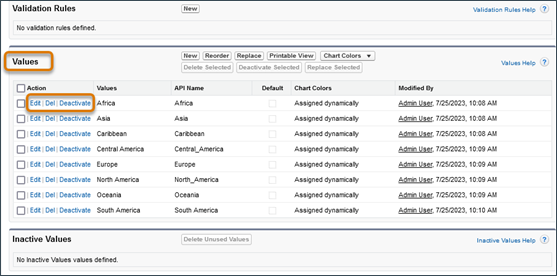
4. Change the value’s name, and optionally make the value the default for the master picklist.
5. Assign a color to use in charts by clicking  and then select how to assign colors to values.
- **Assign fixed colors to all values** assigns a fixed color to each value from the standard set of chart colors. The Chart Colors column shows the assigned colors. For example, if you want Closed Lost values always to be red in charts grouped by Opportunity Stage, assign red to that picklist value.
- **Assign colors to values dynamically** assigns colors when you generate a chart. For example, manually assign colors only to the picklist values that need a fixed color. The remaining values are dynamically assigned.
Chart colors aren’t available for multi-select picklists, currency picklists, or Task Subject, Event Subject, Knowledge Validation Status, and Opportunity Competitor picklists.
6. Click **Save**. New or edited picklist values don’t sort automatically. Reorder the picklist values yourself.
7. To require a picklist, click **Edit** at the top of the detail page, and then select **Always require a value in this field in order to save a record**.
8. To change the picklist from unrestricted to restricted or vice versa, adjust the **Restrict picklist to the values defined in the value set** setting.
9. To open an easy-to-print list of your picklist values, click **Printable View**.

Note Not seeing your new or modified picklist values on records? See [Troubleshoot Missing Picklist Values](https://help.salesforce.com/s/articleView?id=platform.troubleshoot_picklist_values.htm&release=264.0.0&type=5 "If you add a new picklist value but it doesn't appear when users view or edit records, there are several configuration issues to consider. Review the most common causes and solutions for this type of problem. This topic covers inactive values, record type or business process assignments, field dependencies, and field-level security.").
Keep these considerations in mind when you add or edit picklist values.
- If you use record types, see [Considerations for Creating and Updating Record Types and Picklists](https://help.salesforce.com/s/articleView?id=platform.customize_recordtype_considerations.htm&release=264.0.0&type=5 "Keep these considerations in mind when working with record types and business process picklists.").
- For the Campaign Member Status picklist, edit values directly from campaign records rather than in Setup. See [Campaign Member Statuses](https://help.salesforce.com/s/articleView?id=sales.campaigns_customize_member_status_parent.htm&language=en_US).
- For Ideas, setting the default value of the Categories or Status picklists doesn’t affect the default value on the Ideas pages.
- Renaming a picklist value removes it from any associated filter criteria. For example, if your report contains a filter where Lead Source equals Email or Web and you change the picklist value Web to Referral, your report filter changes to Lead Source equals Email. If the changed value was the only filter criterion, the filter remains but displays an error.
- If dashboard widget grouping relies on a picklist field that includes a fixed color value, dashboard themes don’t apply to the widget. Picklist values with fixed colors retain their assigned colors, while values with dynamically assigned colors use the default color palette.
- If your org uses the Translation Workbench and you change picklist values, let your translators know about the impact to translated values.
#### See Also
- [Picklist Limitations](https://help.salesforce.com/s/articleView?id=platform.picklist_limitations.htm&release=264.0.0&type=5 "The maximum number of characters that you can have in a picklist depends on the type of picklist. Each picklist value includes a line break and a return character that aren’t visible but that count in the character limit.")
- [Dependent Picklists](https://help.salesforce.com/s/articleView?id=platform.fields_about_dependent_fields.htm&release=264.0.0&type=5 "Use a dependent picklist to help your users enter accurate and consistent data. A dependent picklist is a custom or multi-select picklist for which the valid values depend on the value of another field, called the controlling field. A controlling field can be any picklist (with at least one and fewer than 300 values) or checkbox field on the same record.")
- [Define Default Field Values](https://help.salesforce.com/s/articleView?id=platform.fields_defining_default_values.htm&release=264.0.0&type=5 "Define a default value for a field. Use a formula to generate dynamic values or constants for static values.")
- [Manage Inactive Picklist Values](https://help.salesforce.com/s/articleView?id=platform.fields_manage_inactive_picklist_values.htm&release=264.0.0&type=5 "Establish upper bound limits, deactivate, reactivate, or remove a value from a restricted or unrestricted picklist.")
- [Replace a Picklist Value](https://help.salesforce.com/s/articleView?id=platform.customize_replace.htm&release=264.0.0&type=5 "As your business changes, replace picklist values with more relevant alternatives. Replacing a value globally replaces that field value on all existing records.")
- [Deactivate, Reactivate, or Remove a Single Picklist Value](https://help.salesforce.com/s/articleView?id=platform.fields_deactivate_reactivate_values.htm&release=264.0.0&type=5 "Deactivate, reactivate, or remove a value from a restricted or unrestricted custom picklist. If it’s a global picklist value set, these actions simultaneously update all custom picklists that inherit its value set.")
- [Delete, Deactivate, Replace, or Activate Multiple Picklist Values](https://help.salesforce.com/s/articleView?id=platform.fields_picklist_bulk_manage_picklist_values.htm&release=264.0.0&type=5 "Save time by managing all your picklist values at once.")
- [Remove a Picklist Value](https://help.salesforce.com/s/articleView?id=platform.additional_options_for_updating_picklists.htm&release=264.0.0&type=5 "Remove or replace custom picklist values to update the records that have the picklist field.")
- [Considerations for Creating and Updating Record Types and Picklists](https://help.salesforce.com/s/articleView?id=platform.customize_recordtype_considerations.htm&release=264.0.0&type=5 "Keep these considerations in mind when working with record types and business process picklists.")
- [Protect Picklist API Names for Formulas and Integrations](https://help.salesforce.com/s/articleView?id=platform.fields_picklist_protect.htm&release=264.0.0&type=5 "When you create a picklist value, an API Name that matches the Label is assigned. By default, the API Name can be changed at any time, but you can choose to protect the API Name.")