---
schema_version: "1"
id: 1b7fe42eefcc4f6ffe7d159bbcb42644a1c62f4b66f04b446534fa495b1f75f3
title: Lock Document Edits from a Process
collection: admin
version: current
locale: en-us
portal_url: https://docs.salesforce.com/admin/current/en-us/platform/264-0-0/process_action_quip_lock_edits.md
canonical_url: https://help.salesforce.com/s/articleView?id=platform.process_action_quip_lock_edits.htm&release=264.0.0&type=5
source_site: help.salesforce.com
content_type: documentation
content_hash: 6f6a1bbf062bd9680b8bfa077aecada5c27f139faa7d877407be181e93f037d3
description: Lock edits to mark a document as complete.
products:
- Flow Builder
- Salesforce Platform
release: "264"
---
# Lock Document Edits from a Process
Lock edits to mark a document as complete.
### Required Editions
Available in: Lightning Experience
User Permissions Needed
To create, edit, or view processes:
Manage Flow
AND
View All Data

Important Support and updates for Process Builder have ended as of December 31, 2025. This means that support won't be provided for any process and bugs in the Process Builder product won't be fixed. See [Workflow Rules & Process Builder End of Support](https://help.salesforce.com/s/articleView?id=001096524&type=1&language=en_US).
After December 31, 2025, existing processes continue to run, and you can activate, deactivate, and edit them; however, we recommend using Flow Builder. To migrate existing processes, plan your [switch to Flow Builder](https://help.salesforce.com/s/articleView?id=platform.flow_migrate_to_flow_learning_map.htm&release=264.0.0&type=5 "Flow Builder combines the capabilities of workflow rules and Process Builder in a single point-and-click tool, making it easier to create a triggered process. If you created triggered processes with workflow rules or Process Builder, use the Migrate to Flow tool to move them to Flow Builder. Start by migrating and testing in a sandbox environment before moving your new flows to production.") and use the [Migrate to Flow](https://help.salesforce.com/s/articleView?id=platform.flow_migrate_to_flow.htm&release=264.0.0&type=5 "Use the Migrate to Flow tool to convert your Process Builder processes and workflow rules into Flow Builder, including scheduled actions. The tool also supports partial migration of processes for most actions.") tool. For new automations, create flows in [Flow Builder](https://help.salesforce.com/s/articleView?id=platform.flow.htm&release=264.0.0&type=5 "Automation reduces repetitive work and helps your team complete tasks faster and more accurately. With Flow Builder, you can build simple or complex automations, forms, and guided experiences with no code. You can add forms to Salesforce pages and Experience sites, and launch flows using buttons, record triggers, or schedules.").
After you create a Quip action and select **Lock Document Edits**, fill in the relevant fields to add the action to your process.
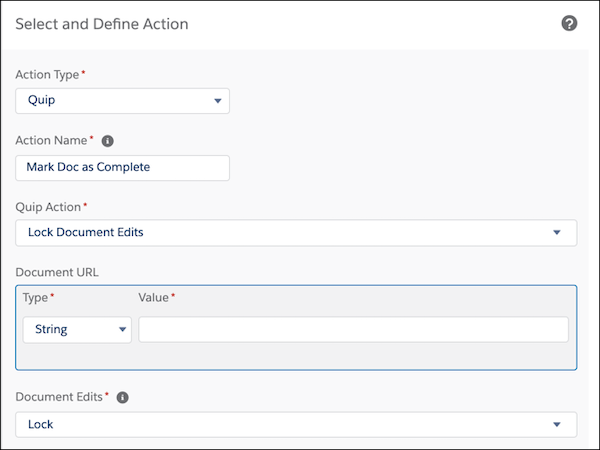
1. Enter a name for this action.
This text appears on the canvas and helps you differentiate this action from others in your process. The name truncates to fit on the canvas.
2. Enter the URL of the document you want to lock.
3. To lock document edits, select **Lock**. To unlock document edits, select **Unlock**.

Note Only users with full access to a document can lock or unlock edits.
4. Save the action.

Note To replace the existing Process Builder processes and Workflow Rules with flows before Process Builder and Workflow Rules reach [end of support](https://help.salesforce.com/s/articleView?id=001096524&type=1&language=en_US), see [Quip Actions in Flow Builder](https://help.salesforce.com/s/articleView?id=xcloud.quip_automation_flow.htm&type=5&language=en_US).