---
schema_version: "1"
id: c1ed87946fb61e5488c3bddab2137d8e5760031a99576bcf407113845791a318
title: Flow Builder for Flow Orchestration
collection: admin
version: current
locale: en-us
portal_url: https://docs.salesforce.com/admin/current/en-us/platform/264-0-0/orchestrator_flow_builder.md
canonical_url: https://help.salesforce.com/s/articleView?id=platform.orchestrator_flow_builder.htm&release=264.0.0&type=5
source_site: help.salesforce.com
content_type: documentation
content_hash: 47d5bccbfecbed00499cf866d1e6081c14baa88f5d800b70c9ef9b9d9de59fca
description: Get to know the Flow Builder requirements and user interface for Flow Orchestration.
products:
  - Flow Builder
  - Salesforce Platform
release: "264"
---
# Flow Builder for Flow Orchestration

Get to know the Flow Builder requirements and user interface for Flow Orchestration.

### Required Editions

<table class="slds-table slds-table_bordered slds-max-medium-table_stacked slds-m-bottom_small edition"><colgroup><col style="width:100%"></colgroup><tbody><tr class=""><td class="slds-cell-wrap" style="vertical-align:top;"><a href="https://help.salesforce.com/s/articleView?id=platform.automate_orchestrator_about_supported_editions.htm&amp;release=264.0.0&amp;type=5" title="Review the supported products and editions for Flow Orchestration.">View supported editions for Flow Orchestration.</a></td></tr></tbody></table>

<table class="slds-table slds-table_bordered slds-max-medium-table_stacked slds-m-bottom_small ">
      <colgroup>
        <col style="width:50%">
        <col style="width:50%">
      </colgroup>
      <thead class="slds-text-title_caps ">
        <tr class="">
          <th scope="colgroup" class="slds-cell-wrap" colspan="2" style="text-align:center;vertical-align:top;" id="d132996e59">User Permissions
            Needed</th>
        </tr>
      </thead>
      <tbody>
        <tr class="">
          <td data-label="User Permissions Needed" class="slds-cell-wrap" style="vertical-align:top;" headers="d132996e59 ">To open, edit, or create an orchestration in Flow Builder:</td>

          <td class="slds-cell-wrap" style="vertical-align:top;" headers="d132996e59 ">Manage Flow</td>

        </tr>
      </tbody>
    </table>

## Tour the Flow Builder User Interface for Flow Orchestration

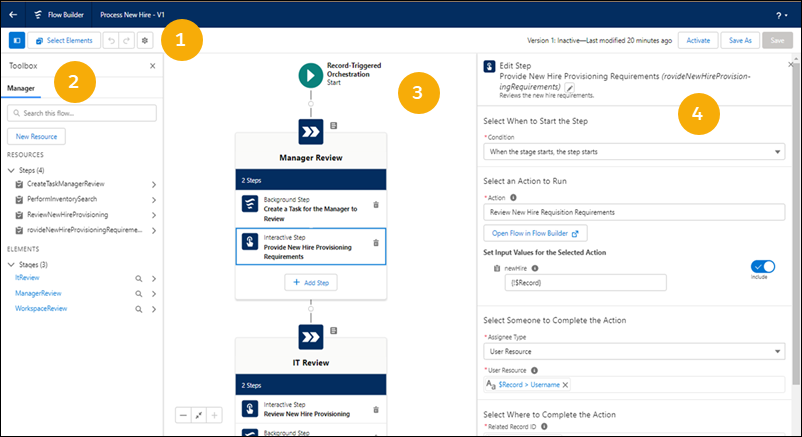
Flow Orchestration uses the Auto-Layout canvas in Flow Builder.
![Flow Builder UI](https://sf-zdocs-cdn-prod.zoominsoftware.com/tdta-platform-platform_automation-264-0-0-production-enus/60568438-ec7e-4665-acd1-7c80dcbe60d5/platform_automation/images/orchestration/orchestrator_flow_builder_interface.png)

Button Bar (1)—Manage your orchestration as you build it.

- To run the most recent saved version of the orchestration that’s open, click **Run**.
    
    ![Note](https://sf-zdocs-cdn-prod.zoominsoftware.com/tdta-platform-platform_automation-264-0-0-production-enus/60568438-ec7e-4665-acd1-7c80dcbe60d5/images/icon_note.png)
    
    Note The Run button is only available for autolaunched orchestrations.
- To the left of the buttons, you can see the version’s active or inactive status and when it was last saved.
- To see errors and warning for the orchestration, click the Show Error icon (![The Show Errors button](https://sf-zdocs-cdn-prod.zoominsoftware.com/tdta-platform-platform_automation-264-0-0-production-enus/60568438-ec7e-4665-acd1-7c80dcbe60d5/platform_automation/images/flow_builder_show_errors.png)).

Toolbox (2)—Create variables, constants, formulas, or text templates to use in your orchestration. Or view a list of all resources and elements that you added. To see the Toolbox, click the Toggle Toolbox icon (![The Toggle Toolbox button](https://sf-zdocs-cdn-prod.zoominsoftware.com/tdta-platform-platform_automation-264-0-0-production-enus/60568438-ec7e-4665-acd1-7c80dcbe60d5/platform_automation/images/flow_builder_toggle_toolbox.png)) in the Button bar.

Errors and Warnings (not shown)—View errors and warnings for your orchestration. The Errors tab shows all errors to resolve before you can activate your orchestration. The Warnings tab shows all warnings that relate to the orchestration. To see Errors and Warnings, click the Show Error icon (![The Show Errors button](https://sf-zdocs-cdn-prod.zoominsoftware.com/tdta-platform-platform_automation-264-0-0-production-enus/60568438-ec7e-4665-acd1-7c80dcbe60d5/platform_automation/images/flow_builder_show_errors.png)) on the Button Bar.

Canvas (3)—Build an orchestration on the canvas. As you add elements to the canvas and connect them, you can see a diagram of your orchestration.

![Note](https://sf-zdocs-cdn-prod.zoominsoftware.com/tdta-platform-platform_automation-264-0-0-production-enus/60568438-ec7e-4665-acd1-7c80dcbe60d5/images/icon_note.png)

Note To insert an element, in the desired location, click ![Add Element node](https://sf-zdocs-cdn-prod.zoominsoftware.com/tdta-platform-platform_automation-264-0-0-production-enus/60568438-ec7e-4665-acd1-7c80dcbe60d5/platform_automation/images/orchestration/orchestrator_fbuilder_circleplus.png). Flow Builder then shows the options and possible elements for this location.

Properties (4)—Set attributes for the element selected in the canvas. To close the Properties panel, click ![Close icon](https://sf-zdocs-cdn-prod.zoominsoftware.com/tdta-platform-platform_automation-264-0-0-production-enus/60568438-ec7e-4665-acd1-7c80dcbe60d5/platform_automation/images/flow/flow_builder_close_element_panel.png).

## Keyboard Shortcuts

Use these handy keyboard shortcuts for macOS and Windows to quickly navigate orchestrations.

  
| Action | macOS | Windows |
| --- | --- | --- |
| Zoom in | Cmd+Option+= | Ctrl+Alt+= |
| Zoom out | Cmd+Option+- | Ctrl+Alt+- |
| Zoom to fit | Cmd+Option+1 | Ctrl+Alt+1 |
| Zoom to view | Cmd+Option+0 | Ctrl+Alt+0 |
| View available keyboard shortcuts | Cmd+/ | Ctrl+/ |