---
schema_version: "1"
id: fb653d342aff8ec91332aa3b42d4f947476a6584611c0dc941993a40ecb9aa8b
title: Create and Use Orchestration Templates
collection: admin
version: current
locale: en-us
portal_url: https://docs.salesforce.com/admin/current/en-us/platform/264-0-0/orchestrator_build_orchestration_template.md
canonical_url: https://help.salesforce.com/s/articleView?id=platform.orchestrator_build_orchestration_template.htm&release=264.0.0&type=5
source_site: help.salesforce.com
content_type: documentation
content_hash: ecc8c620f0ea598a5987356bad04222c5e774893ef1dc14afa613eada7d527c8
description: Save orchestrations as templates to reuse them as starting points for new orchestrations. Distribute templates through managed packages so subscribers can build orchestrations based on them.
products:
  - Flow Builder
  - Salesforce Platform
release: "264"
---
# Create and Use Orchestration Templates

Save orchestrations as templates to reuse them as starting points for new orchestrations. Distribute templates through managed packages so subscribers can build orchestrations based on them.

### Required Editions

<table class="slds-table slds-table_bordered slds-max-medium-table_stacked slds-m-bottom_small edition"><colgroup><col style="width:100%"></colgroup><tbody><tr class=""><td class="slds-cell-wrap" style="vertical-align:top;"><a href="https://help.salesforce.com/s/articleView?id=platform.automate_orchestrator_about_supported_editions.htm&amp;release=264.0.0&amp;type=5" title="Review the supported products and editions for Flow Orchestration.">View supported editions for Flow Orchestration.</a></td></tr></tbody></table>

<table class="slds-table slds-table_bordered slds-max-medium-table_stacked slds-m-bottom_small ">
        <colgroup>
          <col style="width:50%">
          <col style="width:50%">
        </colgroup>
        <thead class="slds-text-title_caps ">
          <tr class="">
            <th scope="colgroup" class="slds-cell-wrap" colspan="2" style="text-align:center;vertical-align:top;" id="d71982e61">User Permissions
              Needed</th>
          </tr>
        </thead>
        <tbody>
          <tr class="">
            <td data-label="User Permissions Needed" class="slds-cell-wrap" style="vertical-align:top;" headers="d71982e61 ">To open, edit, or create an orchestration in Flow Builder:</td>

            <td class="slds-cell-wrap" style="vertical-align:top;" headers="d71982e61 ">Manage Flow</td>

          </tr>
        </tbody>
      </table>

## Create a Template from an Orchestration

Save a copy of an existing orchestration as a template.

1. Open an orchestration.
2. Click **Save As New Version**.
    
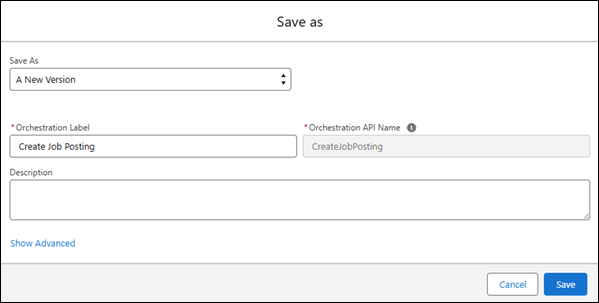
    The Save as window opens.
    
    ![The Save as window for an orchestration](https://sf-zdocs-cdn-prod.zoominsoftware.com/tdta-platform-platform_automation-264-0-0-production-enus/60568438-ec7e-4665-acd1-7c80dcbe60d5/platform_automation/images/orchestration/orchestrator_save_as_window.png)
3. For the Save As field, select **A New Orchestration**, and enter a label, API name, and description for your orchestration template.
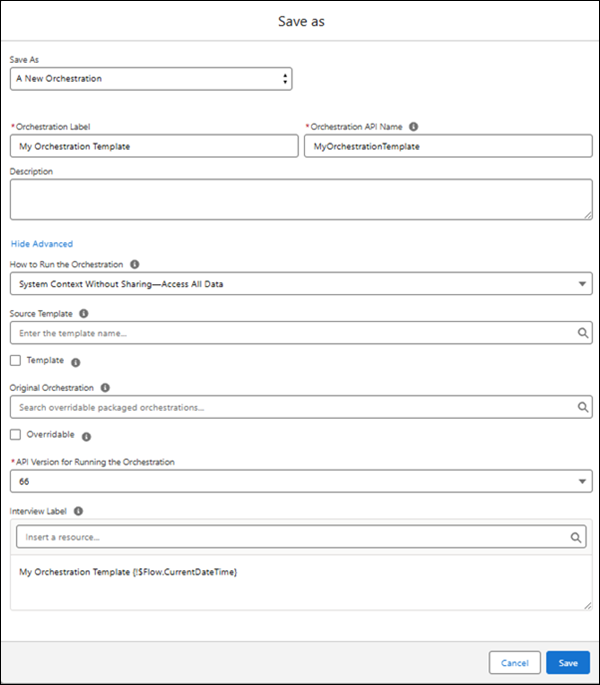
4. Click **Show Advanced**.
    
    The window shows advanced options for the orchestration.
    
    ![The Save as window with advanced options expanded](https://sf-zdocs-cdn-prod.zoominsoftware.com/tdta-platform-platform_automation-264-0-0-production-enus/60568438-ec7e-4665-acd1-7c80dcbe60d5/platform_automation/images/orchestration/orchestrator_save_as_new_orchestration_advanced_settings_expanded.png)
5. Select **Template** and click **Save**.

## Convert an Orchestration to a Template

Turn an existing orchestration into a template. After saving, any changes to the orchestration also update the template.

1. Open an orchestration.
2. Click ![The dropdown arrow](https://sf-zdocs-cdn-prod.zoominsoftware.com/tdta-platform-platform_automation-264-0-0-production-enus/60568438-ec7e-4665-acd1-7c80dcbe60d5/platform_automation/images/flow_list_enhanced_dropdown_icon.png) next to Save As New Version, and then select **Save as Template**.
    
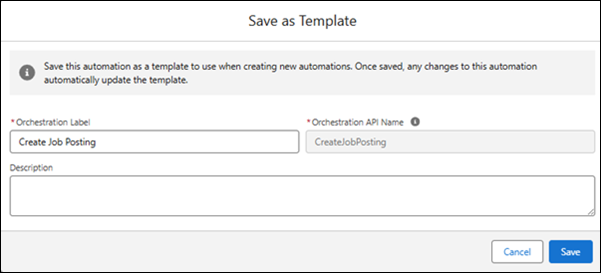
    The Save as Template window opens.
    
    ![An example of the Save as Template window](https://sf-zdocs-cdn-prod.zoominsoftware.com/tdta-platform-platform_automation-264-0-0-production-enus/60568438-ec7e-4665-acd1-7c80dcbe60d5/platform_automation/images/orchestration/orchestrator_save_as_template_window.png)
3. Make sure that the orchestration template has an accurate description.
    
    The description appears under the orchestration template’s name in the New Automation window and gives users information about what your template does.
4. Click **Save**.

## Use an Orchestration Template

Build orchestrations faster by starting with a template and customizing it to your needs.

1. Open the New Automation window.
    
    1. From the Automation app, on the Orchestrations tab, click **New**.
    2. From Setup, in the Flows view, click **New Flow**.
    
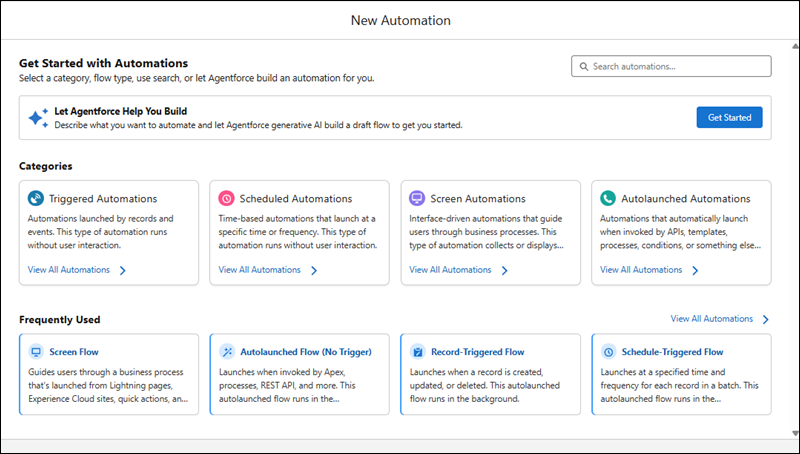
    The New Automation window opens.
    
    ![An example of the New Automation window](https://sf-zdocs-cdn-prod.zoominsoftware.com/tdta-platform-platform_automation-264-0-0-production-enus/60568438-ec7e-4665-acd1-7c80dcbe60d5/platform_automation/images/flowdal.png)
2. In the search box, enter the name of the template.
    
    The template appears under Templates in the New Automation window.
3. Select the template.
    
    A copy of the orchestration opens in Flow Builder.