---
schema_version: "1"
id: ba2053880a5d3400e299416cbbe63b64a9da1e97a964222c252f84078e345617
title: Create Recommendations
collection: admin
version: current
locale: en-us
portal_url: https://docs.salesforce.com/admin/current/en-us/platform/264-0-0/nba_recommendations_app.md
canonical_url: https://help.salesforce.com/s/articleView?id=platform.nba_recommendations_app.htm&release=264.0.0&type=5
source_site: help.salesforce.com
content_type: documentation
content_hash: d48e0bfcf62b0cd3ff455e6c624d2d40d8d0a271f0b9a31ee99ca0a994af1eb6
description: Create offers or actions to recommend to users using Einstein Next Best Action. Recommendations are standard Salesforce records, similar to accounts and contacts, that are processed by strategies and associated with flows. Strategies determine which recommendation records are surfaced using business rules, predictive models, and other data sources. The result of this process is context-specific recommendations that you present to your users.
products:
- Flow Builder
- Salesforce Platform
release: "264"
---
# Create Recommendations
Create offers or actions to recommend to users using Einstein Next Best Action. Recommendations are standard Salesforce records, similar to accounts and contacts, that are processed by strategies and associated with flows. Strategies determine which recommendation records are surfaced using business rules, predictive models, and other data sources. The result of this process is context-specific recommendations that you present to your users.
### Required Editions

Note
- Salesforce has both a Recommendation object for Einstein Next Best Action (that’s this page) and a Recommendation component for Experience Builder sites. The Recommendation component isn’t related to Next Best Action.
- If you don't see Recommendations in the App Launcher, in Setup, select Default On in the Recommendations tab settings for your user profile or permission set.
- You can load and filter the records of a Recommendation object. Or load and filter the records of any object, and convert them into recommendations at the end of a strategy using the Map element.
Before creating recommendations, create the action flow that runs when a customer accepts the recommendation. For examples of action flows for Next Best Action, see [Einstein Next Best Action Examples](https://help.salesforce.com/s/articleView?id=platform.nba_examples.htm&release=264.0.0&type=5 "These examples walk you through the process of creating Einstein Next Best Action components.").
1. In the Recommendations tab, click **New Recommendation**.
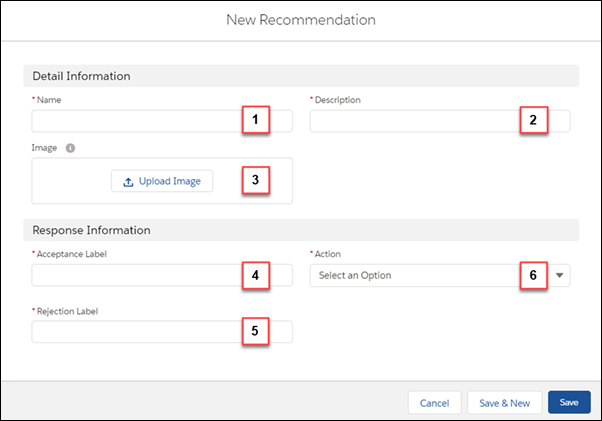
2. Enter a friendly name (1) and a brief description (2) for your recommendation. The description appears on the recommendation that is surfaced to users.
3. Optionally, click to upload an image (3) that you can display as a header for your recommendation. For best results, use a 1000 by 380 pixel image at 72 DPI, or an image with a similar ratio. You can choose whether the image displays using component properties. After it’s uploaded, a thumbnail of your image displays on the Recommendations page. Customers can see the full image as a header for your recommendation in either the Lightning App Builder or Experience Builder component.
4. Enter an acceptance label (4) and a rejection label (5) for the buttons that customers click to, respectively, accept and reject the recommendation.
5. Create a flow. When a user accepts your recommendation, they’re taken to the flow specified in Action (6).
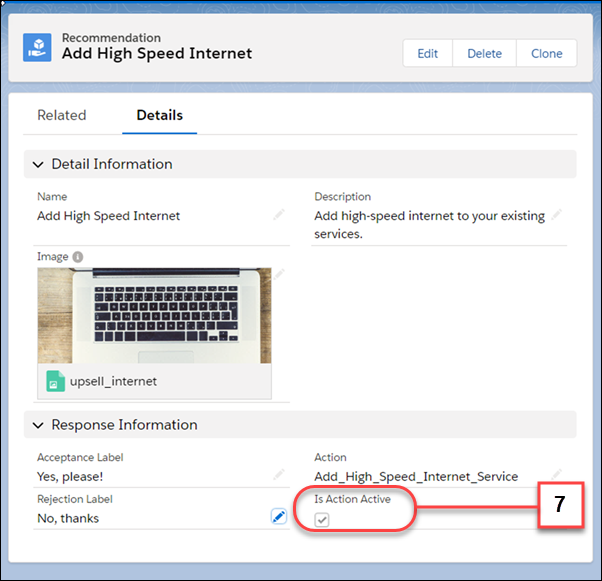
6. Choose the flow that runs when a customer accepts the recommendation (6) and click **Save**. You can also choose a flow that runs when a customer accepts or rejects the recommendation. The Action list displays both active and inactive flows. Choosing a flow that isn't active hides the recommendation. When you’ve saved your recommendation, you can see if the flow is active from **Is Action Active** (7).
7. Create a recommendation strategy in Strategy Builder that determines how your recommendations surface.
8. Optionally add a custom Category field to the Recommendation object and the Recommendation Layout. Adding a custom Category field can simplify loading, filtering, and sorting recommendations in Strategy Builder.
- **[Recommendation Fields](https://help.salesforce.com/s/articleView?id=platform.nba_recommendation_fields.htm&release=264.0.0&type=5)**
Recommendations are suggested actions that users see and interact with through Einstein Next Best Action strategies. When creating a recommendation, use these fields to define its look and feel.
- **[Launch a Flow When a Recommendation Is Accepted](https://help.salesforce.com/s/articleView?id=platform.nba_launch_flow_accepts.htm&release=264.0.0&type=5)**
Each recommendation is associated with a single flow. By default, Next Best Action launches a flow when a user accepts a recommendation. The flow then performs an action, such as updating a case or sending an email.
- **[Launch a Flow When a Recommendation Is Accepted or Rejected](https://help.salesforce.com/s/articleView?id=platform.nba_launch_flow_accepts_rejects.htm&release=264.0.0&type=5)**
Each recommendation is associated with a single flow. By default, Next Best Action launches a flow when a user accepts a recommendation. The flow then performs an action, such as updating a case or sending an email. But you can also launch a flow when a user rejects a recommendation, which gives you more flexibility. For example, a flow could run an automated process, write to another system, or create a reminder email when a recommendation is rejected.
- **[Add a Limit Repetitions Element to a Next Best Action Flow](https://help.salesforce.com/s/articleView?id=platform.nba_limit_repetitions.htm&release=264.0.0&type=5)**
You can add a Limit Repetitions element to your Recommendation Strategy flow to limit the number of times that the same recommendation or offer appears on the same record or for the same user during a time period.
#### See Also
- [Build a Flow](https://help.salesforce.com/s/articleView?id=platform.flow_build.htm&release=264.0.0&type=5 "After you model the process that you want to automate, design and build the flow in Flow Builder.")
- [Strategy Builder Strategies](https://help.salesforce.com/s/articleView?id=platform.nba_building_strategy_builder_strategy.htm&release=264.0.0&type=5 "You can create strategies for Einstein Next Best Action using Strategy Builder or Flow Builder. Flow Builder is the recommended method.")
- [Display Recommendations](https://help.salesforce.com/s/articleView?id=platform.nba_admin_using_strategies.htm&release=264.0.0&type=5 "After creating a strategy, choose a page to run your strategy and display your recommendations. You can use a Lightning record page, an app’s home page, an Experience Cloud site page, a Visualforce page, or an external site, depending on where you want recommendations to appear.")
- [View and Edit Tab Settings in Permission Sets and Profiles](https://help.salesforce.com/s/articleView?id=platform.users_tab_visibility.htm&language=en_US)
- [Get Started with Einstein Next Best Action](https://help.salesforce.com/s/articleView?id=platform.nba_implementation_checklist.htm&release=264.0.0&type=5 "Just getting started with Einstein Next Best Action? Follow these steps to complete each phase of the Next Best Action setup process, create personalized recommendations for your users, and put decisions into action.")
- [_Connect REST API Developer Guide:_ Next Best Action Resources](https://developer.salesforce.com/docs/atlas.en-us.chatterapi.meta/chatterapi/connect_resources_nba_resources.htm)