---
schema_version: "1"
id: 32ce3c7b3ba347dedc05d68f138e1ea06d0e1eba4a9380b9a176d8b5109442b4
title: Add a Limit Repetitions Element to a Next Best Action Flow
collection: admin
version: current
locale: en-us
portal_url: https://docs.salesforce.com/admin/current/en-us/platform/264-0-0/nba_limit_repetitions.md
canonical_url: https://help.salesforce.com/s/articleView?id=platform.nba_limit_repetitions.htm&release=264.0.0&type=5
source_site: help.salesforce.com
content_type: documentation
content_hash: 7dc4ec8870bff24f82f3df9e4e2fac7650d07d601d4bfe71c5e20f38c06b7738
description: You can add a Limit Repetitions element to your Recommendation Strategy flow to limit the number of times that the same recommendation or offer appears on the same record or for the same user during a time period.
products:
- Flow Builder
- Salesforce Platform
release: "264"
---
# Add a Limit Repetitions Element to a Next Best Action Flow
You can add a Limit Repetitions element to your Recommendation Strategy flow to limit the number of times that the same recommendation or offer appears on the same record or for the same user during a time period.
### Required Editions
- You must have a collection of recommendations that has a valid value in the ID or RecommendationKey fields. The RecommendationKey value must be a database ID or have the syntax DYNAMIC\_.
- If you include an Assignment element, from Actions, choose **Output from limit**. Or you can skip this step and add the output from the Limit Repetitions element.
1. From Setup, in the Quick Find box, enter Flows, and then select **Flows**.
2. Open or create a Recommendation Strategy.
3. After the collection of recommendations, add a Limit Repetitions element.
4. Enter a label and an API Name.
5. Add a description.
6. Search for and select the Recommendation Collection that you want to filter.
7. Select the responses that you want, and then enter the number of responses and days as whole numbers.
Look Within This Many Days is based on days, not hours. If the number of days is set to 1 for an accepted response, and the user accepts the recommendation at any time on Monday, the recommendation doesn’t display again until the start of Wednesday. So a one-day time period could be as few as 25 hours in duration or as many as 48 hours.
8. If you didn’t include an Assignment element, you can search for and select the collection that includes the limit repetition output.
1. In Advanced, select **Manually assign variables**.
2. From the Store Output Variables field, search for and select the output variable.
9. Click **Done**.
10. Save your work.
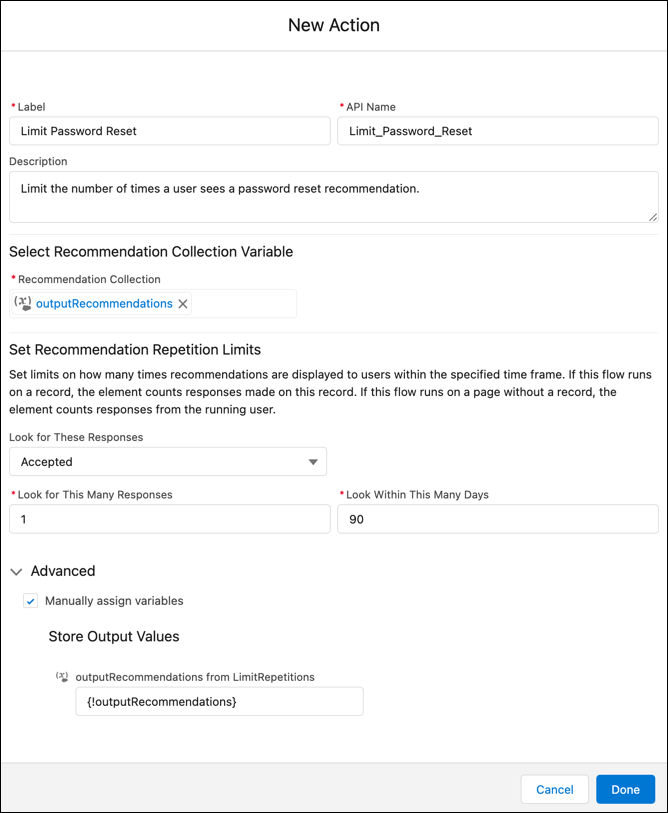

Example
- If you want one accepted response over 90 days, such as a password reset recommendation, and the user accepts one time over 90 days, they don’t see the message again for 90 days. But if the user rejects the recommendation, they see the message every time they reload the page until they accept it.
- If you want two accepted or rejected responses over 1 day, and a user accepts or rejects the recommendation only one time every day, they still see the recommendation.
- If you want two accepted or rejected responses over 1 day, and a user accepts or rejects the recommendation twice on day one, they don’t see the recommendation on day two. They see the recommendation again on day three.
If you add an Assignment element after the Limit Repetitions element and change the label for accept or reject, you must update the limit repetitions output.
#### See Also
- [Create Recommendations](https://help.salesforce.com/s/articleView?id=platform.nba_recommendations_app.htm&release=264.0.0&type=5 "Create offers or actions to recommend to users using Einstein Next Best Action. Recommendations are standard Salesforce records, similar to accounts and contacts, that are processed by strategies and associated with flows. Strategies determine which recommendation records are surfaced using business rules, predictive models, and other data sources. The result of this process is context-specific recommendations that you present to your users.")
- [Display Recommendations](https://help.salesforce.com/s/articleView?id=platform.nba_admin_using_strategies.htm&release=264.0.0&type=5 "After creating a strategy, choose a page to run your strategy and display your recommendations. You can use a Lightning record page, an app’s home page, an Experience Cloud site page, a Visualforce page, or an external site, depending on where you want recommendations to appear.")