---
schema_version: "1"
id: f7881c6375ccc258937c3b2ce5a8518dd8b844010f03411ab52054f812d7a557
title: Offer a Gift Basket to Each Account
collection: admin
version: current
locale: en-us
portal_url: https://docs.salesforce.com/admin/current/en-us/platform/264-0-0/nba_examples_gift_basket.md
canonical_url: https://help.salesforce.com/s/articleView?id=platform.nba_examples_gift_basket.htm&release=264.0.0&type=5
source_site: help.salesforce.com
content_type: documentation
content_hash: 61398051365b0cb40e8739d331000982c0bcddf3ce5b273fa6fea7b1a2b23f15
description: Use a Next Best Action component on the Lightning Account record page to offer a gift basket to each of your accounts. When a customer accepts the offer, a form opens to collect the recipient’s name and shipping address. After the form is submitted, a request email is sent to the shipping department.
products:
- Flow Builder
- Salesforce Platform
release: "264"
---
# Offer a Gift Basket to Each Account
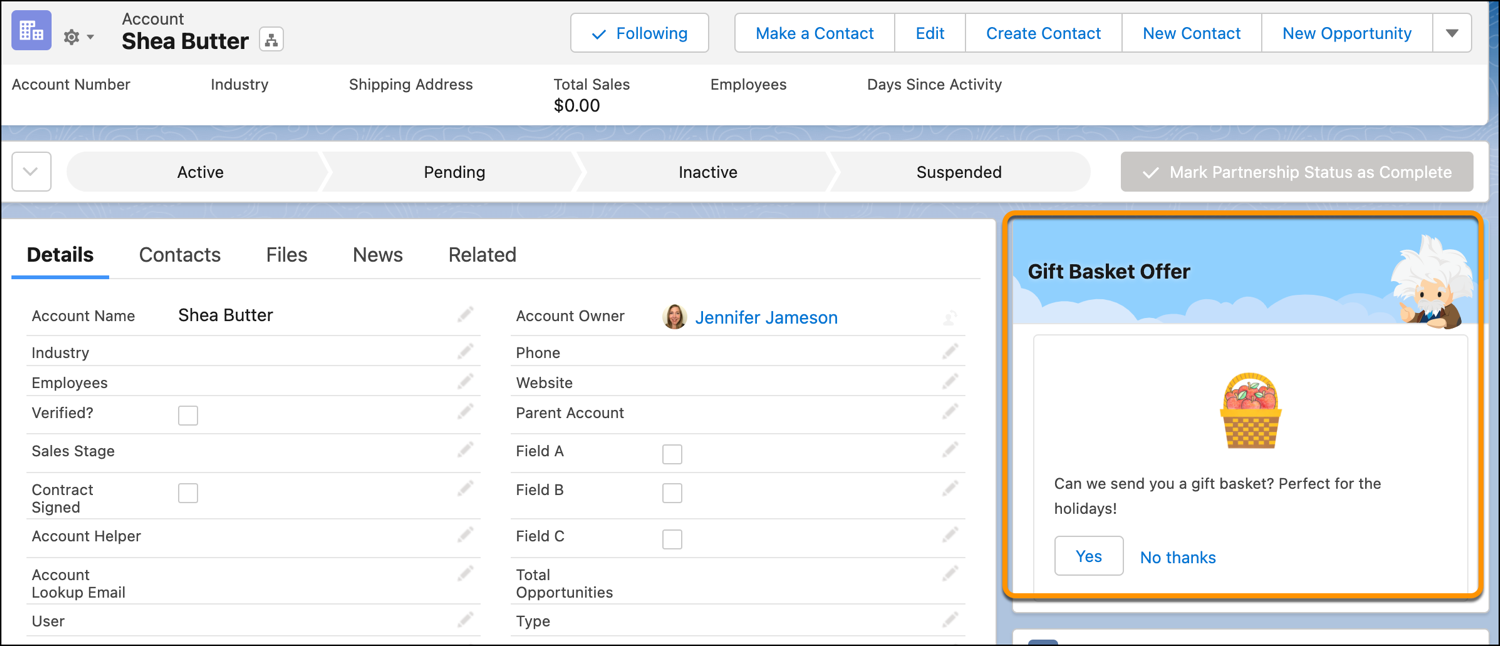
Use a Next Best Action component on the Lightning Account record page to offer a gift basket to each of your accounts. When a customer accepts the offer, a form opens to collect the recipient’s name and shipping address. After the form is submitted, a request email is sent to the shipping department.
### Required Editions
To configure this Einstein Next Best Action recommendation:
1. [Create an action flow](https://help.salesforce.com/s/articleView?id=platform.nba_examples_gift_basket.htm&release=264.0.0&type=5 "Create a flow that collects the recipient’s name and address and sends an email to the shipping department.") that executes when the gift basket recommendation is accepted.
2. [Create a recommendation](https://help.salesforce.com/s/articleView?id=platform.nba_examples_gift_basket.htm&release=264.0.0&type=5 "Create a recommendation that specifies how to present the gift basket offer.") that specifies how to present the gift basket offer.
3. [Create a recommendation strategy flow](https://help.salesforce.com/s/articleView?id=platform.nba_examples_gift_basket.htm&release=264.0.0&type=5 "The recommendation strategy flow determines when and how the recommendation is presented.") that determines when and how the recommendation is presented.
4. [Add a Next Best Action component](https://help.salesforce.com/s/articleView?id=platform.nba_examples_gift_basket.htm&release=264.0.0&type=5 "Display the Next Best Action recommendation on the Account record page.") that displays the recommendation on the Account record page and executes the strategy.
## Create an Action Flow
Create a flow that collects the recipient’s name and address and sends an email to the shipping department.
1. From Setup, in the Quick Find box, enter Flows, select **Flows**, and then click **New Flow**.
2. Select **Start From Scratch** and then click **Next**.
3. Select the **Screen** flow type and then click **Create**.
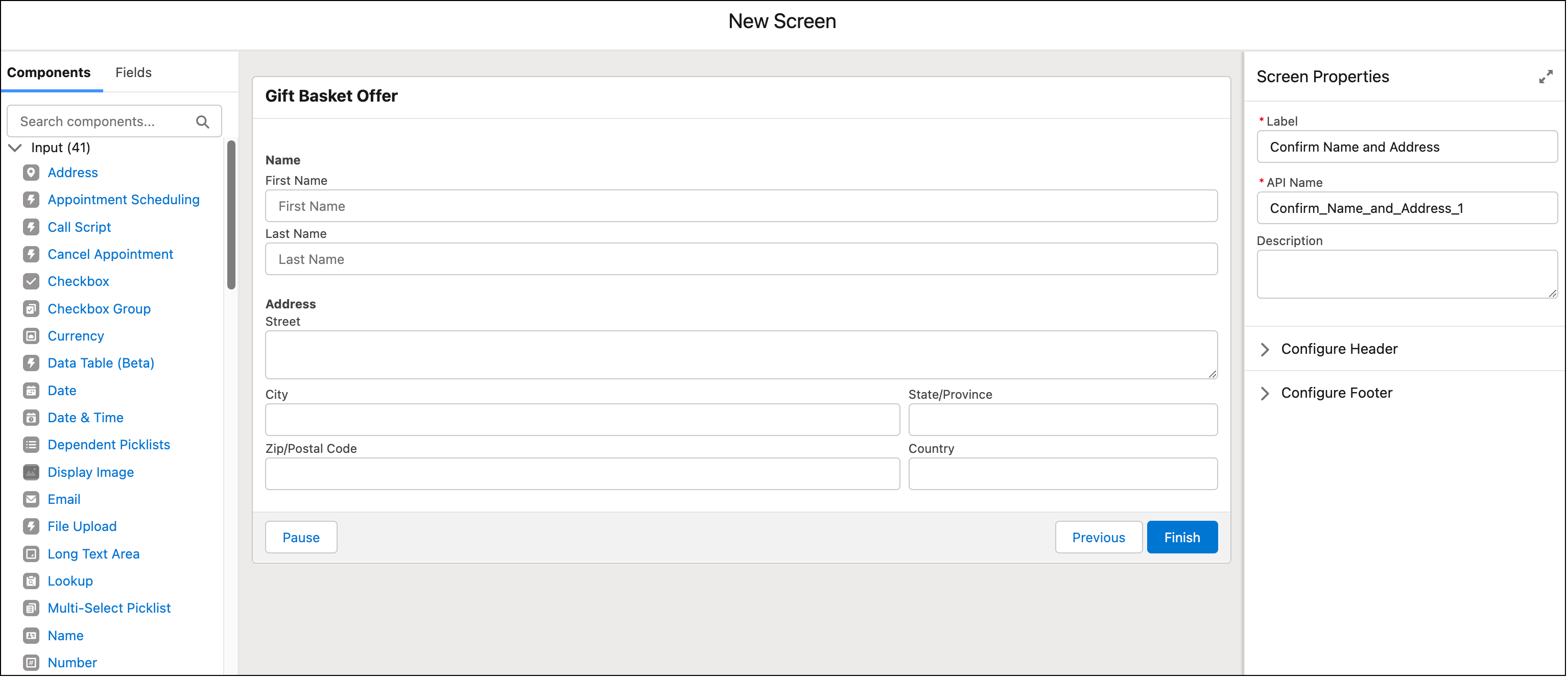
4. To collect the recipient’s name and address, add a Screen element to the flow.
1. Enter a label and API name.
2. Drag the **Name** and **Address** components to the canvas and assign an API name to each.
3. Click **Done**.
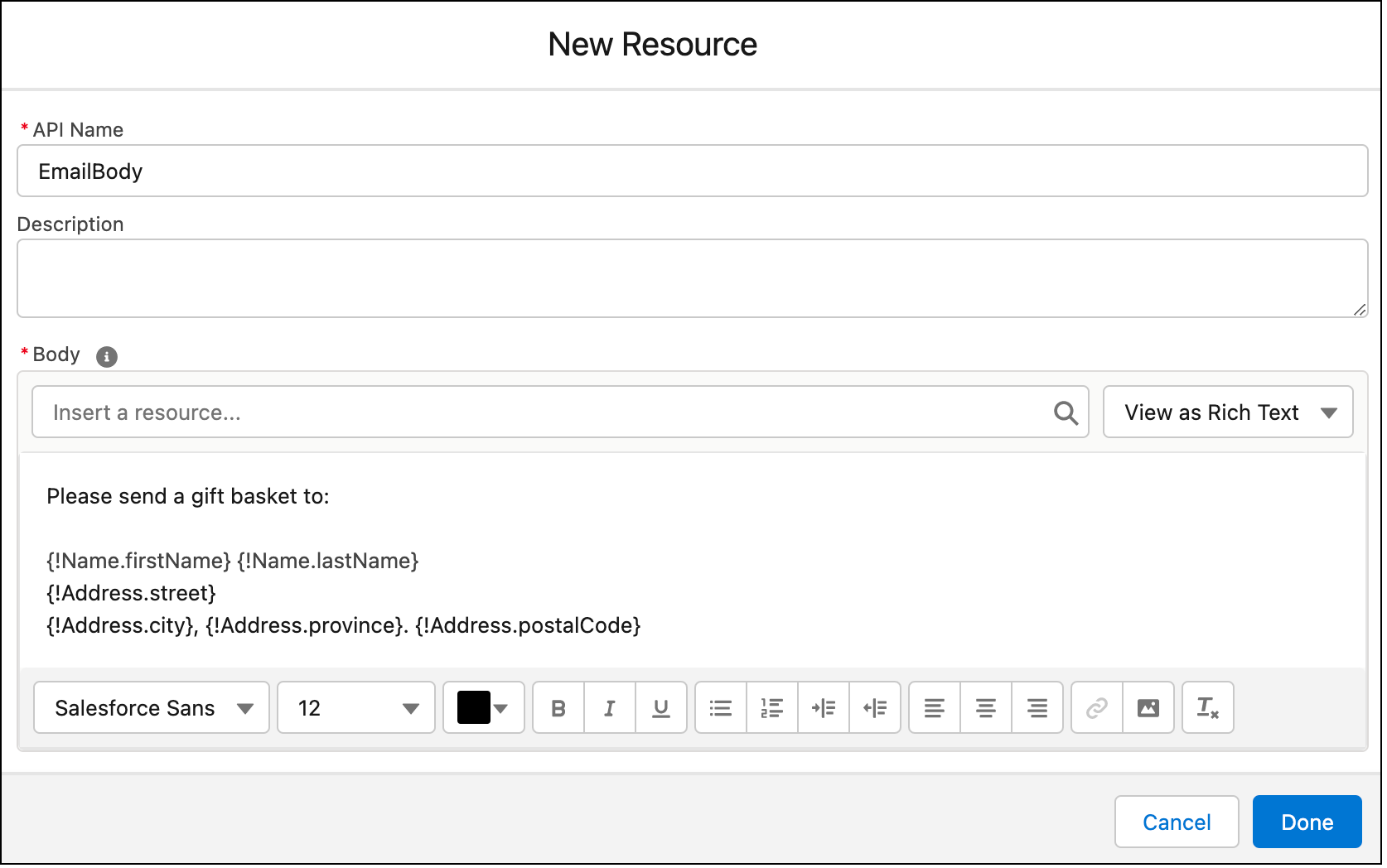
5. To create the text of the email message to send to the shipping department, click **New Resource** in the Flow Builder Toolbox. If the toolbox isn’t visible, toggle the toolbox icon in the upper left corner of the Flow Builder canvas.
1. Add a Text Template resource type.
2. Enter EmailBody as the API name.
3. In the Body area, enter the email text, inserting the name and address resources.
4. Click **Done**.
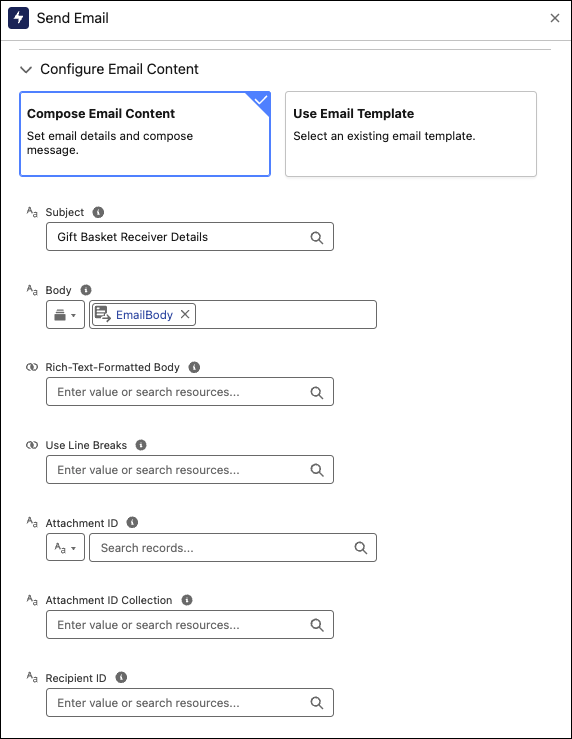
6. To create a task for the shipping department, click  below the Screen element and add an Action element to the flow.
1. In the Action dropdown list, enter Send Email and select the **Send Email** action.
2. Enter a label and API name.
3. For Recipient Address List, add the email address of the shipping department.
4. Click **Compose Email Content**.
5. For Subject, enter the text.
6. For Body, select **Search Resources** from the dropdown and then search for and click **EmailBody**.
7. For the Rich-Text-Formatted Body value, click **True**.
8. Set any other values as needed.
7. Save the flow and name it Gift Basket Offer.
8. Activate the flow.
9. To return to the Flows page, click **Back**.
## Create a Recommendation Record
Create a recommendation that specifies how to present the gift basket offer.
1. From the App Launcher (), in the Quick Find box, enter Recommendations, and select **Recommendations**.
2. Click **New**.
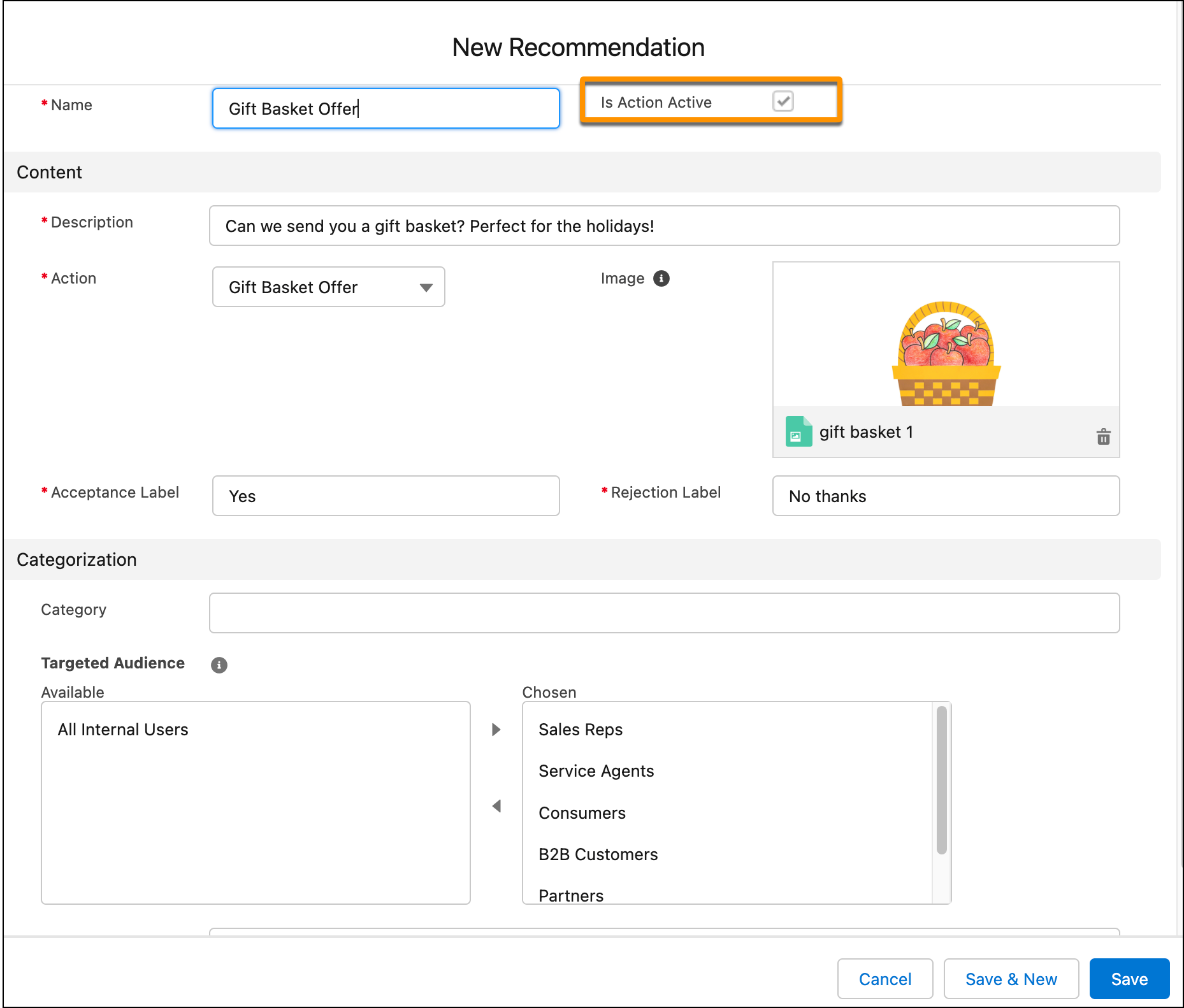
3. Enter a name and description for the recommendation.
The description appears in the Next Best Action component on the Lightning record page.
4. For **Action**, select the action flow that you created.
5. To add an image (optional), click **Upload Image** and follow the instructions.
For best results, use a 1000 px x 380 px image at 72 dpi or one with a similar ratio.
6. Enter text for the acceptance and rejection buttons.
7. Select the target audiences for the recommendation.
8. Click **Save**.
The Is Action Active checkbox is automatically selected, which makes the recommendation available to Einstein Next Best Action.
## Create a Recommendation Strategy Flow
The recommendation strategy flow determines when and how the recommendation is presented.
1. From Setup, in the Quick Find box, enter Flows, select **Flows**, and then click **New Flow**.
2. Select **Use a Template** and then click **Next**.
3. Select the **Recommendation Strategy** flow type and then click **Create**.
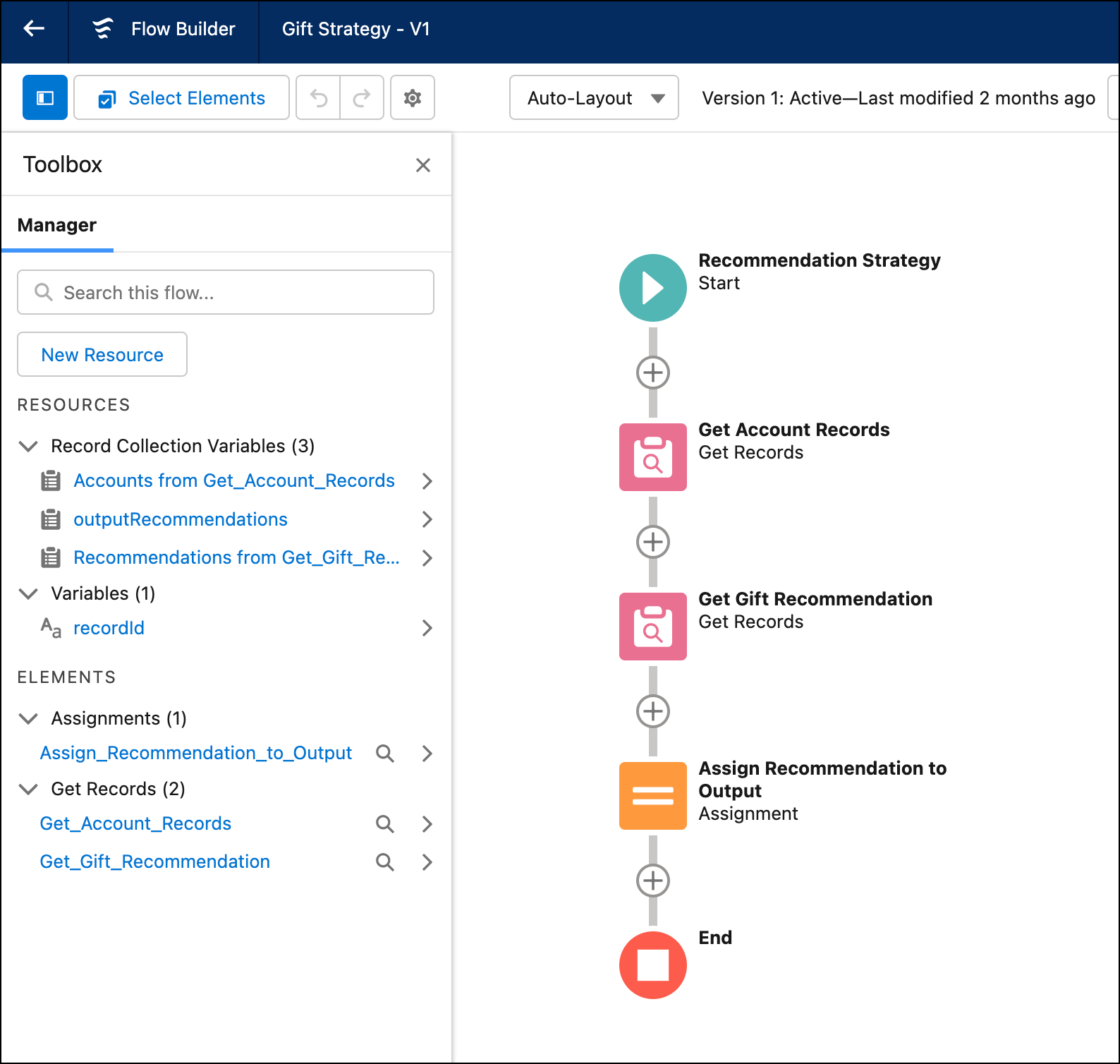
4. To specify which records to use for the recommendation, add a Get Records element to the flow.
1. Enter a label and API name.
2. Select the **Account** object.
3. In the Filter section, add the condition Id equals recordId.
4. Select the options to store all records and all fields.
5. Click **Done**.
5. To load possible recommendations into the strategy, add a Get Records element.
1. Enter the label Get Gift Recommendation and the API name. Get\_Gift\_Recommendation.
2. Select the **Recommendation** object.
3. In the Filter section, add the condition Name contains Gift Basket.
4. Select the options to store all records and all fields.
5. Click **Done**.
In Flow Builder, you define which recommendations are displayed by making sure that they’re in the outputRecommendations collection variable at the end of the strategy flow. The next step uses the Assignment element to add the recommendations to outputRecommendations. To learn how to use the Limit Repetition element to assign the outputRecommendation variable while also limiting the number of times that the user sees the recommendation, see [Create Recommendations Based on Customer Satisfaction Scores](https://help.salesforce.com/s/articleView?id=platform.nba_examples_csat.htm&release=264.0.0&type=5 "Use Einstein Next Best Action to tailor recommendations based on customer satisfaction scores. For example, offer a service contract discount to customers with low satisfaction or a new product preview to those with high satisfaction. Drive retention and upsell with targeted offers.").
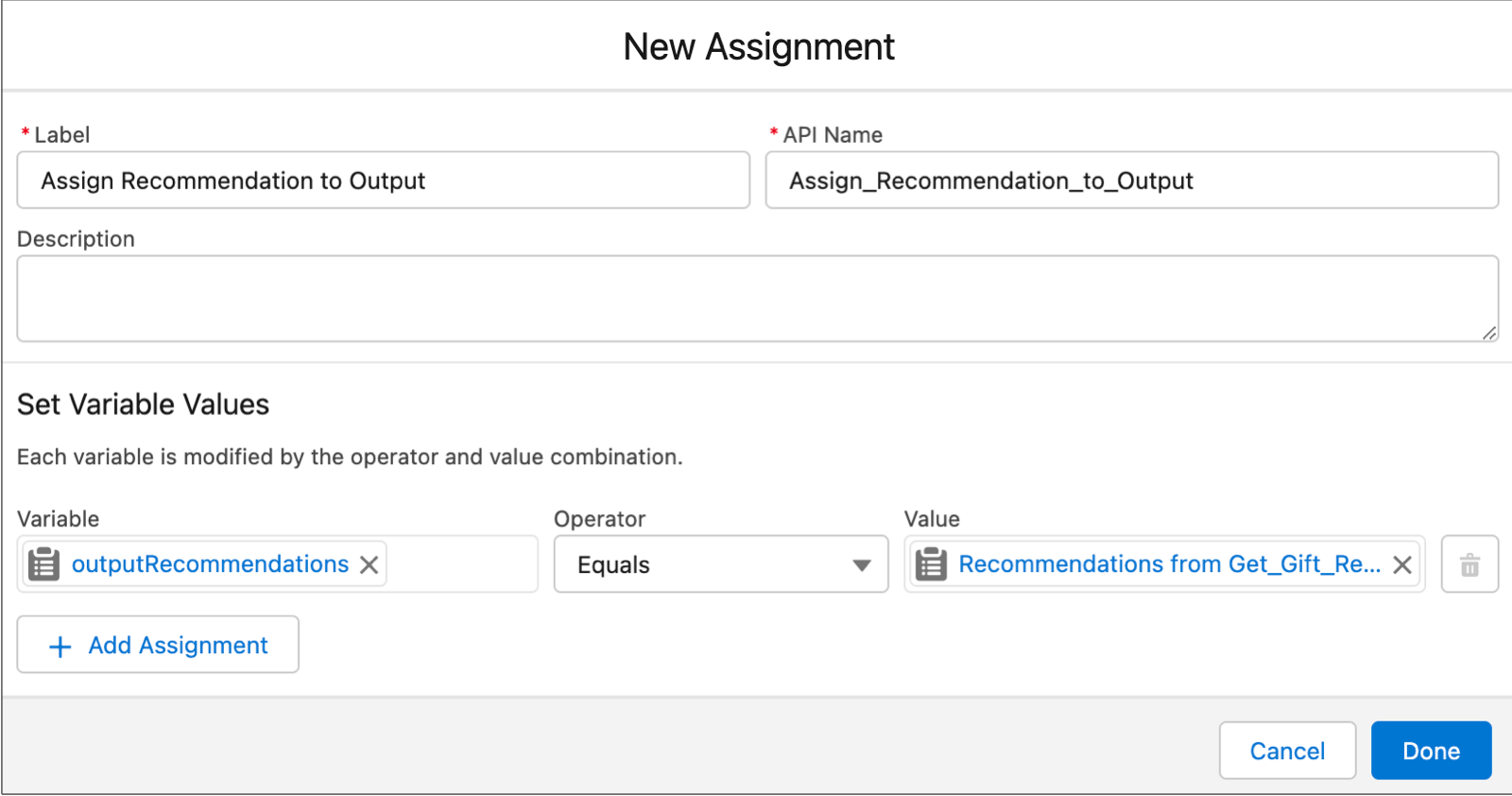
6. To move the recommendation output out of this flow so it becomes available to Einstein Next Best Action, click **+** below the Recommendation Assignment element and add an Assignment element.
1. Enter a label and API name.
2. For Variable, select **outputRecommendations**.
3. For Operator, select **Equals**.
4. For Value, select **Recommendations from Get Gift Recommendation**.
5. Click **Done**.
7. Save the flow and name it Gift Strategy.
8. Activate the flow.
9. To return to the Flows page, click **Back**.
## Display the Next Best Action Recommendation
Display the Next Best Action recommendation on the Account record page.
1. Open an Account record page.
2. Click the Setup icon (), and select **Edit Page**.
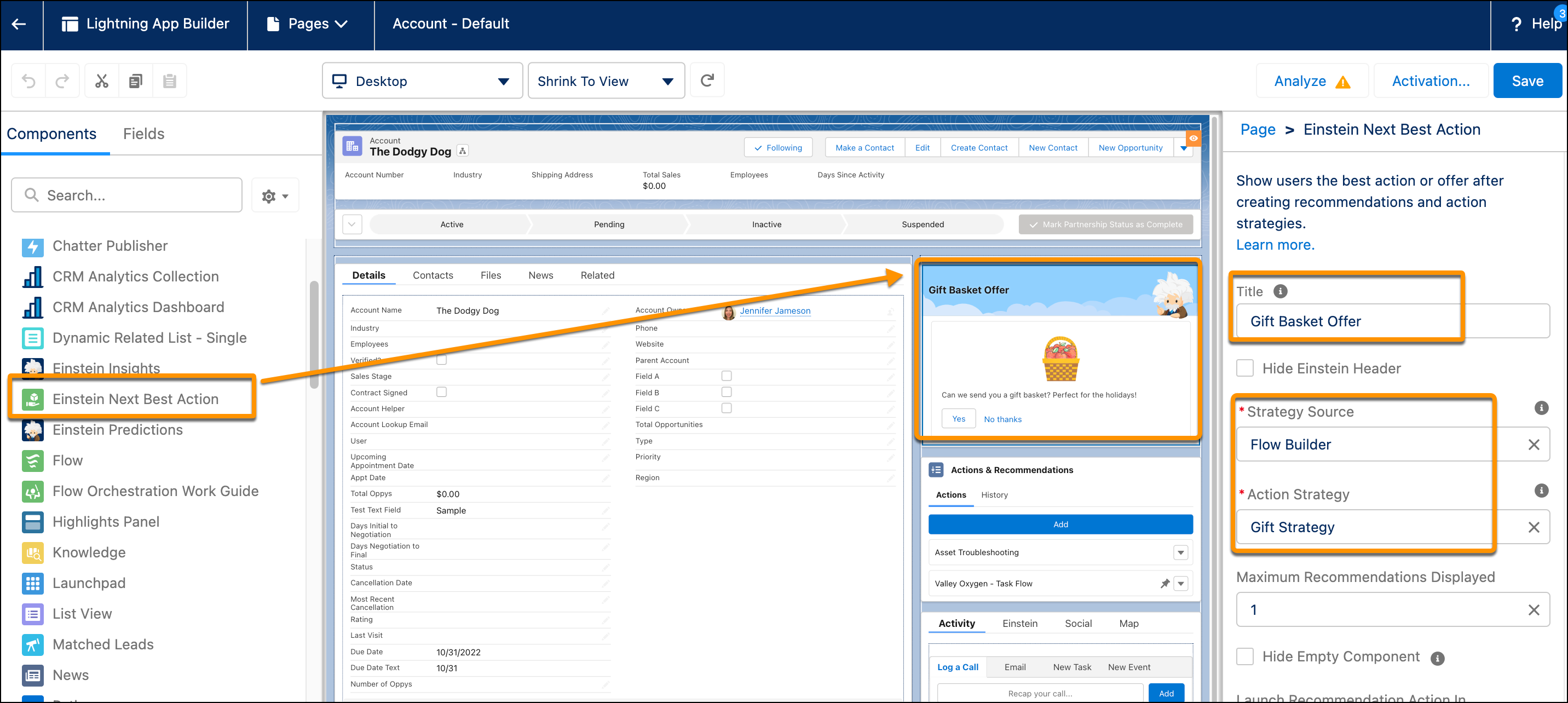
3. Drag the Einstein Next Best Action component to the desired location on the page layout.
4. Add Gift Basket Offer as the component title.
5. For Strategy Source, select **Flow Builder** and then select the name of the recommendation strategy.
6. Save your changes.
7. Return to the Account record and refresh the page.
The recommendation is displayed. If the account rep clicks **Yes**, a form opens with entries for name and address. Completing the form generates an email request for the shipping department to fulfill the order.