---
schema_version: "1"
id: b4f9fdbee4eaae9bccd8e0dfdc77392f83091d0ff22dbff331686c53ac99b28c
title: Use Customer Satisfaction to Drive Recommendations
collection: admin
version: current
locale: en-us
portal_url: https://docs.salesforce.com/admin/current/en-us/platform/264-0-0/nba_examples_csat.md
canonical_url: https://help.salesforce.com/s/articleView?id=platform.nba_examples_csat.htm&release=264.0.0&type=5
source_site: help.salesforce.com
content_type: documentation
content_hash: 422bd8fc063237485f2e38f59a7747a333b1104a7a4f5286e911ea31b421cacd
description: Use Einstein Next Best Action to tailor recommendations based on customer satisfaction scores. For example, offer a service contract discount to customers with low satisfaction or a new product preview to those with high satisfaction. Drive retention and upsell with targeted offers.
products:
- Flow Builder
- Salesforce Platform
release: "264"
---
# Use Customer Satisfaction to Drive Recommendations
Use Einstein Next Best Action to tailor recommendations based on customer satisfaction scores. For example, offer a service contract discount to customers with low satisfaction or a new product preview to those with high satisfaction. Drive retention and upsell with targeted offers.
### Required Editions
Preparation
To record customer satisfaction scores and use them to determine which recommendation to display, this example includes two custom fields. To follow along with the example, set up these two fields before you begin.
Contact object custom field:
- Field Label: CSAT score
- API Label: CSAT\_score
- Field type: Number (length 2, decimal places 0)
Recommendation object custom field:
- Field Label: Category
- API Label: category\_c
- Field type: Text (length 18)
To set up these Next Best Action recommendations:
1. [Create action flows](https://help.salesforce.com/s/articleView?id=platform.nba_examples_csat.htm&release=264.0.0&type=5 "Create two simple screen flows, one to execute an action for the low CSAT recommendation and one to execute an action for the high CSAT recommendation.") for the high and low CSAT recommendations.
2. [Create recommendation records](https://help.salesforce.com/s/articleView?id=platform.nba_examples_csat.htm&release=264.0.0&type=5 "Create records for the low CSAT and high CSAT recommendations.") for the high and low CSAT recommendations.
3. [Create a strategy flow](https://help.salesforce.com/s/articleView?id=platform.nba_examples_csat.htm&release=264.0.0&type=5 "The recommendation strategy flow specifies when and how the recommendations are presented on the Contact record page.") that determines how the recommendations are presented to the customer service or account rep.
4. On the Contact record page, [add the Next Best Strategy component](https://help.salesforce.com/s/articleView?id=platform.nba_examples_csat.htm&release=264.0.0&type=5 "To make the recommendations available to the customer service or account rep, display the Next Best Action component on the Contact record page.") that displays the recommendations and executes the strategy.
## Create Action Flows
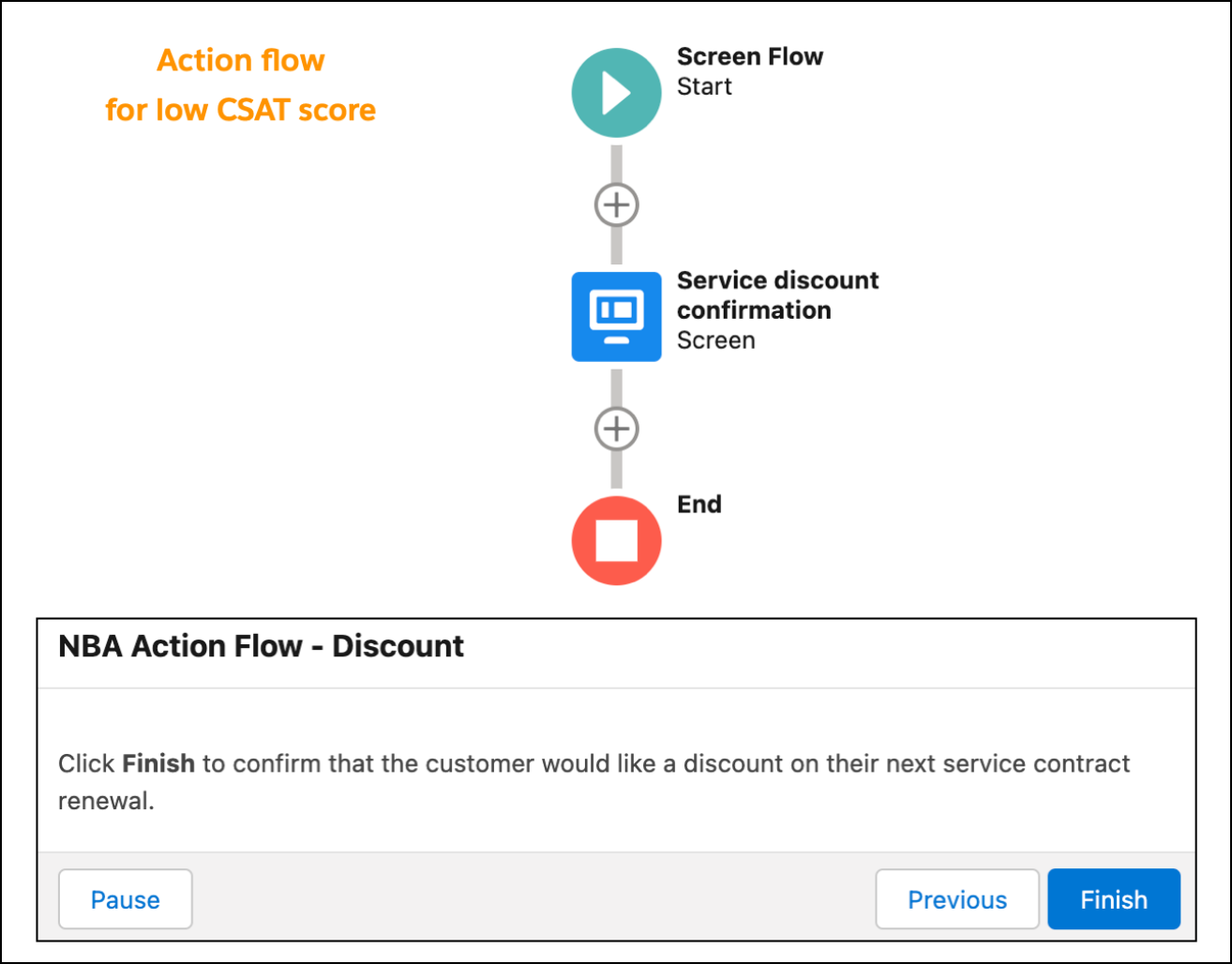
Create two simple screen flows, one to execute an action for the low CSAT recommendation and one to execute an action for the high CSAT recommendation.
This example keeps things simple by displaying a different text message for each recommendation but not incorporating other automation. For a real-world application, you can add additional elements to implement the service contract discount and the new product preview. For an example of using an action flow to send an email request, see [Offer a Gift Basket to Each of Your Accounts](https://help.salesforce.com/s/articleView?id=platform.nba_examples_gift_basket.htm&release=264.0.0&type=5 "Use a Next Best Action component on the Lightning Account record page to offer a gift basket to each of your accounts. When a customer accepts the offer, a form opens to collect the recipient’s name and shipping address. After the form is submitted, a request email is sent to the shipping department.").
1. From Setup, in the Quick Find box, enter Flows, select **Flows**, and then click **New Flow**.
2. Select **Start from Scratch**, and then click **Next**.
3. Select **Screen Flow**, and then click **Create**.
4. Add a Screen element to the flow.
5. Enter a label and API name.
6. Drag a **Display Text** component to the canvas.
7. Enter an API name for the component.
8. Add text for the high or low CSAT recommendation.
9. Click **Done**
10. Save the flow and name it CSAT Action Flow - Discount or CSAT Action Flow - Product Preview.
11. Activate the flow.
12. Repeat these steps to create the second action flow.
## Create Recommendation Records
Create records for the low CSAT and high CSAT recommendations.
1. From the App Launcher (), in the Quick Find box, enter Recommendations, and select **Recommendations**.
2. Click **New**.
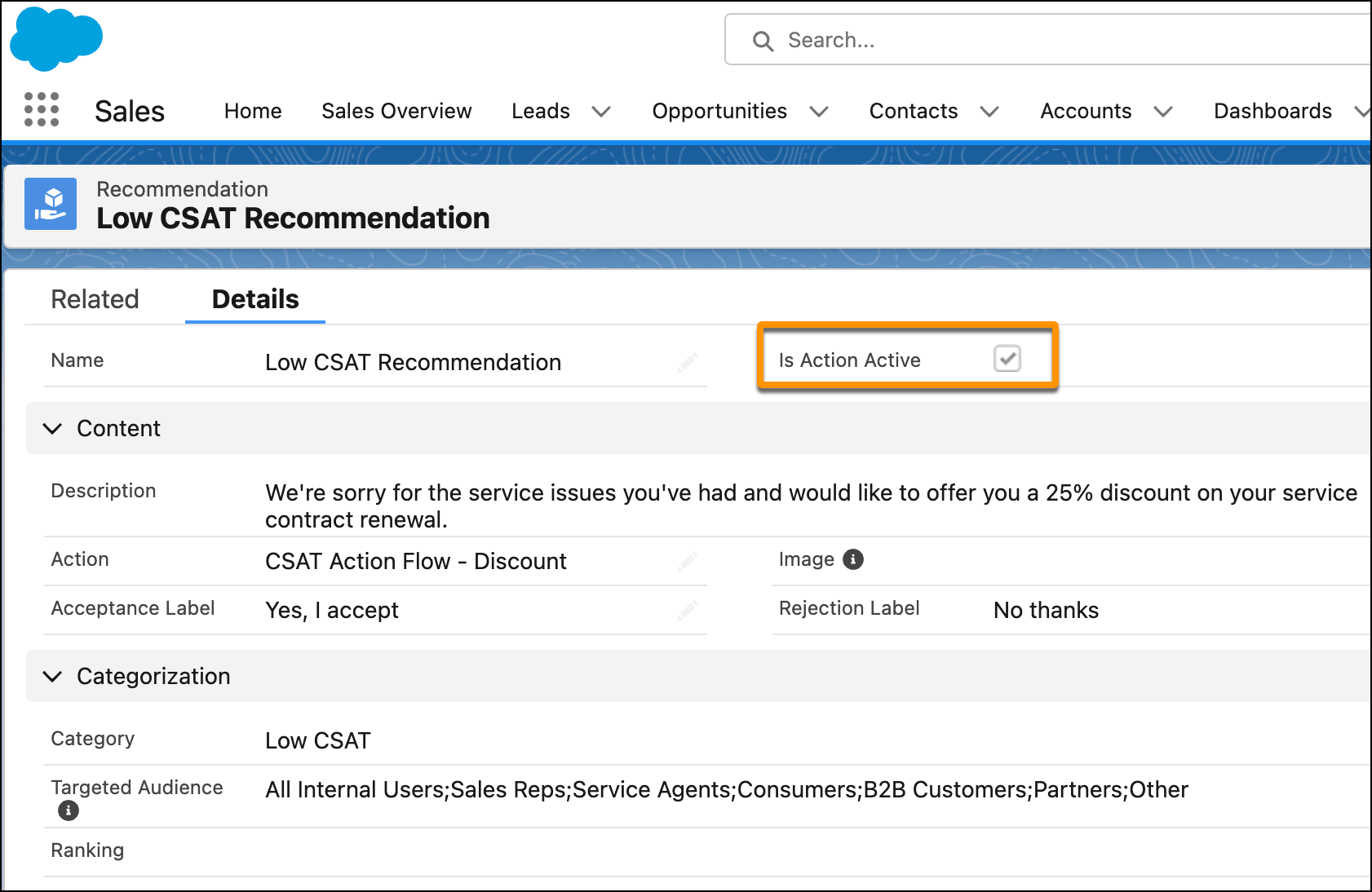
3. Enter a name and description for the recommendation.
The description appears in the Next Best Action component on the Lightning record page. Make the description specific to the particular recommendation (low CSAT or high CSAT).
4. For **Action**, select the low CSAT or high CSAT action flow.
5. To add an image (optional), click **Upload Image** and follow the instructions.
For best results, use a 1000 px x 380 px image at 72 dpi or one with a similar ratio.
6. Enter text for the acceptance and rejection buttons.
7. Select the target audiences for the recommendation.
8. Click **Save**.
The Is Action Active checkbox is automatically selected, which makes the recommendation available to Einstein Next Best Action.
9. Repeat these steps to create the second recommendation record.
## Create a Recommendation Strategy Flow
The recommendation strategy flow specifies when and how the recommendations are presented on the Contact record page.
1. From Setup, in the Quick Find box, enter Flows, select **Flows**, and then click **New Flow**.
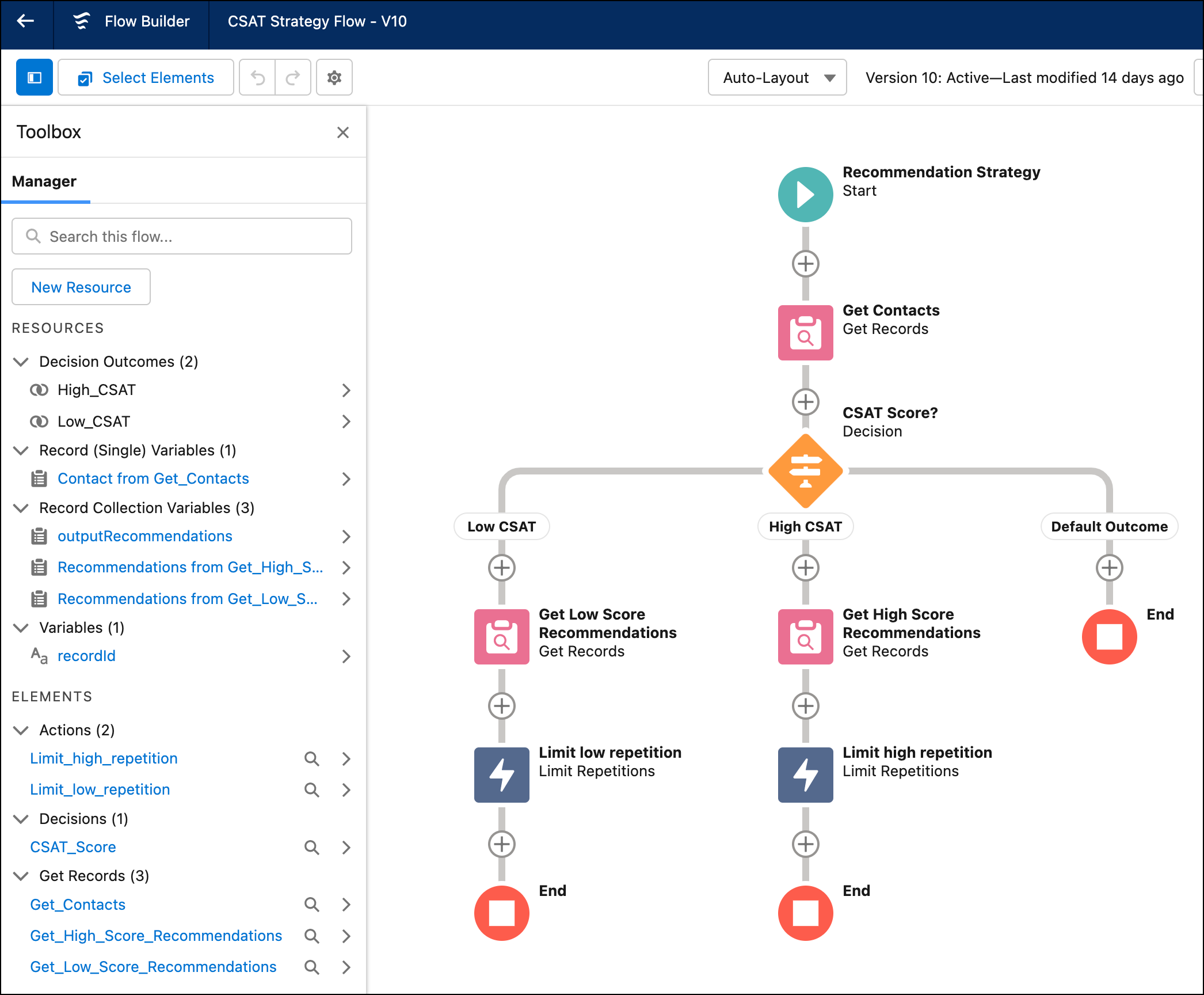
2. In the quick search box, enter recommend, and select **Recommendation Strategy**.
3. Load the Contact records that you want to use for your recommendations by adding a Get Records element to the flow.
1. Enter a label and API name.
2. For Data Source, select **Salesforce Object**.
3. Select the **Contact** object.
4. In the Filter section, add the condition Contact ID equals recordId.
5. Select the options to store all records and all fields.
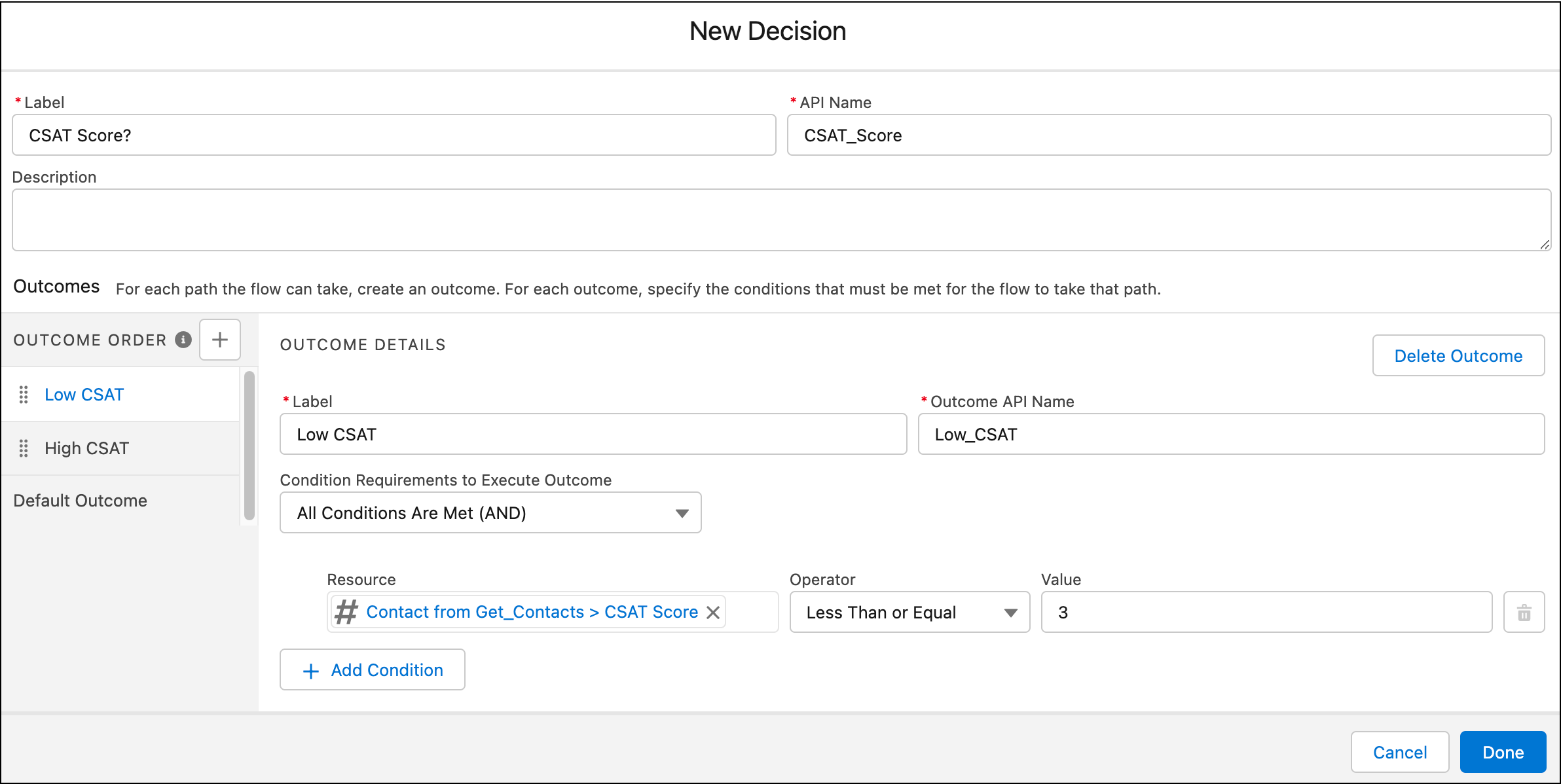
4. To accommodate different recommendations based on the customer’s CSAT score, add a Decision element after the Get Records element.
1. Enter the label CSAT Score? and the API name CSAT\_score.
2. For Select Decision Logic, select **Define Manually (Default)**.
3. Use the first outcome to define a Low CSAT outcome with the condition that the value of the CSAT Score field on the Contact record is 3 or lower.
4. Add an outcome, and configure it for a High CSAT outcome with the condition that the value of the CSAT Score field on the Contact record is 4 or higher.
5. Keep the Default outcome as-is for customers who don’t have a CSAT score.
6. Click **Done**.
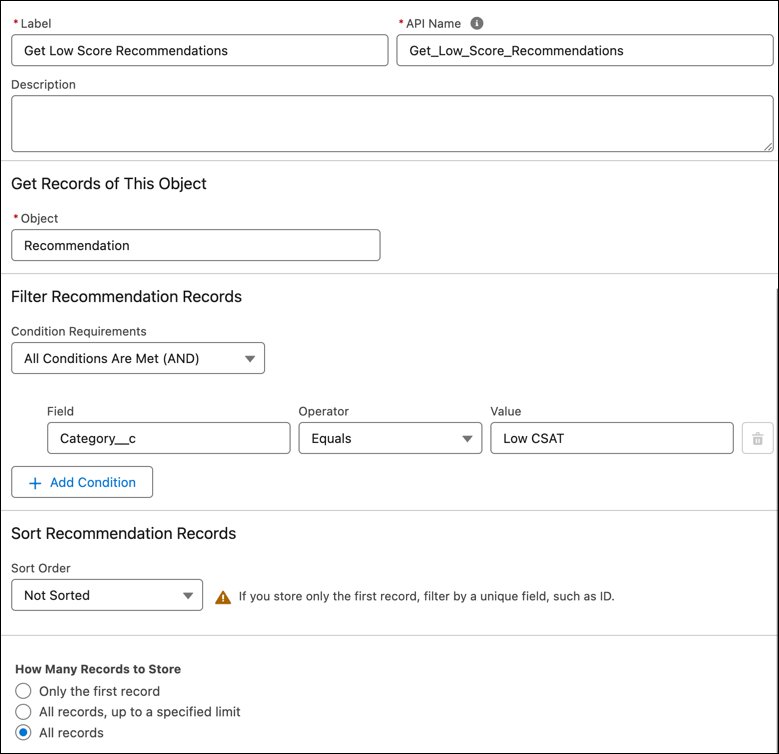
5. Bring in the appropriate recommendation for the low and high CSAT conditions by adding a Get Records element for each.
1. Enter a label and API name.
2. Select the **Recommendation** object.
3. In the Filter section, add the appropriate condition by selecting the API name of the Category field in the Recommendation object and specifying the low or high condition.
4. Select the options to store all records and all fields.
5. Click **Done**.
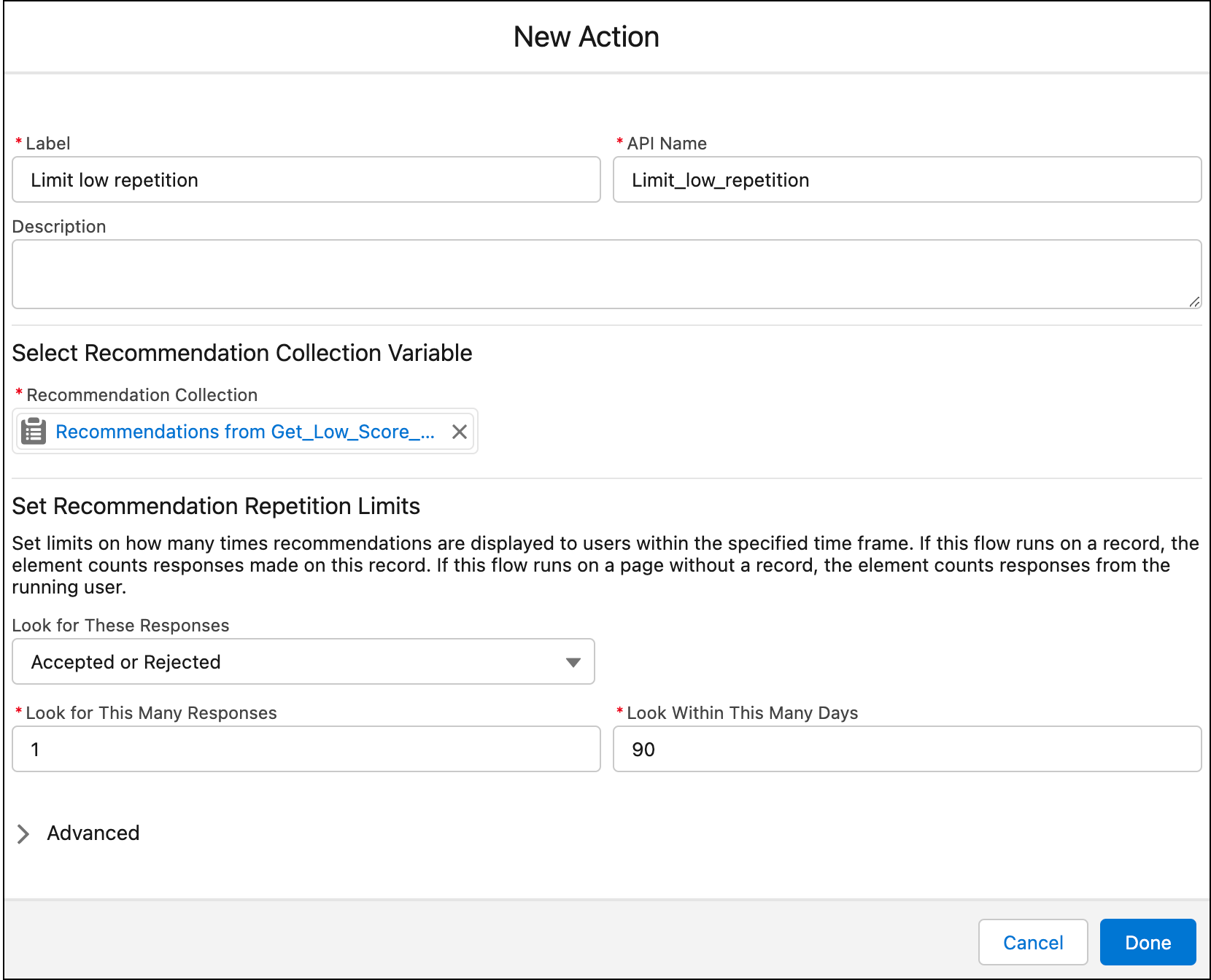
6. To show the recommendation only one time for each Account record and to assign the flow output, add a Limit Repetition element for the low and high score paths.
1. Enter a label and API name.
2. For Recommendation Collection, select the low score or high score recommendation.
3. For Look for These Records, select **Accepted or Rejected**.
4. For Look for This Many Messages, keep the default setting of 1.
5. To make the output from this path available to Next Best Action, click **Advanced**, select **Manually assign variables**, and then select **outputRecommendations**.
6. Click **Done**.
7. Save the flow and name it CSAT Strategy Flow.
8. Activate the flow.
9. To return to the Flows page, click **Back**.
## Display the Next Best Action Recommendations
To make the recommendations available to the customer service or account rep, display the Next Best Action component on the Contact record page.
1. Open a Contact record page.
2. Click the Setup icon (), and select **Edit Page**.
3. Drag the Einstein Next Best Action component to the desired location on the page layout.
4. Add CSAT Recommendations as the component title.
5. For Strategy Source, select **Flow Builder** and then select the name of the recommendation strategy.
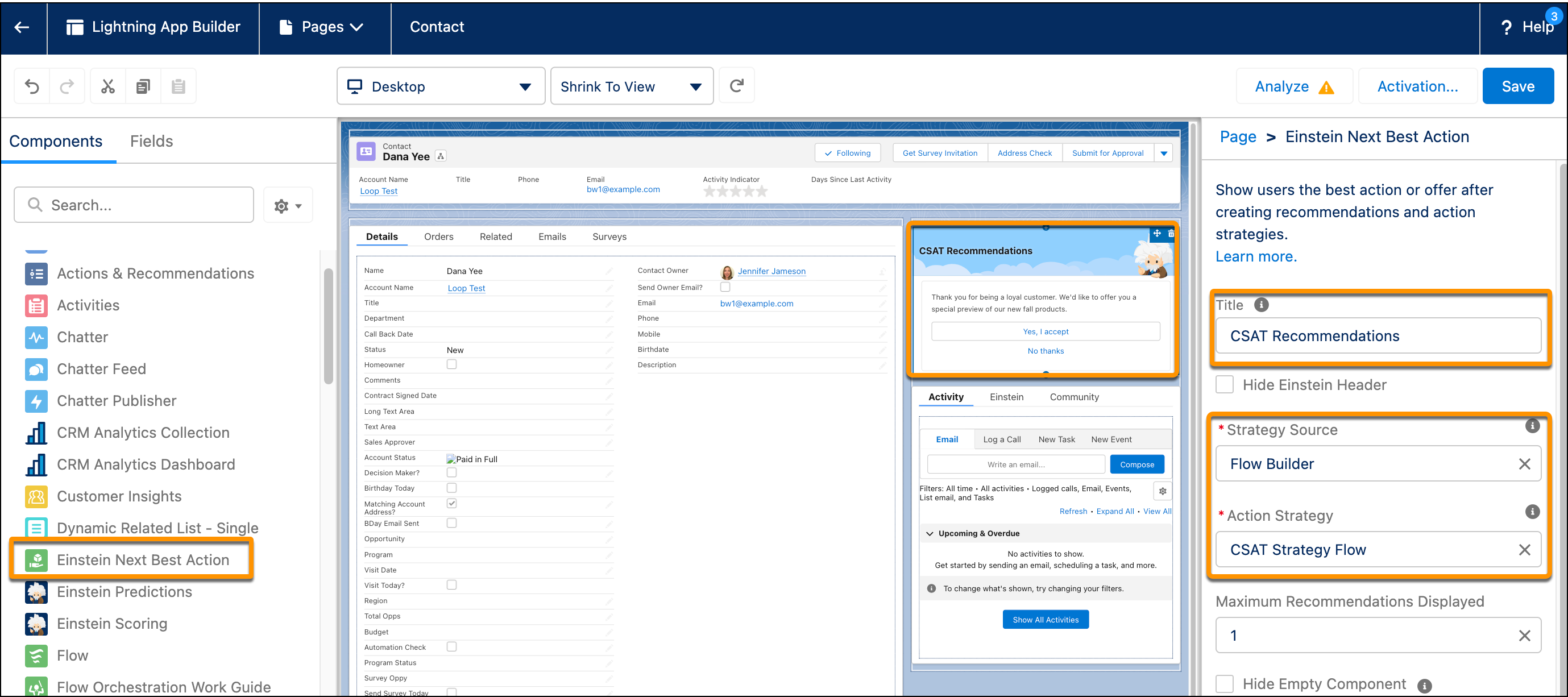
6. Save your changes.
7. Return to the Contact record and refresh the page.
Based on the contact’s CSAT score, the correct recommendation is displayed. When the customer accepts the offer and the account rep clicks **Yes I Accept**, a form opens with the appropriate confirmation message.