---
schema_version: "1"
id: 01a9c23264e5b7a280f251059dea0721fe1bf666f02088d29ce156fd0ec86a12
title: Skip the Service Territory Selection Screen
collection: admin
version: current
locale: en-us
portal_url: https://docs.salesforce.com/admin/current/en-us/platform/264-0-0/ls_skip_service_territory_selection_screen.md
canonical_url: https://help.salesforce.com/s/articleView?id=platform.ls_skip_service_territory_selection_screen.htm&release=264.0.0&type=5
source_site: help.salesforce.com
content_type: documentation
content_hash: b8fc3c7e50269390c89daac583df1f8f7c13dea0ad15408a26f581a6fc50bb47
description: If you want to use virtual territories or set a default service territory, modify the flow to set a default service territory and skip the Select Service Territory screen. You can skip the service territory selection screen for the Outbound New Appointment, Inbound New Appointment, and Inbound New Guest Appointment flows and their instances. You can also show the service territory address on the review screen if necessary.
products:
- Scheduler
- Salesforce Platform
release: "264"
---
# Skip the Service Territory Selection Screen
If you want to use virtual territories or set a default service territory, modify the flow to set a default service territory and skip the Select Service Territory screen. You can skip the service territory selection screen for the Outbound New Appointment, Inbound New Appointment, and Inbound New Guest Appointment flows and their instances. You can also show the service territory address on the review screen if necessary.
### Required Editions
Available in: Lightning Experience.
Available in: Enterprise and Unlimited Editions
User Permissions Needed
To open, edit, or create a flow in Flow Builder:
Manage Flow
To run a flow:
Run Flows
To modify page layouts for Service Appointment:
View Setup and Configuration
Customize Application
1. Click the **Service Territories** tab.
2. Click the service territory record that you want to set as default.
3. Copy the Salesforce ID of the service territory.
4. From Setup, in the Quick Find box, enter Flows, and then select **Flows**.
5. Click the flow for which you want to skip the service territory selection screen.
6. Perform a step:
- If you’re modifying the Outbound New Appointment flow, double-click **Set Initial Values**.
- If you’re modifying the Inbound New Appointment or the Inbound New Guest Appointment flow, double-click **Initial Assignment**.
7. In the value column of the Service Territory > Territory ID variable, paste the copied Salesforce ID of the service territory.
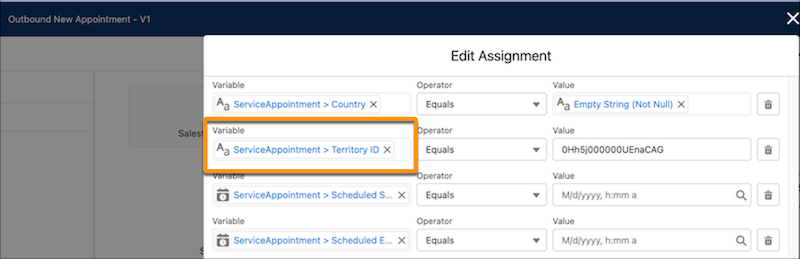
8. If you want the review appointment screen to show address details, enter values for the address-related fields: Street, City, State/Province, Zip/Postal Code, and Country.
9. Click **Done**.
10. Delete these flow connectors:
- The connector from the Appointment Type Screen component to the Set Location Stage component.
- The connector from the Location Screen component to the Resource Decision component.
11. Add a connector from the Appointment Type Screen component to the Resource Decision component.
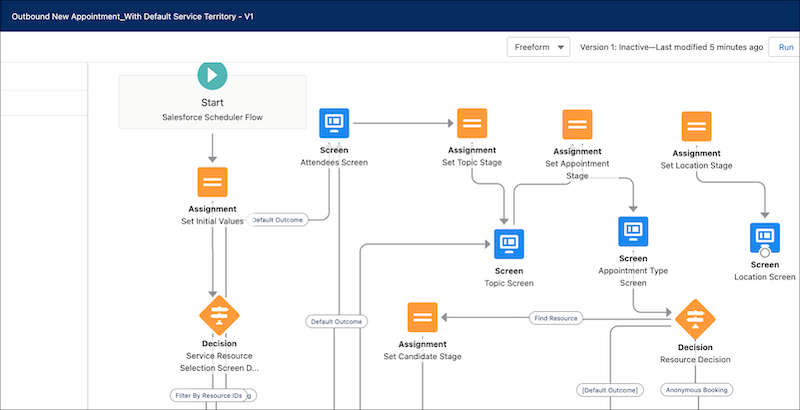
12. Delete the Set Location Stage and Location Screen components and the connector between them.
13. Click **Save As**.
14. Enter values for Flow Label and Flow API Name, and then save your changes.
An instance of the flow is created.
15. Activate the flow.
16. Add the flow instance to the page layout from which the flow is to be used.
For more information, see [Set Up a Custom Outbound Flow (Optional)](https://help.salesforce.com/s/articleView?id=platform.ls_create_custom_action.htm&release=264.0.0&type=5 "To give your users access to a customized version of the Outbound New Appointment flow or Outbound Modify Appointment standard flow template, create an action and add it to the relevant page layout.").
As Salesforce Scheduler checks internal and external calendars in real time to determine time slots, test your setup's performance after you make these changes.