---
schema_version: "1"
id: e6f9afb83f75b8b704139bc6bdd845c21baa94a6689aabec9dc21279562f361d
title: Scan the QR Code on Your Mobile Device
collection: admin
version: current
locale: en-us
portal_url: https://docs.salesforce.com/admin/current/en-us/platform/264-0-0/ls_scan_lobby_qr_code_on_your_mobile.md
canonical_url: https://help.salesforce.com/s/articleView?id=platform.ls_scan_lobby_qr_code_on_your_mobile.htm&release=264.0.0&type=5
source_site: help.salesforce.com
content_type: documentation
content_hash: 519095118cf56362187eea34125bdceeb54bb43bce6043e46346ab6434bc51cf
description: Customers can scan QR codes to add themselves to the waitlist.
products:
- Scheduler
- Salesforce Platform
release: "264"
---
# Scan the QR Code on Your Mobile Device
Customers can scan QR codes to add themselves to the waitlist.
### Required Editions
Available in: Lightning Experience.
Available in: Enterprise and Unlimited Editions
User Permissions Needed
To scan QR codes:
Guest User or Authenticated User
1. Scan the QR code.
You’re redirected to the self-check-in page.
2. Fill in the details and click **Book Appointment**.
You're added to the waitlist and you'll receive a confirmation email. Guest users can click the link in the email to open the waitlist.
3. In the waitlist, track your position in the queue. Authenticated users can also view their appointment in My Appointments.
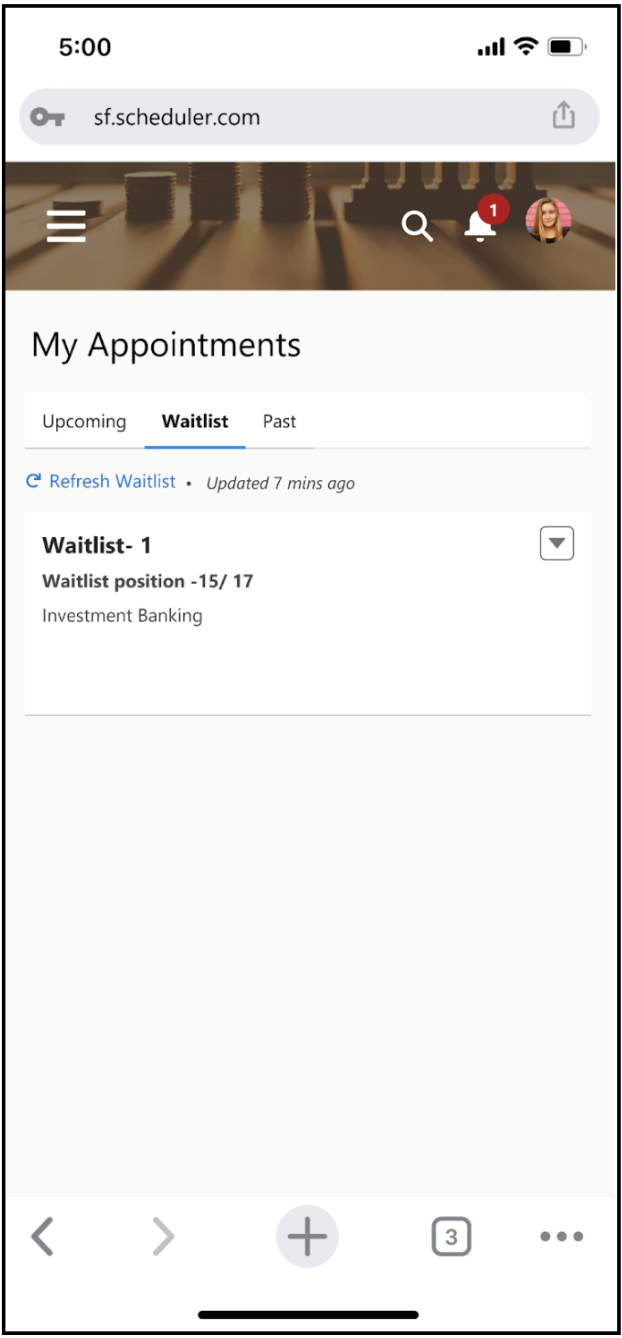
4. To get the latest status and monitor your position in the waitlist, refresh the page.
5. If you can’t attend the appointment on time, move yourself to the end of the waitlist or cancel the appointment.