---
schema_version: "1"
id: 95131dd7d5aeca6907b36a9793cb13769572d9d1f4f7ab7112cab235c0dde7f6
title: Grant Guest Users Required User and Object Permissions
collection: admin
version: current
locale: en-us
portal_url: https://docs.salesforce.com/admin/current/en-us/platform/264-0-0/ls_guest_user_permissions.md
canonical_url: https://help.salesforce.com/s/articleView?id=platform.ls_guest_user_permissions.htm&release=264.0.0&type=5
source_site: help.salesforce.com
content_type: documentation
content_hash: 4518c4a941a8ae657fee3e9f9666d544014a90877a0e55cfeb624e5356668290
description: To schedule appointments, guest users need certain user and object permissions. You can grant these permissions to guest users through the guest user profile for your Experience Cloud site.
products:
- Scheduler
- Salesforce Platform
release: "264"
---
# Grant Guest Users Required User and Object Permissions
To schedule appointments, guest users need certain user and object permissions. You can grant these permissions to guest users through the guest user profile for your Experience Cloud site.
### Required Editions
Available in: Lightning Experience.
Available in: Enterprise and Unlimited Editions
User Permissions Needed
To create and edit events on Salesforce calendar:
Edit Events on service resources

Note When you create an Experience Cloud site, Salesforce automatically creates a guest user profile for it.
1. From Setup, in the Quick Find box, enter Digital Experiences, and then select **All Sites**.
2. On the All Sites page, click **Builder** next to the site for which you want to configure guest access.
3. In Experience Builder, click .
4. Under Settings, select the **General** tab, and then under Public Access, select **Guest users can see and interact with the site without logging in**.
5. Under Guest User Profile, click the guest user profile link.
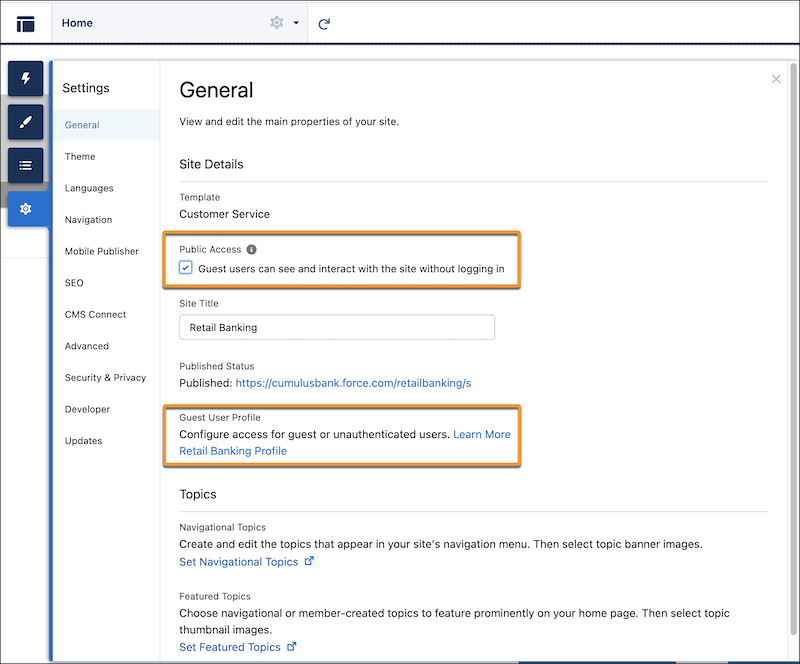
The profile page opens.
6. Click **Edit**.
7. Give flow access:
1. Click **Edit** for Enabled Flow Access.
2. From the Available Flows list, select the flows for which you want to give the guest user profile access.
To show a flow in the Available Flows list, ensure that the System Administrator profile is enabled for the flow. For more information, see [Manage Access to Salesforce Scheduler Flows](https://help.salesforce.com/s/articleView?id=platform.ls_provide_flow_access_to_profiles.htm&release=264.0.0&type=5 "Use flow access to limit users who can edit and run flows, with the Salesforce Scheduler Flow process type, based on their user records, profiles, or permission sets. To apply more granular security to an individual flow, override the default behavior of the flow. And then grant access to the flow based on user profiles or permission sets.").
3. To move the selected flows to the Enabled Flows list, click **Add**.
4. Save your changes.
8. Under Standard Object Permissions, assign these access levels for the objects:
| Object | Permissions |
| --- | --- |
| Appointment Category | Read |
| Appointment Topic Time Slots | Read |
| Engagement Channel Type | Read |
| Leads | Read, Create |
| Operating Hours | Read |
| Service Appointments | Read, Create |
| Service Appointment Attendee | Read, Create, Edit |
| Service Resources | Read |
| Service Territories | Read |
| Shift | Read |
| Work Types | Read |
| Work Type Groups | Read |
9. Save your changes.
10. On the profile page, under Field-Level Security, click **View** next to Time Slot, and then click **Edit**.
11. Give read access to Maximum Appointments and Work Type Group, and then save your changes.
12. Set the guest user’s default timezone:
1. On the profile page, click **View Users**.
2. Click **Edit** next to the guest user.
3. Under Locale Settings, set the time zone, and then save your changes.

Note For guest users, the date and time formats configured under Salesforce's locale settings are overridden by the browser’s locale settings.
#### See Also
- [Add Inbound Flows to an Experience Cloud Site](https://help.salesforce.com/s/articleView?id=platform.ls_publish_inbound_flow.htm&release=264.0.0&type=5 "Add one or more inbound flows to your site to let your authenticated site users schedule, modify, or cancel appointments.")
- [Give Secure Access to Unauthenticated Users with the Guest User Profile](https://help.salesforce.com//articleView?id=networks_public_access.htm&language=en_US)
- [How Does Flow Security Work?](https://help.salesforce.com/s/articleView?id=platform.flow_distribute_security.htm&type=5&language=en_US)