---
schema_version: "1"
id: 75bb70b028a4c31795f02d39788992df90523477c967611ed6cf6dc24dde16ce
title: Enable Automatic Service Resource Assignment
collection: admin
version: current
locale: en-us
portal_url: https://docs.salesforce.com/admin/current/en-us/platform/264-0-0/ls_enable_auto_resource_assignment.md
canonical_url: https://help.salesforce.com/s/articleView?id=platform.ls_enable_auto_resource_assignment.htm&release=264.0.0&type=5
source_site: help.salesforce.com
content_type: documentation
content_hash: f7befcaa220250ba15e374caf411c9bd2509559f87adf213c91191641c502a72
description: When automatic service resource assignment is enabled, your customers or guest users can schedule appointments without selecting a service resource. Based on the selected time slot, an appropriate service resource is automatically assigned to the appointment. You can also configure your flows to give users the option to manually select a service resource or have one assigned automatically.
products:
- Scheduler
- Salesforce Platform
release: "264"
---
# Enable Automatic Service Resource Assignment
When automatic service resource assignment is enabled, your customers or guest users can schedule appointments without selecting a service resource. Based on the selected time slot, an appropriate service resource is automatically assigned to the appointment. You can also configure your flows to give users the option to manually select a service resource or have one assigned automatically.
### Required Editions
Available in: Lightning Experience.
Available in: Enterprise and Unlimited Editions
User Permissions Needed
To open, edit, or create a flow in Flow Builder:
Manage Flow
To run a flow:
Run Flows
Before you enable automatic service resource assignment, update field-level security for the Anonymous Booking field on the Service Appointment object to give users edit access.
Use the new Anonymous Booking and Service Resource Booking attributes on your flow screen component. These attributes are available on the Select Service Resource, Service Resource Availability, and Select Service Resource and Service Appointment Time flow screen components. By default, Anonymous Booking is set to False and Service Resource Booking to True, and there’s no change in your flow's behavior.

Note In Salesforce Scheduler with the Asset Management add-on, a service resource can be a technician (person) or an asset (meeting room or equipment). Create and assign different sets of skills for technicians and assets to prevent assets from being automatically assigned as service resources. For example, mammograms can be a skill for an X-ray technician. And 3D mammogram can be a skill for an X-ray machine.
1. From Setup, in the Quick Find box, enter Flows, and then select **Flows**.
2. Create a flow or edit an existing flow that you want to enable automatic resource assignment for.

Note Before you can edit a flow, you must deactivate it.
3. On the Manager tab, under Variables, edit the allowAnonymousBooking and allowResourceBooking variables and set their values according to your requirement.
- To skip the resource selection page and automatically assign service resources, set allowAnonymousBooking to {!$GlobalConstant.True} and allowResourceBooking to {!$GlobalConstant.False}.
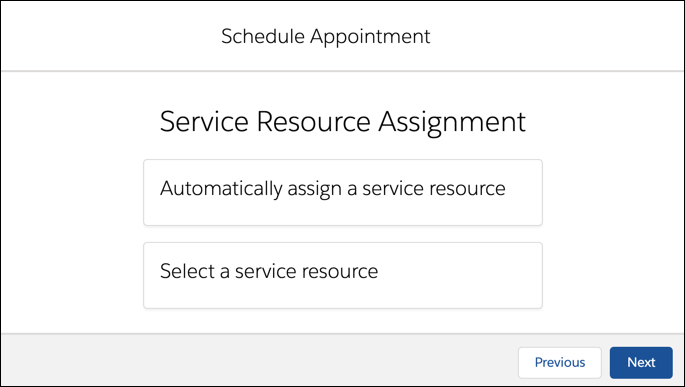
- To give users the option to choose between automatic resource assignment and manual resource selection, set both allowAnonymousBooking and allowResourceBooking to {!$GlobalConstant.True}.
4. Save your changes, and then activate the flow.
#### See Also
- [Grant Users Edit Access to the Anonymous Booking Field](https://help.salesforce.com/s/articleView?id=platform.ls_field_level_security_anonymous_booking.htm&release=264.0.0&type=5 "Before you enable automatic service resource assignment, give users edit access to the Anonymous Booking field on the Service Appointment object.")