---
schema_version: "1"
id: ed05e8f68daf73224fd3accee58c2905e0081e89804eb06207ae979165a3f3ac
title: Interpret Data Cloud-Triggered Flow Test Results
collection: admin
version: current
locale: en-us
portal_url: https://docs.salesforce.com/admin/current/en-us/platform/264-0-0/flow_test_interpret_results.md
canonical_url: https://help.salesforce.com/s/articleView?id=platform.flow_test_interpret_results.htm&release=264.0.0&type=5
source_site: help.salesforce.com
content_type: documentation
content_hash: 12325610849421b14b1a260d167240a58342f185a25e06af75502c3c1aac0e45
description: Review the results of a Data Cloud-triggered flow test and troubleshoot failed assertions.
products:
- Flow Builder
- Salesforce Platform
release: "264"
---
# Interpret Data Cloud-Triggered Flow Test Results
Review the results of a Data Cloud-triggered flow test and troubleshoot failed assertions.
### Required Editions
To open, edit, create, activate or
deactivate a flow using all flow types, elements, and features available in Flow
Builder, including Einstein and Agentforce for Flow:
Manage Flow
Review the results after testing a flow to make sure that the flow operates as intended under various conditions.
This procedure applies to Data Cloud-triggered flows. To interpret test scenario results for a record-triggered or autolaunched flow instead, see [Interpret Test Scenario Results in Test Mode (Beta)](https://help.salesforce.com/s/articleView?id=platform.automate_flow_test_mode_interpret_results.htm&release=264.0.0&type=5 "In Test Mode, review the Details and Expected Results tabs after you run a test scenario, and troubleshoot failed assertions.").
1. To view the test run details, click , and select **Run Test and View Details**.
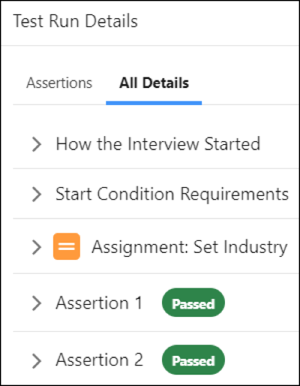
The All Details tab under Test Run Details shows the results for the entire test run. If a flow fails, [troubleshoot the flow errors](https://help.salesforce.com/s/articleView?id=platform.flow_troubleshoot_email.htm&language=en_US).
2. To check the status of the flow tests, under Test Run Details, select the **Assertions** tab, and then expand each assertion.
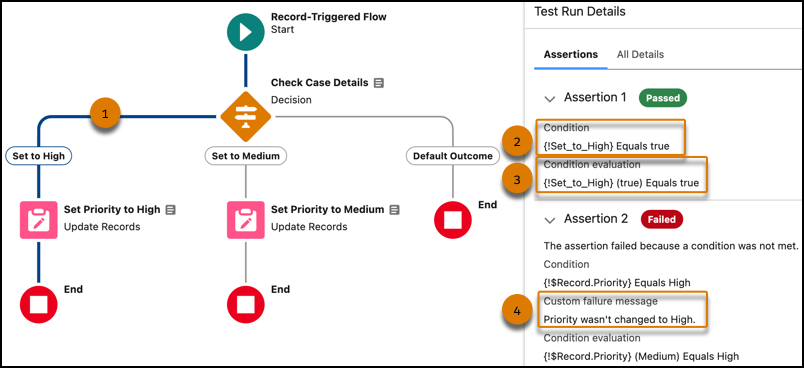
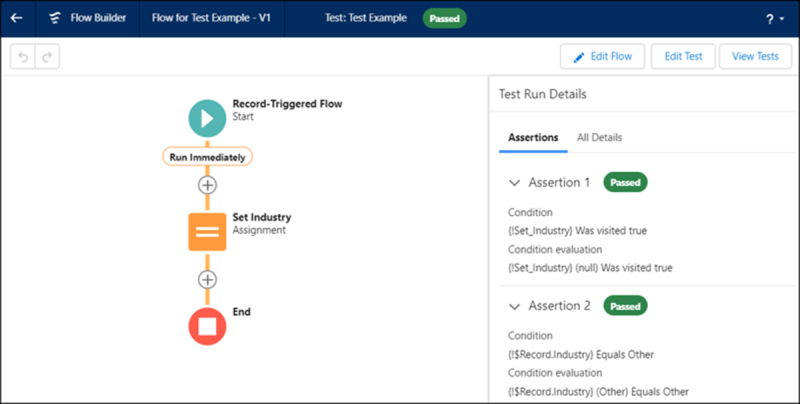
The Flow Builder highlights the path of the test run (1). In the Test Run Details, each assertion tells you what condition it was looking for (2), the values that those conditions were checked against (in parentheses) (3), and the custom error message that you defined for that assertion (4).
3. Interpret the failed flow test.
1. Check the condition and the condition evaluation of the failed assertion.
In this example, for the Set Priority to High element, the failed assertion looks for the value of the field $Record’s Priority to be set to High.
2. To change the value, click the element, and then click **Edit Element**.
In this example, to fix the failed assertion, edit the Set Priority to High element and change the priority for $Record to High.
3. Save the flow, and then run the flow test that failed.

Example
This test verifies the flow when an object is updated.
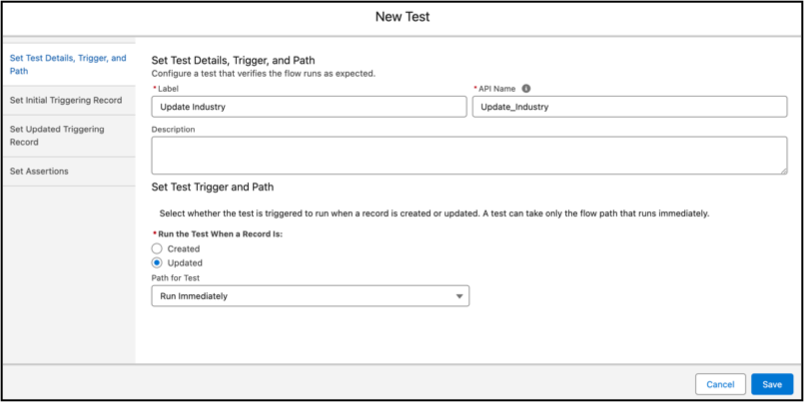
The test includes fields to set the initial and updated values for the triggering record, which is the same record that triggers the flow to run. The test creates a copy of the record to use only for the test. The record isn’t saved to the database.
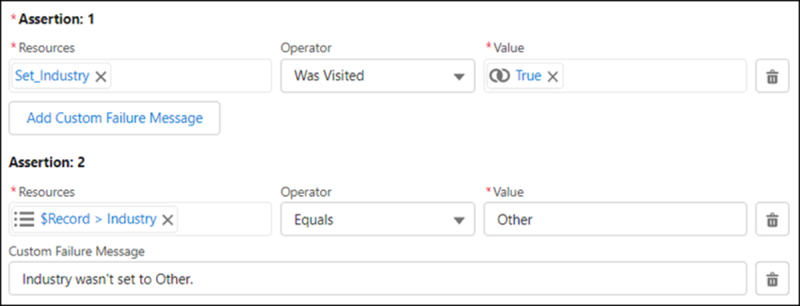
The test evaluates each assertion to verify that the flow runs as expected. A test can evaluate only whether a flow element ran and whether flow resource values are set as expected. The test evaluates the flow based on the existing data in your Salesforce database and customizations, such as rules and restrictions.
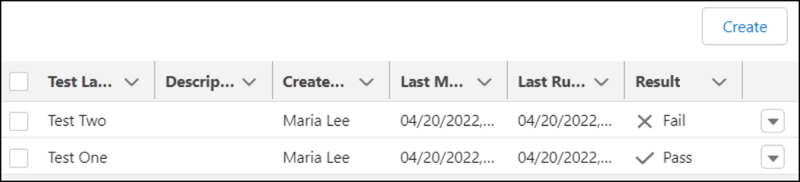
When a flow includes tests, the Tests list view shows all tests for a flow and associated test results.
After a test is run, Test Run Details shows how each assertion was evaluated. If a condition evaluates to false, the assertion and test fail. If all assertions pass, the test passes.
The All Details tab shows the results for the entire test run. Assertions are evaluated at the end of the test run.
When you’re confident that your flow is working as expected, activate the version that you tested and distribute the flow.