---
schema_version: "1"
id: ac69dc7264e7b3fbb861337a982b7f5bfa035cf11616dcb25a8ad300c86a0b71
title: Debug a Screen Flow with the Debugger Example
collection: admin
version: current
locale: en-us
portal_url: https://docs.salesforce.com/admin/current/en-us/platform/264-0-0/flow_test_debug_example_screen_flow.md
canonical_url: https://help.salesforce.com/s/articleView?id=platform.flow_test_debug_example_screen_flow.htm&release=264.0.0&type=5
source_site: help.salesforce.com
content_type: documentation
content_hash: 880030056894cc7004d6bd1cf877da94423fc31c5ca4f639378bde612cd12ec3
description: Debug a screen flow that uses information collected from the screen flow's registration form to create a contact for each policy beneficiary.
release: "264"
---
# Debug a Screen Flow with the Debugger Example
Debug a screen flow that uses information collected from the screen flow's registration form to create a contact for each policy beneficiary.
### Required Editions
To open, edit, create, activate or
deactivate a flow using all flow types, elements, and features available in Flow
Builder, including Einstein and Agentforce for Flow:
Manage Flow

Note You don't need to be an admin to have the Manage Flow permission. Ask your admin to add it to your profile or permission set.
Before activating and distributing your screen flow, you debug the flow to troubleshoot any flow failure.
1. Create or open the [Registration forms](https://help.salesforce.com/s/articleView?id=platform.flow_ref_elements_screencmp_loop_through_user_input_in_the_repeater_screen_component.htm&release=264.0.0&type=5 "Add a Repeater component to a screen, and then add child components to represent a beneficiary on a policy. Loop over the output Repeater component to create a collection of Contact records. Then use the collection to create a Contact record for each beneficiary.") screen flow in Flow Builder.
2. Click **Debug**.
3. Set the debug options.
If you want to run the flow as another user, ensure that **Let admins debug flows as other users** is enabled in **Process Automation Settings**.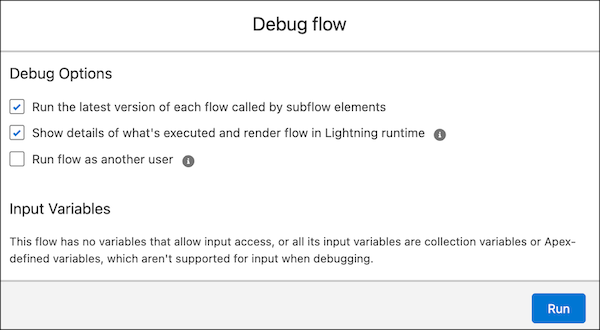
4. Click **Run**.
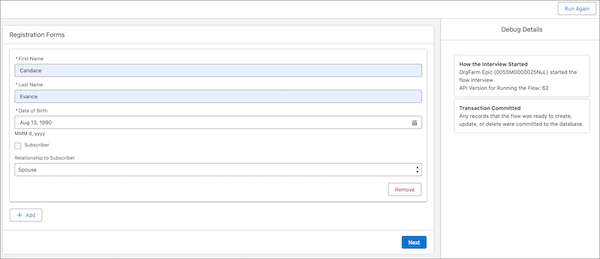
The debug details for the run appear in a panel on the right.
5. Enter the values in the required fields.
6. Click **Next**.
7. Review the Debug Details to see the results.
8. (Optional) To restart the flow by using the same or different values for the input variables, click **Change Inputs or Run Again**.
You can’t convert the debug run to a test in the screen flow.