---
schema_version: "1"
id: 5afebc1b5ffc12cdde8132088578efb87a057dfee0b4baf9618425aa4681adf0
title: Test a Data Cloud-Triggered Flow
collection: admin
version: current
locale: en-us
portal_url: https://docs.salesforce.com/admin/current/en-us/platform/264-0-0/flow_test.md
canonical_url: https://help.salesforce.com/s/articleView?id=platform.flow_test.htm&release=264.0.0&type=5
source_site: help.salesforce.com
content_type: documentation
content_hash: 62f3e91f7fa234b83bbabd42c473b39e2499bba4daac45418fece1686df81bc6
description: Create, save, and run automated tests for a Data Cloud-triggered flow. Each time you modify the flow, run the test again to verify its behavior.
products:
- Flow Builder
- Salesforce Platform
release: "264"
---
# Test a Data Cloud-Triggered Flow
Create, save, and run automated tests for a Data Cloud-triggered flow. Each time you modify the flow, run the test again to verify its behavior.
### Required Editions
To open, edit, create, activate or
deactivate a flow using all flow types, elements, and features available in Flow
Builder, including Einstein and Agentforce for Flow:
Manage Flow
We recommend that you test all possible paths through the flow so that you can find errors before they affect your users. For example, if users or inputs don't provide all the data that your flow requires, the flow fails. Add fault connectors to provide paths for users or the flow logic to correct the data so that the flow can finish successfully.
This procedure applies to Data Cloud-triggered flows. For record-triggered or autolaunched flows, see [Testing Your Flow in Test Mode (Beta)](https://help.salesforce.com/s/articleView?id=platform.automate_flow_test_mode.htm&release=264.0.0&type=5 "Use Test Mode to configure, save, and run test scenarios for autolaunched and record-triggered flows. To use automated testing in Test Mode, turn on Scenario Testing Automation and add assertions to evaluate expected results automatically.") instead.
1. Open the Flows list view.
- From the Automation app, select the **Flows** tab.
- From the **Flows** tab in any Lightning app, click the actions menu and select **Open Flow**.
- From Setup, in the Quick Find box, enter Flows, and then select **Flows**.
Note that the Automation app and Flows tab options don't require Setup access.
2. Open the flow version that you want to test.
- From the flow list screen in Setup, click  for the flow that you want to test, select **View Details and Versions**, and then click **Open**.
- From the flow list screen in the Automation or any Lightning app, click the flow's **Related** tab. For the flow version that you want to test, click , and then select **Open Flow**.
3. Click **View Tests**, and then click **Create**.
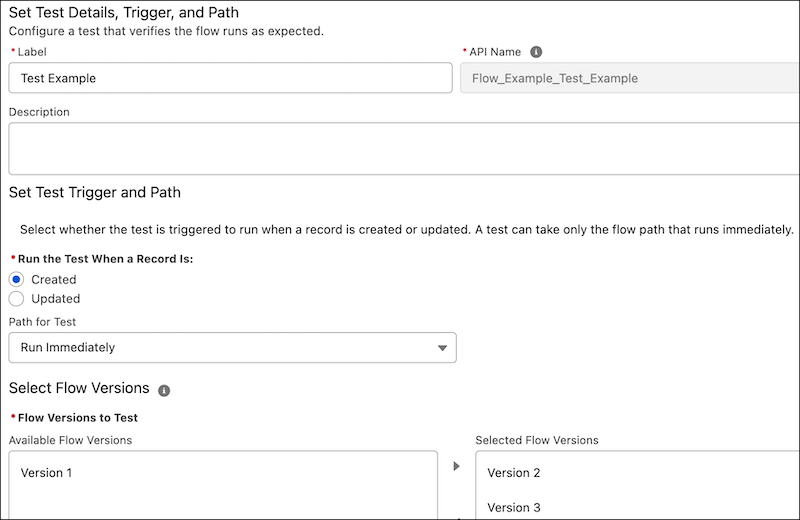
4. In the Set the Test Details, Trigger, and Path window, configure the test.
1. Enter a label, API name, and description for the test.
2. For Run the Test When a Record Is, select **Created** or **Updated**.
3. For Flow Versions to Test, add the flow versions to the Selected Flow Versions column.
The flow test is available for each of the selected flow versions.
5. Click **Set Initial Triggering Record**, and enter the values for the record that initially triggers the test.
6. If an updated record triggers the test to run, click **Set Updated Trigger Record**, and then enter the record values.
7. Click **Set Assertions**, and set conditions and custom failure messages for each assertion.
8. Save your changes, and then click **View Tests**.
The owner of the flow changes to the last person who edits the test.
9. Select the test that you configured, and then click **Run**.
Flow Builder runs the test and shows the result in the Result column.