---
schema_version: "1"
id: 67441852e8776a646e8a3a1536d29e0de5a35f6c2747e12069dd8e47f0f66cde
title: Creating Flow Formulas with Flow Formula Builder
collection: admin
version: current
locale: en-us
portal_url: https://docs.salesforce.com/admin/current/en-us/platform/264-0-0/flow_formula_builder.md
canonical_url: https://help.salesforce.com/s/articleView?id=platform.flow_formula_builder.htm&release=264.0.0&type=5
source_site: help.salesforce.com
content_type: documentation
content_hash: 468766d062b223d8d0e4194e3f6cf07bd095011efece704405e908daa3441540
description: You can use Flow Formula Builder to build an expression in Formula-type resources or in the Collection Filter or Start elements of a record-triggered flow. To build your expression, select from a list of functions and operators. To catch errors as you work, check the formula syntax for each expression.
products:
- Flow Builder
- Salesforce Platform
release: "264"
---
# Creating Flow Formulas with Flow Formula Builder
You can use Flow Formula Builder to build an expression in Formula-type resources or in the Collection Filter or Start elements of a record-triggered flow. To build your expression, select from a list of functions and operators. To catch errors as you work, check the formula syntax for each expression.
### Required Editions
To open, edit, create, activate or
deactivate a flow using all flow types, elements, and features available in Flow
Builder, including Einstein and Agentforce for Flow:
Manage Flow

Note You don't need to be an admin to have the Manage Flow permission. Ask your admin to add it to your profile or permission set.

Example
- Automate a process for records where the closed date changed for US-based accounts that have more than 100 employees.
- Automate a process for new case records for Premier support accounts in North America and Europe that have revenue of over US$1,000,000.
#### See Also
- [_Trailhead_: Flow Builder Logic](https://trailhead.salesforce.com/content/learn/modules/flow-build-logic)
- [Examples of Advanced Formula Fields](https://help.salesforce.com/s/articleView?id=platform.useful_advanced_formulas.htm&language=en_US)
## Create Formulas in the Flow Start Element with Formula Builder
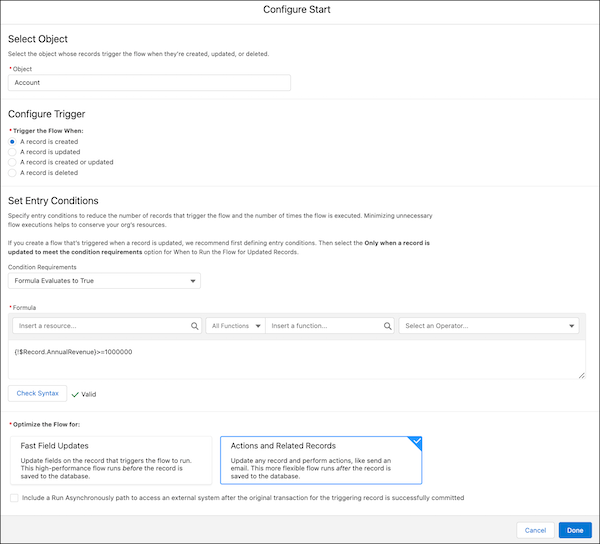
You can use Flow Formula Builder to build an expression in the Start element of a Record-triggered Flow. To build your expression, select from a list of functions and operators. To catch errors as you work, check the formula syntax for each expression.
1. Edit the Start element in a Record-Triggered flow.
2. Select the object with records that trigger the flow.
3. Select when to trigger the flow.
4. In the Set Entry Conditions section, set Condition Requirements to **Formula Evaluates to True**.
5. Insert a resource from the list of Global Variables.
- You can add more than one resource to an expression.
6. Insert a function.
- To see a list of functions, click **Insert a function**.
- To filter functions by category, select the **All Functions** dropdown and choose the category.
7. Select an operator from the dropdown.
8. Complete the expression.
9. After you build each expression, click **Check Syntax**. The formula builder shows one error at a time.
10. Complete the configuration for the Start element.
11. Click **Done**.
12. Save your work.
## Create Formulas in the Flow Collection Filter with Formula Builder
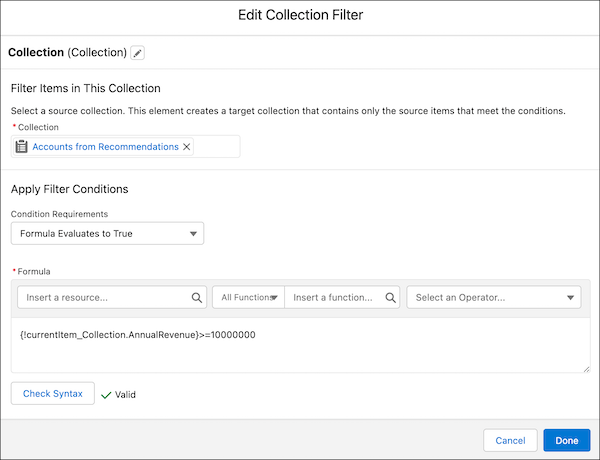
You can use Flow Formula Builder to build an expression in the Collection Filter element of a flow. To build your expression, select from a list of functions and operators. To catch errors as you work, check the formula syntax for each expression.
1. Add an element to a flow.
2. Select **Collection Filter**.
3. Edit the generated **Label** if needed. Flow Builder generates it based on the element's configuration, and the **API Name** populates based on the label.
4. Select a collection.
5. In the Apply Filter Conditions section, set Condition Requirements to **Formula Evaluates to True**.
6. Insert a resource from the list of Global Variables.
- You can add more than one resource to an expression.
7. Insert a function.
- To see a list of functions, click **Insert a function**.
- To filter functions by category, select the **All Functions** dropdown and choose the category.
8. Select an operator from the dropdown.
9. Complete the expression.
10. After you build each expression, click **Check Syntax**. The formula builder shows one error at a time.
11. Click **Done**.
12. Save your work.
## Create Formulas in Flow Formula-type Resources with Formula Builder
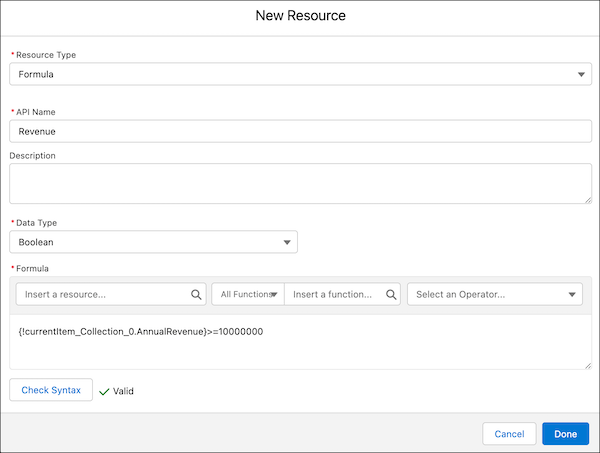
You can use Flow Formula Builder to build an expression in Flow Formula-type resources. To build your expression, select from a list of functions and operators. To catch errors as you work, check the formula syntax for each expression.
1. In Flow, in the Toolbox, in Manager, click **New Resource**.
2. From the Resource Type dropdown, select **Formula**.
3. Enter an **API Name**.
4. Select the **Data Type**.
5. Insert a resource from the list of Global Variables.
- You can add more than one resource to an expression.
6. Insert a function.
- To see a list of functions, click **Insert a function**.
- To filter functions by category, select the **All Functions** dropdown and choose the category.
7. Select an operator from the dropdown.
8. Complete the expression.
9. After you build each expression, click **Check Syntax**. The formula builder shows one error at a time.
10. Click **Done**.
11. Save your work.
#### See Also
- [Start Element](https://help.salesforce.com/s/articleView?id=platform.flow_ref_elements_start.htm&release=264.0.0&type=5 "Connect the Start element to the flow element that you want to run first at run time. In an autolaunched flow, you can open the Start element to add a trigger that launches the flow. Without a trigger, you must set up other things to invoke the autolaunched flow, such as custom buttons, processes, Apex classes, or Einstein Bots.")
- [Collection Filter Element](https://help.salesforce.com/s/articleView?id=platform.flow_ref_elements_filter.htm&release=264.0.0&type=5 "Apply criteria to a collection, and then output a new collection that contains only the items that meet the criteria.")
- [Formula Resource](https://help.salesforce.com/s/articleView?id=platform.flow_ref_resources_formula.htm&release=264.0.0&type=5 "Calculate a value when the formula is used in the flow.")
- [Flow Formula Considerations](https://help.salesforce.com/s/articleView?id=platform.flow_considerations_design_formulas.htm&release=264.0.0&type=5 "When you create a formula resource or add validation to a screen input component, understand the behavior of formulas in flows.")
- [Formula Operators and Functions by Context](https://help.salesforce.com/s/articleView?id=platform.customize_functions.htm&language=en_US)