To open, edit, create, activate or
deactivate a flow using all flow types, elements, and features available in Flow
Builder, including Einstein and Agentforce for Flow:
Manage Flow

Note You don't need to be an admin to have the Manage Flow permission. Ask your admin to add it to your profile or permission set.
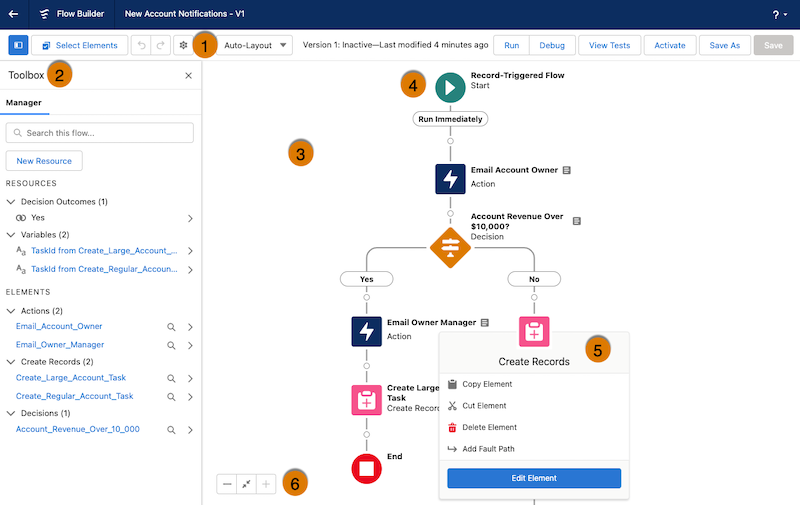
## Button Bar (1): Manage a flow as you build it.
- To copy multiple elements in auto-layout, click **Select Elements**, then click  on each element that you want to select. To copy all selected elements to the clipboard, click . To paste the elements you copied, click , and then select **Paste Elements**. The Paste Elements option displays the number of elements you copied. For example, Paste 3 Elements.
- To duplicate an element in free-form, select the element and click .
- To undo a change to your flow, click . To redo a change, click .
- To show or hide the Toolbox in auto-layout, click .
- To access the flow version’s properties, such as context and API version, click .
- Choose between **Auto-Layout** or **Free-Form**. Auto-Layout is the default for all new flows.
- If the flow has warnings or errors, the Show Warnings icon () or the Show Errors icon () appears. To see details, click the icon.
- To run the most recent save of the flow version that’s open, click **Run**. If the flow version contains Subflow elements, the active version of its referenced flow is run. If the referenced flow has no active version, then the Subflow element runs the latest version of its referenced flow.
- Next to the Run button, you can see the version’s active or inactive status and when it was last saved.
- To [test](https://help.salesforce.com/s/articleView?id=platform.automate_flow_test_record_data_cloud_triggered.htm&release=264.0.0&type=5 "Understand assertions, flow versions, and test data before you set up an automated test scenario through Test Mode (beta) or for a Data Cloud-triggered flow.") the flow that’s open, click **View Tests**, and then click **Create**. Set test parameters and assertions.
- To [debug](https://help.salesforce.com/s/articleView?id=platform.flow_test_debug.htm&release=264.0.0&type=5 "For flows that don't use Test Mode, use the Debug option to test or troubleshoot the flow. Review step-by-step details of how the flow runs and the path it takes.") the most recent save of the flow version that’s open, click **Debug**. Define values for input variables, roll back changes so debugging doesn’t impact data, view debug details about how the flow runs, and use those details to troubleshoot errors.
- To [make the current flow version available](https://help.salesforce.com/s/articleView?id=platform.flow_distribute_activate.htm&release=264.0.0&type=5 "You can activate or deactivate a flow from the Automation app Flows tab or the Flow Builder canvas.") to your users, click **Activate**. Only one version of each flow can be active at a time.
- To save your flow, click **Save**, or to save it as a new version or a new flow, click **Save As**. To choose which messaging and audience-selection assets to duplicate or link when you save an audience flow as a copy, see [Audience Flows](https://help.salesforce.com/s/articleView?id=platform.automate_flow_concepts_audience.htm&release=264.0.0&type=5 "An audience flow runs on a schedule and sends messages to a specified audience. Select a data source—segment, list, record, or campaign—when you create the flow.").
- To [view a timeline of saves](https://help.salesforce.com/s/articleView?id=platform.flow_edit_history.htm&release=264.0.0&type=5 "Review a history of saves for the current flow version and restore the flow to an earlier save. Each time you save a flow, a save instance is added to the version edit history. Save instances show the date, the user who saved the flow, and a summary of elements added, edited, or deleted.") for the current flow version, click . Select a save instance to preview it, see what changed, or restore it as a new version or flow.
## Toolbox (2): View and add resources.
- To create [resources](https://help.salesforce.com/s/articleView?id=platform.flow_ref_resources.htm&release=264.0.0&type=5 "Each resource represents a value that you can reference throughout the flow."), or to view a list of all elements and resources and their details, use the Manager tab.
- To view resource and element details, such as type, outputs, usage, and incoming go to connections, click  for the resource or element.
- [To add elements in free-form](https://help.salesforce.com/s/articleView?id=platform.flow_build_elements_freeform.htm&release=264.0.0&type=5 "Create a flow with a drag-and-drop interface that allows you to place elements anywhere."), use the Elements tab.
## Canvas (3): Build a flow on the canvas.
As you add elements to the canvas, you can see a diagram of your flow.
## Start Element (4): The Start element represents the start of a flow.
The flow runs the elements in order following the Start element. In Record-Triggered flows and Schedule-Triggered flows, configure the Start element to indicate when you want the flow to start running.
## Elements (5): Elements are the building blocks of a flow.
- To add [elements](https://help.salesforce.com/s/articleView?id=platform.flow_ref_elements.htm&release=264.0.0&type=5 "An element represents an action that the flow can run. Examples include reading or writing Salesforce data, displaying information and collecting data from flow users, runnning business logic, or manipulating data.") in auto-layout, click  where you want the element and select an element from the menu, such as Create Records or Update Records.
- To see an element’s description in an element menu in auto-layout, hover over .
- To add elements in free-form, in the Elements tab in the Toolbox, drag an element onto the canvas and connect it to the rest of the flow.
- To edit or see options for an element, click the element.
- To see an element's user-provided description on the canvas in auto-layout, hover over  next to the element.
- To collapse the branching paths of an element, click  next to the element's name.
- To expand the branching paths of a collapsed element, click  next to the element's name.
## Zoom Button Bar (6): Use this button bar to zoom in and out of a flow.
#### See Also
- [Flow Elements](https://help.salesforce.com/s/articleView?id=platform.flow_ref_elements.htm&release=264.0.0&type=5 "An element represents an action that the flow can run. Examples include reading or writing Salesforce data, displaying information and collecting data from flow users, runnning business logic, or manipulating data.")
- [Flow Resources](https://help.salesforce.com/s/articleView?id=platform.flow_ref_resources.htm&release=264.0.0&type=5 "Each resource represents a value that you can reference throughout the flow.")
- [Browser Requirements](https://help.salesforce.com/s/articleView?id=platform.automate_browsers.htm&release=264.0.0&type=5 "Our automation tools support these web browsers.")
- [Flow Builder Keyboard Shortcuts](https://help.salesforce.com/s/articleView?id=platform.flow_builder_keyboard_shortcuts.htm&release=264.0.0&type=5 "Use these handy keyboard shortcuts for macOS and Windows to quickly navigate flows and edit elements on the canvas.")