---
schema_version: "1"
id: ca6a27223abd12a55b8df902c527913e008bb5b9d48c9fdae9b3b8fbf6e52ae4
title: Save a Draft of Your Flow as You Build
collection: admin
version: current
locale: en-us
portal_url: https://docs.salesforce.com/admin/current/en-us/platform/264-0-0/flow_build_save_a_draft_as_you_build.md
canonical_url: https://help.salesforce.com/s/articleView?id=platform.flow_build_save_a_draft_as_you_build.htm&release=264.0.0&type=5
source_site: help.salesforce.com
content_type: documentation
content_hash: d9f8b0363c93f0a8981a19ac583bb9aa63e80cee4fccce249f691c8c60e0fba6
description: You can interact with your flow while an element is open and access the toolbar while editing that element. And you don't need to finish configuring an element before saving your flow.
products:
- Flow Builder
- Salesforce Platform
release: "264"
---
# Save a Draft of Your Flow as You Build
You can interact with your flow while an element is open and access the toolbar while editing that element. And you don't need to finish configuring an element before saving your flow.
### Required Editions
To open, edit, create, activate or
deactivate a flow using all flow types, elements, and features available in Flow
Builder, including Einstein and Agentforce for Flow:
Manage Flow

Note You don't need to be an admin to have the Manage Flow permission. Ask your admin to add it to your profile or permission set.
These steps show you how you can save an in-progress flow with errors and see the warnings the draft generates.
The property window for most elements is now a panel on the Flow Builder canvas. A panel-based property editor isn't available for Screen and Action elements.
Panel-based property editors don't work in free-form. You can't save a draft in free-form.
1. Open the Flows list view.
- From the Automation app, select the **Flows** tab.
- From the **Flows** tab in any Lightning app, click the actions menu and select **Open Flow**.
- From Setup, in the Quick Find box, enter Flows, and then select **Flows**.
Note that the Automation app and Flows tab options don't require Setup access.
2. Create the type of flow that you want to use.
- From the Automation app, click **New**, then click the category, and then the flow type. For example, to create a record-triggered flow, click **Triggered** | **Record-Triggered Flow**.
- From Setup, click **New Flow**, then click the category, and then the flow type. For example, to create a screen flow, click **Screens** | **Screen Flow**..
3. Add any element except a Screen or Action to the canvas.
4. Configure the element in the property editor. To intentionally create an error, leave some of the configuration values unspecified.
5. To retain your changes and return to the canvas, click 
6. Review the draft of your flow on the canvas. Note the error icon.
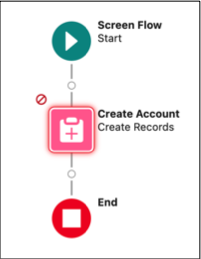
7. To see warnings about errors in the draft, save the flow.
Your flow is saved, despite having errors. The warning icon () indicates that there are warnings for the flow.
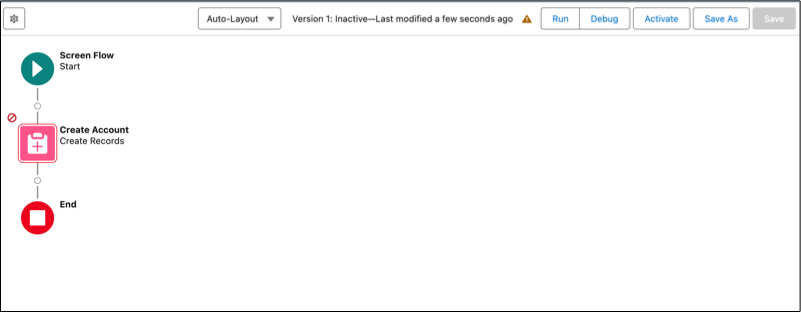
8. To view the details of the warnings about errors in the draft flow, click 
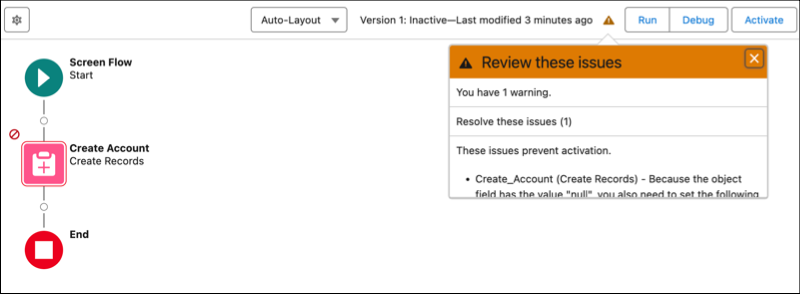
9. Continue configuring your flow until there are no errors.