---
schema_version: "1"
id: 4349c7b771d285c8840efa798c8d625364590f01a338b094e514416046388439
title: Transform Data in a Flow
collection: admin
version: current
locale: en-us
portal_url: https://docs.salesforce.com/admin/current/en-us/platform/264-0-0/flow_build_logic_transform.md
canonical_url: https://help.salesforce.com/s/articleView?id=platform.flow_build_logic_transform.htm&release=264.0.0&type=5
source_site: help.salesforce.com
content_type: documentation
content_hash: 64c0c65be3ed0b5cdc890b35d6ecada19eea623a948b5a5aef7369734180840d
description: Automate how you transform data between Salesforce and an external system using the Transform element. You can create mappings between the source and target data, or set fixed values for the target data.
products:
- Flow Builder
- Salesforce Platform
release: "264"
---
# Transform Data in a Flow
Automate how you transform data between Salesforce and an external system using the Transform element. You can create mappings between the source and target data, or set fixed values for the target data.
### Required Editions
To open, edit, create, activate or
deactivate a flow using all flow types, elements, and features available in Flow
Builder, including Einstein and Agentforce for Flow:
Manage Flow

Note You don't need to be an admin to have the Manage Flow permission. Ask your admin to add it to your profile or permission set.
Watch this demo (English only) of transforming data in Flow Builder.
For another viewing option, see [Transform Your Data with Flow Builder (English Only)](https://salesforce.vidyard.com/watch/qVDjGpPHCncKNrwKZ5JoB4).
Before you begin, understand the structure of your source and target data, such as whether the data contains multiple levels of collections within other collections. Mapping fields in a collection requires rules to preserve data integrity. See [Transform Element](https://help.salesforce.com/s/articleView?id=platform.flow_ref_elements_transform.htm&release=264.0.0&type=5 "Select the flow resources for mapping and transforming source data to target data. You can use the Transform element in screen flows, autolaunched flows with no triggers, and record-triggered flows.").
1. Add the Transform element to your flow.
1. Edit the generated label and description if needed. Flow Builder generates them based on the element's configuration, and the API name populates based on the label.
2. For Source Data, click the Add Resource button  and select the flow resource to transform the data.
3. For Target Data, click the Add Resource button  and select the data type.
4. If the target data is a collection, select **Allow multiple values (collection)**.
5. If the data type is a record or Apex-defined, select the Apex class or object for the target data that the Transform element generates.
For example, if you specified that the target data is a collection and that the record data type is the Account object, the Transform element generates an account collection. If you didn’t specify a collection, the target data is a single account.
2. Map the source and target data.
1. Hover over a source data field and click the Map button .
2. Next to a target data field, click the Map button .
If a target field doesn’t have the Map button , you can’t map to it.
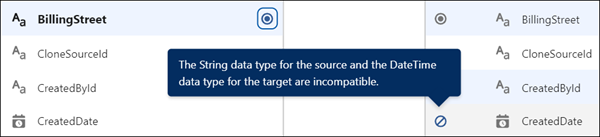
3. To view a mapping tip next to a target field or collection that’s unavailable for mapping, hover over the target field or collection, and then hover over the error icon.
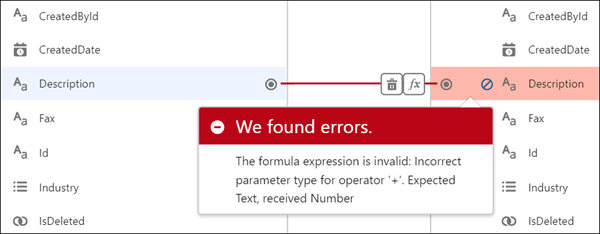
4. To view a mapping tip of a misconfiguration error, hover over the error icon  shown next to a target data field or collection.
The Transform element adds a dashed line to indicate mappings within a collapsed object or collection. The Transform element adds dotted lines to identify the collections that contain the mapped fields so that you can easily view the collections in both resource data structures. When mapping fields in a collection, the source and target fields must be at the same hierarchical level in their respective resources. See [Flow Element: Transform](https://help.salesforce.com/s/articleView?id=platform.flow_ref_elements_transform.htm&release=264.0.0&type=5 "Select the flow resources for mapping and transforming source data to target data. You can use the Transform element in screen flows, autolaunched flows with no triggers, and record-triggered flows.").
3. To transform data with a formula, click the mapped field name, and then click  then **Formula**.
4. To delete a mapping, click the field name, and then click the Delete button .
After you finish transforming data, you can save the target data to Salesforce or to an external system.
To save the target data to Salesforce, add the Update Records element, and then configure it to reference the resource with the same name as the Transform element. For example, if the API name of the Transform element is Return\_Order, select Return\_Order for Record or Record Collection in the Update Records element.
To save the target data to an external system, create an HTTP callout action that uses a method like POST.

Example A sales agent runs a screen flow to return two orders for store credit. The agent’s customer has an account in Salesforce. The customer’s order data is stored in a system outside Salesforce. To update the Order record in Salesforce, the flow gets the latest order data from the external system and transforms the data, so the flow can save the changes in Salesforce.
In the Transform element, the amount, customerId, and status source data fields are mapped to the target data fields.
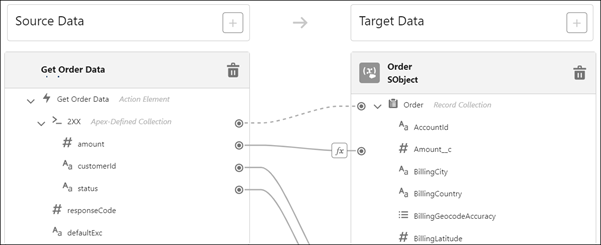
The mapping between the source data’s amount field and the target data’s Amount\_\_c field uses a formula to transform the data.

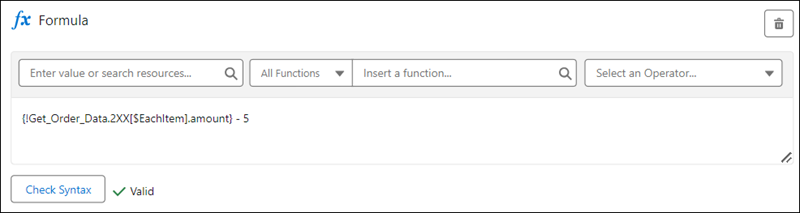
The formula subtracts a fixed amount from the source data’s amount field for a restocking fee. The result of the formula is the transformed value for the target data’s Amount\_\_c field. The formula shows the merge field syntax, where \[$EachItem\] represents each item in a collection. In this example, the merge field references a collection of 2XX, and each 2XX item has an amount field. For each amount field, the formula subtracts 5.
Next in the flow, the Update Records element saves the changes to the database. And finally, the Action element makes an HTTP callout to update the order status in the external system.
#### See Also
- [Transform Element](https://help.salesforce.com/s/articleView?id=platform.flow_ref_elements_transform.htm&release=264.0.0&type=5 "Select the flow resources for mapping and transforming source data to target data. You can use the Transform element in screen flows, autolaunched flows with no triggers, and record-triggered flows.")
- [Connecting to an API Without a Connector Using HTTP Callout](https://help.salesforce.com/s/articleView?id=platform.flow_http_callout.htm&release=264.0.0&type=5 "Use HTTP Callout to connect flows to external APIs without coding, eliminating the need for developers or middleware tools. Flow Builder automatically generates external service registrations and Apex classes when you configure the action. Use the API response data as input in Salesforce.")
- [Sum or Count Items in Collections with the Transform Element](https://help.salesforce.com/s/articleView?id=platform.flow_build_logic_transform_sum_or_count.htm&release=264.0.0&type=5 "Aggregate data from a source collection to calculate the sum or count of items in that collection, and assign the result to a target data field.")