---
schema_version: "1"
id: 9512346ca6d533ef6020673ab6e57a9075c78c2185aa74df1efbc7c6accc58d1
title: Update Salesforce Records from a Flow
collection: admin
version: current
locale: en-us
portal_url: https://docs.salesforce.com/admin/current/en-us/platform/264-0-0/flow_build_data_update.md
canonical_url: https://help.salesforce.com/s/articleView?id=platform.flow_build_data_update.htm&release=264.0.0&type=5
source_site: help.salesforce.com
content_type: documentation
content_hash: 7d111c5e731b33088f3e000a06768a8165b2d075d6f4a5469f05d8260ea95675
description: To update field values on existing Salesforce records, use either the Update Records element or a Quick Action core action. The right element depends on what the rest of your flow is doing.
products:
  - Flow Builder
  - Salesforce Platform
release: "264"
---
# Update Salesforce Records from a Flow

To update field values on existing Salesforce records, use either the Update Records element or a Quick Action core action. The right element depends on what the rest of your flow is doing.

### Required Editions

<table class="slds-table slds-table_bordered slds-max-medium-table_stacked slds-m-bottom_small edition"><colgroup><col></colgroup><tbody><tr class=""><td class="slds-cell-wrap" style="vertical-align:top;"><a href="https://help.salesforce.com/s/articleView?id=platform.flow_ref_supported_editions.htm&amp;release=264.0.0&amp;type=5" title="Learn about the editions and user interfaces that support Flow Builder. Some Flow Builder features integrate with other Salesforce products that require additional licenses.">View supported editions.</a></td></tr></tbody></table>

On an opportunity record, when a user clicks the “Won” button, a flow updates the opportunity’s stage.

To update fields on one or more existing Salesforce records, your flow:

- Identifies the records to update.
- Identifies the new field values for those records.
- Saves those changes to the Salesforce database. (In other words, until the changes are saved to the database, the changes exist only within the flow.)

How do I choose between flow elements that update records?

The main difference between the elements is how it knows which records to update, how it knows the new field values to apply, and how many records it can update.

Quick Action elements can update only one record at a time, while Update Records elements can update multiple records.

<table class="slds-table slds-table_bordered slds-max-medium-table_stacked slds-m-bottom_small ">
        <colgroup>
          <col style="width:13.14060446780552%">
          <col style="width:28.120893561103816%">
          <col style="width:40.34165571616295%">
          <col style="width:18.396846254927727%">
        </colgroup>
        <thead class="slds-text-title_caps ">
          <tr class="">
            <th scope="col" class="slds-cell-wrap" style="vertical-align:top;" id="d106530e94">&nbsp;</th>
            <th scope="col" class="slds-cell-wrap" style="vertical-align:top;" id="d106530e96">To identify records to update</th>
            <th scope="col" class="slds-cell-wrap" style="vertical-align:top;" id="d106530e99">To identify new field values for the records</th>
            <th scope="col" class="slds-cell-wrap" style="vertical-align:top;" id="d106530e102">Number of records it updates</th>
          </tr>
        </thead>
        <tbody>
          <tr class="">
            <td data-label="" class="slds-cell-wrap" style="vertical-align:top;" headers="d106530e94 "><strong class="uicontrol">Update Records</strong>, where you chose to specify conditions
              and set fields individually</td>

            <td data-label="To identify records to update" class="slds-cell-wrap" style="vertical-align:top;" headers="d106530e96 ">In the same element, use filter criteria.</td>

            <td data-label="To identify new field values for the records" class="slds-cell-wrap" style="vertical-align:top;" headers="d106530e99 ">
              <p>In the same element, map each field to be updated with a variable or other
                resource.</p>
              <p style="margin-bottom:0;">All resources are supported, so long as the resource’s data type
                matches the selected field’s data type. </p>
            </td>

            <td data-label="Number of records it updates" class="slds-cell-wrap" style="vertical-align:top;" headers="d106530e102 ">At least one.</td>

          </tr>
          <tr class="">
            <td data-label="" class="slds-cell-wrap" style="vertical-align:top;" headers="d106530e94 "><strong class="uicontrol">Update Records</strong>, where you chose to use the IDs and field
              values from a record variable or record collection variable</td>

            <td data-label="To identify records to update" class="slds-cell-wrap" style="vertical-align:top;" headers="d106530e96 ">Populate a record variable or record collection variable in another
              element.</td>

            <td data-label="To identify new field values for the records" class="slds-cell-wrap" style="vertical-align:top;" headers="d106530e99 ">In another element, such as an Assignment element, update the values in the
              record variable or record collection variable.</td>

            <td data-label="Number of records it updates" class="slds-cell-wrap" style="vertical-align:top;" headers="d106530e102 ">
              <p>If a record variable: one.</p>
              <p style="margin-bottom:0;">If a record collection variable: at least
                one.</p>
            </td>

          </tr>
          <tr class="">
            <td data-label="" class="slds-cell-wrap" style="vertical-align:top;" headers="d106530e94 ">
              <strong>Quick Action</strong>
            </td>

            <td data-label="To identify records to update" class="slds-cell-wrap" style="vertical-align:top;" headers="d106530e96 ">Populate a single-value variable with the ID in another element. Use this ID
              for the Related Record ID parameter.</td>

            <td data-label="To identify new field values for the records" class="slds-cell-wrap" style="vertical-align:top;" headers="d106530e99 ">
              <p>In the same element, map each field to be updated with a variable or other
                resource. </p>
              <p style="margin-bottom:0;">All resources are supported, so long as the resource’s data type
                matches the selected field’s data type.</p>
            </td>

            <td data-label="Number of records it updates" class="slds-cell-wrap" style="vertical-align:top;" headers="d106530e102 ">Exactly one.</td>

          </tr>
        </tbody>
      </table>

If all the following statements are true, use a Quick Action element.

- Update exactly one record
- You’ve already populated a variable with the record’s ID
- The Quick Action’s layout includes all the fields to update

If any of those statements aren’t true, use an Update Records element.

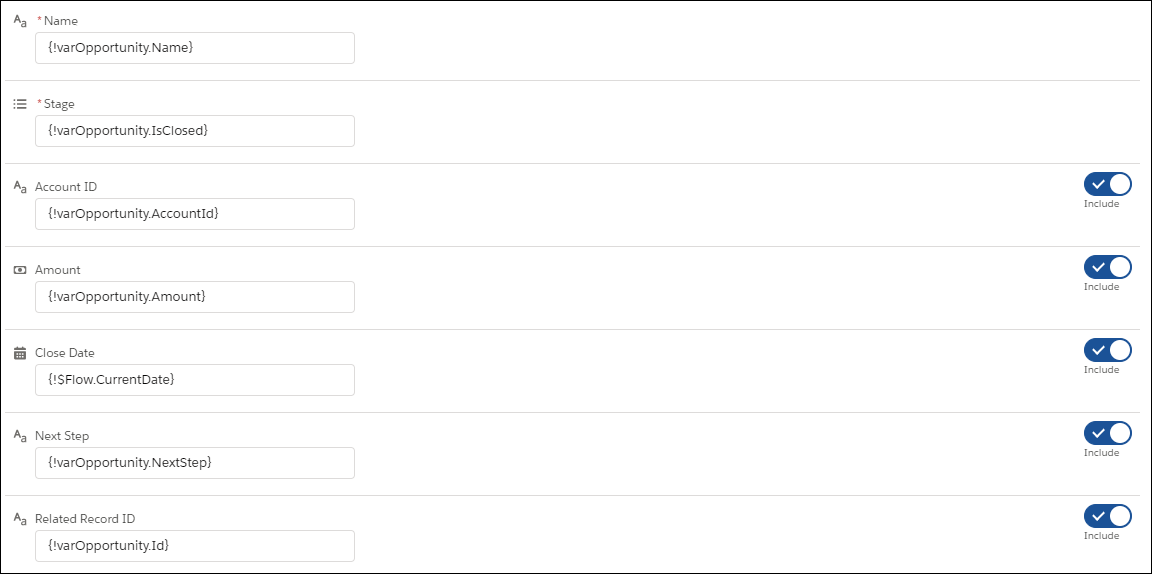
Here’s how you’d update an opportunity’s stage by using each of the update elements.

Update Records, where you chose to specify conditions and set fields individually

![How you identify which records to update and what the new field values should be in a Update Records element](https://sf-zdocs-cdn-prod.zoominsoftware.com/tdta-platform-platform_automation-264-0-0-production-enus/60568438-ec7e-4665-acd1-7c80dcbe60d5/platform_automation/images/flow/flow_recordupdate.png)

Update Records, where you chose to use the IDs and field values from a record variable or record collection variable

![How you identify which records to update and what the new field values should be in a Update Records element](https://sf-zdocs-cdn-prod.zoominsoftware.com/tdta-platform-platform_automation-264-0-0-production-enus/60568438-ec7e-4665-acd1-7c80dcbe60d5/platform_automation/images/flow/flow_fastupdate.png)

Assumes {!varOpportunity} is already populated with the right fields.

Quick Action (of type Update)

<table class="slds-table slds-table_bordered slds-max-medium-table_stacked slds-m-bottom_small ">
            <colgroup>
              <col>
            </colgroup>
            <tbody>
              <tr class="">
                <td class="slds-cell-wrap" style="vertical-align:top;">
                  <p>
                    <span style="vertical-align:text-bottom;display:inline-block;"><img style="width:570px;margin-bottom:0;" src="https://sf-zdocs-cdn-prod.zoominsoftware.com/tdta-platform-platform_automation-264-0-0-production-enus/60568438-ec7e-4665-acd1-7c80dcbe60d5/platform_automation/images/flow/flow_quickaction_update.png" alt="How you identify which records to update and what the new field values should be in a Quick Action (Update) element"></span>
                  </p>
                  <p style="margin-bottom:0;">Two fields are required by the associated action layout, so they’re
                    required in this element. Related Record ID identifies which opportunity to
                    update. </p>
                </td>

              </tr>
            </tbody>
          </table>

This video explains when to use fast field (before-save) updates and when to update actions and related records.

View this [video](https://play.vidyard.com/xxvrx6bZu6rSVwUYLdbANB?) in a separate tab.