---
schema_version: "1"
id: 5aac838e9029d54d2785cf3e011f6627191eb47e221a3f468b28314febe67e70
title: Deploy Metadata and Data to a Target Org
collection: admin
version: current
locale: en-us
portal_url: https://docs.salesforce.com/admin/current/en-us/platform/264-0-0/deploy_metadata_and_data_to_target_org.md
canonical_url: https://help.salesforce.com/s/articleView?id=platform.deploy_metadata_and_data_to_target_org.htm&release=264.0.0&type=5
source_site: help.salesforce.com
content_type: documentation
content_hash: 31c9244832a86cf9799f78309d78deb3c916a016628c0bc38efef8327840eb76
description: Move your metadata changes and configuration data from your current org to a target org.
products:
- Salesforce Platform
- Security
release: "264"
---
# Deploy Metadata and Data to a Target Org
Move your metadata changes and configuration data from your current org to a target org.
### Required Editions
Available in: Lightning Experience
Available in: Professional, Enterprise, Performance, Unlimited, and Developer Editions
User Permissions Needed
To deploy metadata and configuration data:
Customize Application
- Plan your deployment. See [Plan and Prepare for Deployment](https://help.salesforce.com/s/articleView?id=platform.plan_for_deployment.htm&release=264.0.0&type=5 "A successful deployment starts with a solid plan. To avoid conflicts or missing dependent metadata and configuration data during deployments, review these prerequisites, best practices, and limitations.")
From DX Inspector, go to the Change Management tab.
## Select Metadata to Deploy
1. On the Metadata tab, select the metadata files to deploy.
2. (Optional) To view relationships for a selected metadata component, click the down arrow  icon, then select **View Dependencies...**.
A window displays the metadata relationships in a hierarchical tree.
3. (Optional) Select related metadata to include in the deployment.
## Select Data Records to Migrate
1. On the Data tab, find the data object that you want to migrate.
2. In the data object row, click the down arrow ( ) icon, and then select **Select Associated Records...**.
3. To configure the selected object, complete these steps:
1. Select a unique External ID to map records and prevent duplicates.
2. (Optional) To include only specific fields, click **Edit Fields**. By default, the required fields are selected.
3. (Optional) To migrate a subset of records, click **Add Filters** and define your filter criteria.
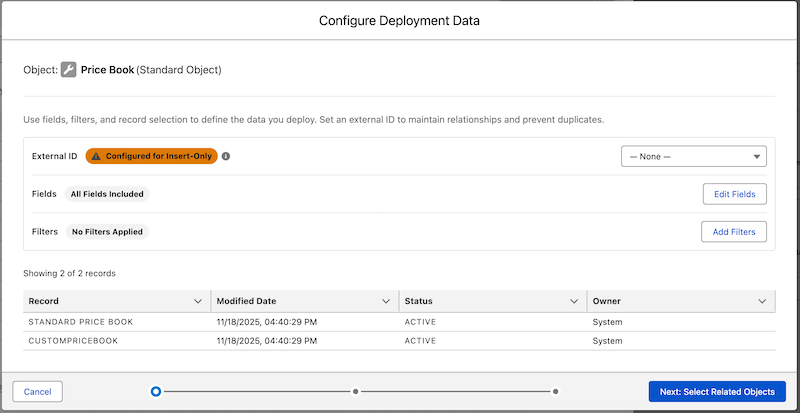
4. Click **Select Related Objects**.
Related parent and child objects are listed. Parent objects are selected by default.
5. On the Child Objects tab, select a unique External ID to map records and prevent duplicates.
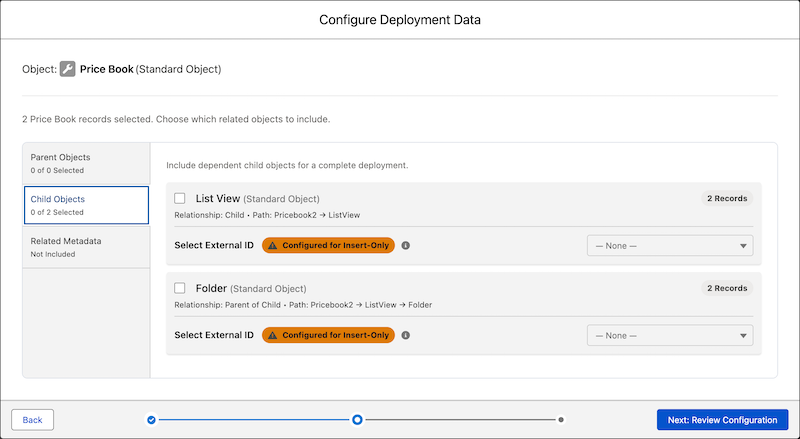
6. Select the records to migrate, then click **Review Configuration.**
7. (Optional) In the data object row, click the down arrow ( ) icon to download or remove the records.
8. Review the list of filtered records and click **Add**.
## Deploy Metadata and Data
1. On the Change Management tab, click **Deploy Options...**.
2. In the Deploy Changes window, select the target org.
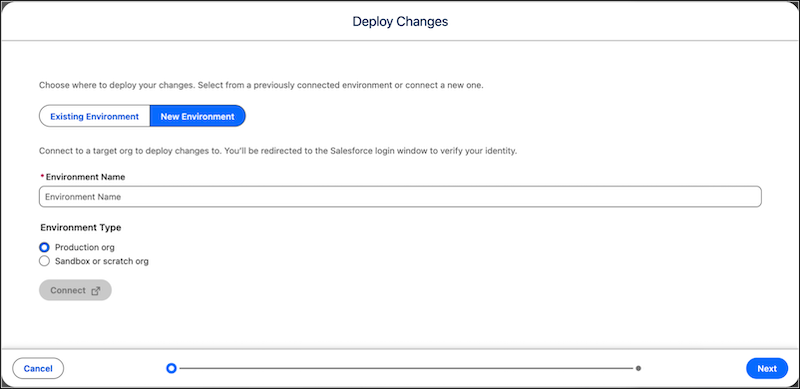
3. (Optional) If your target org isn’t listed, connect to a new org and authenticate.
4. Select one of these options:
- If you’ve added all dependencies and are ready to proceed, click **Next**.
- To view metadata relationships or add more dependencies, click **Check Dependencies**.
5. Review the deployment summary and click **Deploy**.