---
schema_version: "1"
id: f53f3826095e11f70b3fc6a17d938bb3cd85e04fa7c10acde1675c07e52990dd
title: Create Compact Layouts
collection: admin
version: current
locale: en-us
portal_url: https://docs.salesforce.com/admin/current/en-us/platform/264-0-0/compact_layout_create.md
canonical_url: https://help.salesforce.com/s/articleView?id=platform.compact_layout_create.htm&release=264.0.0&type=5
source_site: help.salesforce.com
content_type: documentation
content_hash: a4994387cc39fb7304f3652cd04d0d302588db08f0a7a8188626969da2517a6c
description: Use compact layouts to customize the fields that display for object records when viewed in the Salesforce mobile app and Lightning Experience.
products:
- Salesforce Platform
- Security
release: "264"
---
# Create Compact Layouts
Use compact layouts to customize the fields that display for object records when viewed in the Salesforce mobile app and Lightning Experience.
### Required Editions
Available in: both Salesforce Classic and Lightning Experience
Available in: All editions except Database.com
User
Permissions Needed
To customize compact layouts:
Customize Application
To view compact layouts:
View Setup and Configuration
1. From the management settings for the object that you want to edit, go to Compact Layouts.
2. Create a new compact layout and give it a label.
3. Add up to 10 fields.

Tip Put the object’s Name field first to provide context for your users when they view a record.
4. Sort the fields by selecting them and clicking **Up** or **Down**.
The order you assign to the fields determines the order in which they display.
5. Save the layout.
6. To set the compact layout as the primary compact layout for the object, click **Compact Layout Assignment**.

Example
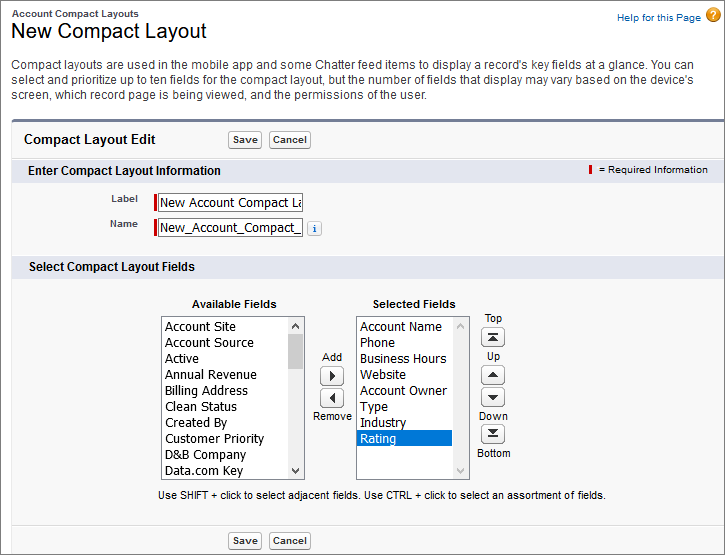
Here’s a sample compact layout edit page for the Account object. It shows the name of the layout and a list of fields to display.
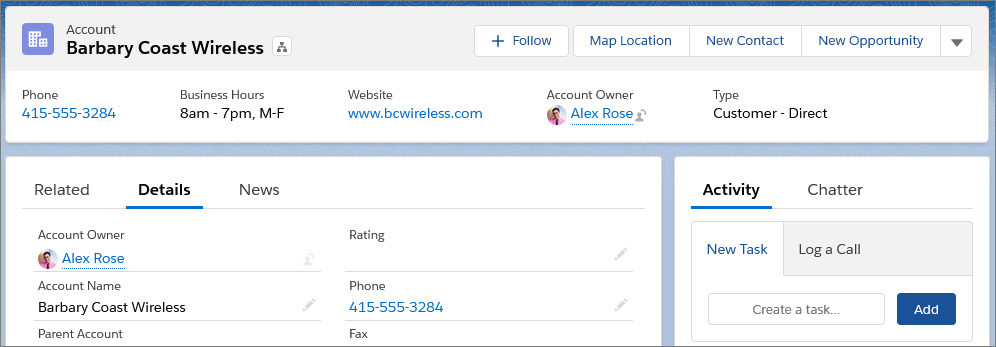
Here’s the related page for the same account object in Lightning Experience, displaying six of the eight fields assigned to the compact layout. You can see the account’s name, phone number, business hours, website, owner, and type at the top of the page.
And here’s what that same account record looks like in the mobile app.
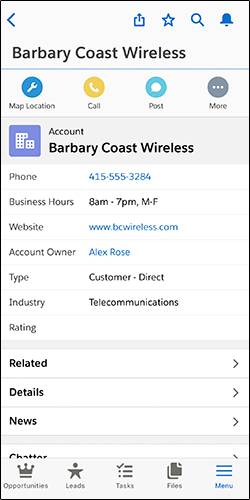

Note Up to ten fields on your compact layout populate the record highlights section at the top of each record view in the Salesforce mobile app. The record highlights section in Lightning Experience uses the first seven fields on the compact layout. However, the number of fields that display can vary based on the width of your screen, which record page is being viewed, and the permissions of the user.
#### See Also
- [Assign Compact Layouts to Record Types](https://help.salesforce.com/s/articleView?id=platform.compact_layout_assign.htm&release=264.0.0&type=5 "As with page layouts, there are separate compact layouts for each object. By default, each object derives its record highlight fields, preview cards, and action-related feed items from the predefined set of fields in the object’s read-only, system default compact layout. You can create custom compact layouts on an object-by-object basis. After you create one or more custom compact layouts, you set one as the primary compact layout for the object. The primary compact layout is then used as the new default for that object.")
- [Compact Layout Limitations and Considerations](https://help.salesforce.com/s/articleView?id=platform.compact_layout_notes.htm&release=264.0.0&type=5 "Keep these limitations and considerations in mind when using compact layouts.")
- [Compact Layouts](https://help.salesforce.com/s/articleView?id=platform.compact_layout_overview.htm&release=264.0.0&type=5 "A compact layout displays a record’s key fields at a glance in the Salesforce mobile app, Lightning Experience, and in the Outlook and Gmail integrations.")
- [Customize Case Hovers in Lightning Experience](https://help.salesforce.com/s/articleView?id=service.cases_set_up_lex_hovers.htm&type=5&language=en_US)