---
schema_version: "1"
id: f7b11bb04ffe3b8989eb379b4ac78c8e778ae25a38f4e009ac5592b44d671765
title: Set Up and Run a Test Scenario (Beta)
collection: admin
version: current
locale: en-us
portal_url: https://docs.salesforce.com/admin/current/en-us/platform/264-0-0/automate_flow_test_mode_scenario.md
canonical_url: https://help.salesforce.com/s/articleView?id=platform.automate_flow_test_mode_scenario.htm&release=264.0.0&type=5
source_site: help.salesforce.com
content_type: documentation
content_hash: 31214ea81899e6e0ac2da990499ffef9b26bdc5bae59d408b2bbb247aff16535
description: Configure test data and run options, and then run the scenario in Test Mode (beta).
products:
- Flow Builder
- Salesforce Platform
release: "264"
---
# Set Up and Run a Test Scenario (Beta)
Configure test data and run options, and then run the scenario in Test Mode (beta).
### Required Editions
To open, edit, create, activate or
deactivate a flow using all flow types, elements, and features available in Flow
Builder, including Einstein and Agentforce for Flow:
Manage Flow

Note Test mode is a pilot or beta service that is subject to the Beta Services Terms at [Agreements - Salesforce.com](https://www.salesforce.com/company/legal/agreements/) or a written Unified Pilot Agreement if executed by Customer, and applicable terms in the [Product Terms Directory](https://ptd.salesforce.com/). Use of this pilot or beta service is at the Customer's sole discretion.
1. Open the Flows list view.
- From the Automation app, select the **Flows** tab.
- From the **Flows** tab in any Lightning app, click the actions menu and select **Open Flow**.
- From Setup, in the Quick Find box, enter Flows, and then select **Flows**.
Note that the Automation app and Flows tab options don't require Setup access.
2. Open the flow that you want to test.
3. Click **Test**.
The test configuration panel opens, showing whatever you last had opened in test mode for this flow. If it's the first time opening Test Mode for this flow, a new, unsaved test scenario opens.
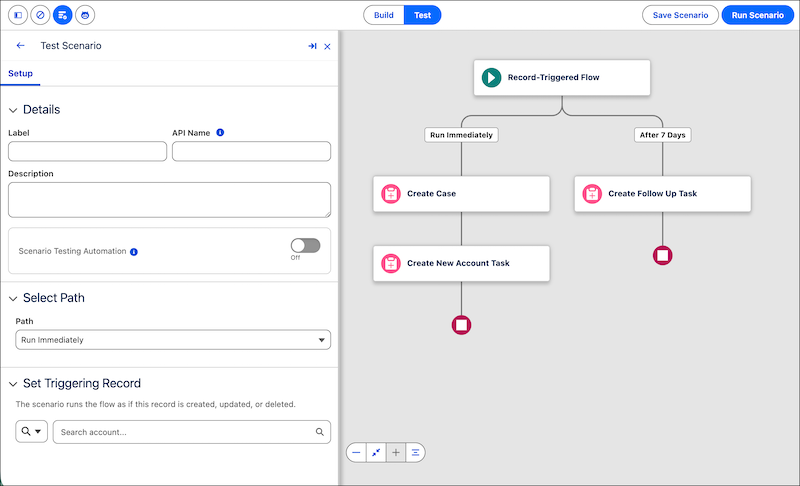
4. If Test Mode opens to the list of saved scenarios, click **New Scenario** in the Manually Evaluated or Automatically Evaluated tab, or click **New Scenario**.
5. (Optional) In the Details section, enter a label and description for the scenario.
Flow Builder generates the API name from the label. The API name becomes read-only after you save. The label and API name are required to save the scenario.
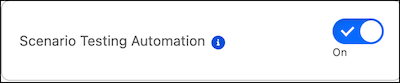
6. (Optional) Turn on **Scenario Testing Automation**.
With Scenario Testing Automation, you can automatically evaluate test scenarios and use isolated test data from an Apex class. Learn more in [Automated Flow Testing](https://help.salesforce.com/s/articleView?id=platform.automate_flow_test_record_data_cloud_triggered.htm&release=264.0.0&type=5 "Understand assertions, flow versions, and test data before you set up an automated test scenario through Test Mode (beta) or for a Data Cloud-triggered flow."). For a record-triggered flow that's configured to trigger only when a record is deleted, this toggle is disabled. Only manually evaluated test scenarios support a flow that's triggered on deletion.
7. For record-triggered flows, for Select Path, select the flow path that you want to test. The default is **Run Immediately**.
If you don't have a scheduled path or an asynchronous path, the only option is Run Immediately.
8. If Scenario Testing Automation is selected, for Select Data Source, select **Run from Org Data** to use live data from your org, or **Run from Data Silo** to use isolated test data.
If you select Run from Data Silo, the required Apex Test Setup field shows. Select the Apex `@testSetup` class that sets up the isolated test data. Learn more in [Test a Flow with Isolated Test Data](https://help.salesforce.com/s/articleView?id=platform.automate_flow_test_isolated_test_data_task.htm&release=264.0.0&type=5 "Test record-triggered and autolaunched flows using dedicated, reusable test data from an Apex class that includes a test setup method. After a test scenario runs, the isolated test data rolls back like an Apex unit test, so your org's live data stays as it was.").
9. Provide the data that starts the flow.
- For a record-triggered flow, for Set Triggering Record, search for and select a record. The scenario runs the flow as if this record is created, updated, or deleted (depending on how your flow's configured).
- For an autolaunched flow with input variables, for Define Input Values, set the value for each input variable. If you don't specify a value, the scenario uses the input's default value. Apex-defined variables aren't supported.
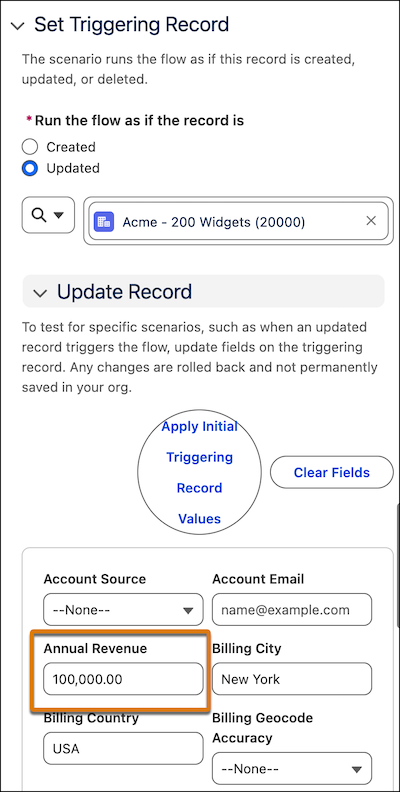
10. For a record-triggered flow that's configured when a record is created or updated, select whether to run the scenario as if the record is created or updated.
11. For a record-triggered flow that's configured when a record is updated, or created or updated, select **Updated** and click **Update Record** to expand the section.
12. Enter the field values that the scenario uses to simulate the update.
1. To prefill the form with the record's current values, click **Apply Initial Triggering Record Values**.
2. To clear the values, click **Clear Fields**.
These changes simulate the update and aren't saved to your org.
13. If Scenario Testing Automation is on, for Expected Results (Assertions), set the resource, operator, and value for each assertion. To add an assertion, click **Add Assertion**.
Learn more in [Automated Flow Testing](https://help.salesforce.com/s/articleView?id=platform.automate_flow_test_record_data_cloud_triggered.htm&release=264.0.0&type=5 "Understand assertions, flow versions, and test data before you set up an automated test scenario through Test Mode (beta) or for a Data Cloud-triggered flow.").
14. In the Select Run Options section, configure the available options.
- For a record-triggered flow, to run the scenario even if the triggering record doesn't meet the flow's entry conditions, select **Skip start condition requirements**.
- For an autolaunched flow, to control how the scenario handles Wait elements in the flow, select **Debug wait element behavior**.
- For a manually configured test scenario (Scenario Testing Automation is off), to run the scenario as a specific user, select **Run automation as another user**. Learn more in [Turn On Debugging and Testing Flows as Another User](https://help.salesforce.com/s/articleView?id=platform.flow_test_debug_as_another_user.htm&release=264.0.0&type=5 "Turn on this org-wide setting once so that admins can debug or test flows as a specific user.").
- **Run automation in rollback mode** is on by default. Rollback is required, and you can't turn it off for scenarios with assertions and for record-triggered flows.
15. Click **Save Scenario**.
The scenario saves using the label, API name, and description that you entered.
16. For Select Flow Versions, move the flow versions that you want to test to Selected Flow Versions.
17. Click **Run Scenario**.
After the scenario runs, the Details tab shows the run's execution path and any errors.
For an automatically evaluated scenario, the Expected Results tab also shows each assertion's status, condition, and actual value. Learn how to interpret these results in [Interpret Test Scenario Results in Test Mode (Beta)](https://help.salesforce.com/s/articleView?id=platform.automate_flow_test_mode_interpret_results.htm&release=264.0.0&type=5 "In Test Mode, review the Details and Expected Results tabs after you run a test scenario, and troubleshoot failed assertions.").
To view, run, or manage all saved test scenarios, click the back arrow from the test scenario. Learn more in [Manage Test Scenarios (Beta)](https://help.salesforce.com/s/articleView?id=platform.automate_flow_test_mode_manage_scenarios.htm&release=264.0.0&type=5 "View, run, and manage all the test scenarios that you saved for a flow.").
#### See Also
- [Test a Flow with Mock Outputs (Beta)](https://help.salesforce.com/s/articleView?id=platform.automate_flow_test_mock_output.htm&release=264.0.0&type=5 "Use mock outputs to test autolaunched and record-triggered flows without depending on external systems. Define predictable output values for action and subflow elements so your test scenarios validate flow logic instead of live callouts or subflow execution.")