---
schema_version: "1"
id: 84c4ae62fa5bebc5820248abf1bb86839aecbc37912be1f9ca3b1bad5a37153d
title: Manage Test Scenarios (Beta)
collection: admin
version: current
locale: en-us
portal_url: https://docs.salesforce.com/admin/current/en-us/platform/264-0-0/automate_flow_test_mode_manage_scenarios.md
canonical_url: https://help.salesforce.com/s/articleView?id=platform.automate_flow_test_mode_manage_scenarios.htm&release=264.0.0&type=5
source_site: help.salesforce.com
content_type: documentation
content_hash: b95fb099264197edb38c31f19359e61c38f1c11b68e45e0ee0e6814f64981f1e
description: View, run, and manage all the test scenarios that you saved for a flow.
products:
- Flow Builder
- Salesforce Platform
release: "264"
---
# Manage Test Scenarios (Beta)
View, run, and manage all the test scenarios that you saved for a flow.
### Required Editions
To open, edit, create, activate or
deactivate a flow using all flow types, elements, and features available in Flow
Builder, including Einstein and Agentforce for Flow:
Manage Flow

Note Test mode is a pilot or beta service that is subject to the Beta Services Terms at [Agreements - Salesforce.com](https://www.salesforce.com/company/legal/agreements/) or a written Unified Pilot Agreement if executed by Customer, and applicable terms in the [Product Terms Directory](https://ptd.salesforce.com/). Use of this pilot or beta service is at the Customer's sole discretion.
The list of saved test scenarios shows every scenario that you saved for the flow, split into two tabs based on whether Scenario Testing Automation was on or off when the scenario was last run:
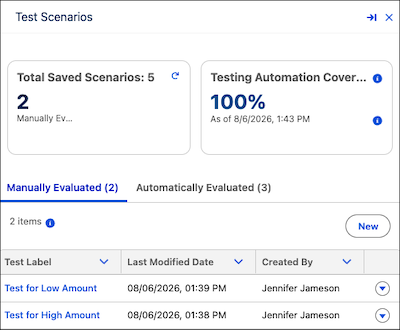
- Manually Evaluated tab: scenarios that you run and evaluate yourself. These scenarios work like debug runs in the Flow Builder debugger.
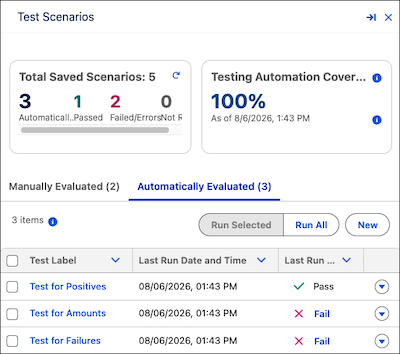
- Automatically Evaluated tab: scenarios that Flow Builder runs and evaluates for you based on the assertions that you defined. Learn more about assertions in [Automated Flow Testing](https://help.salesforce.com/s/articleView?id=platform.automate_flow_test_record_data_cloud_triggered.htm&release=264.0.0&type=5 "Understand assertions, flow versions, and test data before you set up an automated test scenario through Test Mode (beta) or for a Data Cloud-triggered flow.").
1. In Flow Builder, open the flow that you want to manage test scenarios for.
2. Click **Test** to open Test Mode.
3. If a scenario is open, click the back arrow.
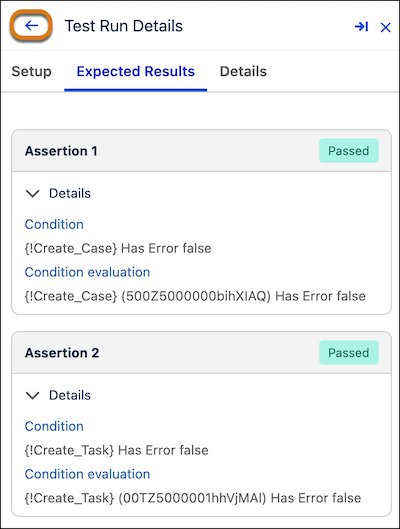
The list of saved test scenarios opens.
4. To review manually evaluated test scenarios, click the **Manually Evaluated** tab.
5. To review automatically evaluated test scenarios, click the **Automatically Evaluated** tab.
Each row has a checkbox, and **Run Selected** and **Run All** buttons show so that you can run one, several, or all automated scenarios at a time.
6. To open a scenario, click its test label.
7. To edit, duplicate, or remove a scenario, open its dropdown list and select **Edit**, **Save as New Scenario**, or **Delete**.
8. To create a scenario, click **New Scenario** in the list view, or **New Scenario** in the Flow Builder toolbar.
The test configuration panel opens to the **Setup** tab, with empty Label and API Name fields in the Details section. Entering a label autofills the API name. Learn more in [Set Up and Run a Test Scenario (Beta)](https://help.salesforce.com/s/articleView?id=platform.automate_flow_test_mode_scenario.htm&release=264.0.0&type=5 "Configure test data and run options, and then run the scenario in Test Mode (beta)."). If the new scenario is for an automated test run, **Scenario Testing Automation** is automatically selected.