---
schema_version: "1"
id: acd20b03e26b6a5821fd278e74353591b2e110ffe8e5869ba477d1e01dab6eea
title: Embed a Screen Flow in a Navigation Tab in Your Org
collection: admin
version: current
locale: en-us
portal_url: https://docs.salesforce.com/admin/current/en-us/platform/264-0-0/automate_flow_distribute_internal_url_web_tab.md
canonical_url: https://help.salesforce.com/s/articleView?id=platform.automate_flow_distribute_internal_url_web_tab.htm&release=264.0.0&type=5
source_site: help.salesforce.com
content_type: documentation
content_hash: f3a7ef383db97c088b9024f84ffc2cc53f0ded0e7a0ee015f2474c92e8aee83c
description: Add an active screen flow to a navigation tab in your org, using the flow's web address (URL). Users can open the tab and then run the screen flow from there.
products:
- Flow Builder
- Salesforce Platform
release: "264"
---
# Embed a Screen Flow in a Navigation Tab in Your Org
Add an active screen flow to a navigation tab in your org, using the flow's web address (URL). Users can open the tab and then run the screen flow from there.
### Required Editions
To open, edit, create, activate or
deactivate a flow using all flow types, elements, and features available in Flow
Builder, including Einstein and Agentforce for Flow:
Manage Flow

Note You don't need to be an admin to have the Manage Flow permission. Ask your admin to add it to your profile or permission set.
## Create the Flow
Create a screen flow to embed in the tab.
1. Open the Flows list view.
- From the Automation app, select the **Flows** tab.
- From the **Flows** tab in any Lightning app, click the actions menu and select **Open Flow**.
- From Setup, in the Quick Find box, enter Flows, and then select **Flows**.
Note that the Automation app and Flows tab options don't require Setup access.
2. Create a screen flow.
1. From the Automation app, click **New**. Then select or **Screen Flow**.
2. From Setup, click **New Flow**. Then select **Screen Flow**.
Flow Builder opens.
3. Optionally, add variables to store inputs to send to the flow.
1. To open the Toolbox, click .
2. Click **New Resource**, and then select **Variable**.
3. Enter an API name and description .
4. select a data type.
5. Select **Available for input**.
6. Click **Done**.
4. Add elements to your flow to perform the actions you want.
For example, if the flow has the ID of the contact sent into the flow, you can use a Send Email action to email the contact by setting Record ID to the recordId variable.
5. Save the flow.
6. Test the flow by clicking **Debug** and using test data.
7. Click **Activate**.

Note You can also run an autolaunched flow from a navigation tab. It starts running when the URL is clicked, the navigation tab opens, and your users see a message that the flow finished.
## Get Your Flow's URL
1. From Setup, in the Quick Find box, enter Flows, and then select **Flows**.
2. For the flow that you want to run, click , and select **View Details and Versions**.
3. Copy the flow URL, and add it to the end of your org's URL.
The format of the flow URL is /flow/My\_Flow.
For example:
```
https://yourDomain.my.salesforce.com/flow/MyFlowName
```
If the flow was installed from a managed package, include the namespace prefix in the flow URL. For example:
```
https://yourDomain.my.salesforce.com/flow/namespace/MyFlowName
```
If the flow is run from a page hosted on an Experience Cloud site, include the full site path in the flow URL.
```
https://x.my.site.com/mysitepath/s/flow/myFlowName
```
4. Optionally, send input values to the flow when it runs. Learn about adding input values to the URL in [Send Variable Values to a Flow Using the Flow's URL](https://help.salesforce.com/s/articleView?id=platform.flow_distribute_internal_url_variable.htm&release=264.0.0&type=5 "When you distribute a flow by using a URL, you can set variables values within that flow by using parameters in the URL.").

Note Using Lightning instead of Lightning Out isn't supported on navigation tabs. So, if you add /lightning before your flow's URL, you many have unexpected results.
## Create a Web Tab
1. From Setup, in the Quick Find box, enter Tabs, and then select **Tabs**.
2. In the Web Tabs section, click **New**.
3. Select your page layout, and click **Next**.
4. Enter a value for Tab Label, and let the Tab Name autofill.
5. Select a value for Tab Style, and click **Next**.
6. In the Button or Link URL text box, paste the full URL that includes your org's URL and your flow's URL.
For example, `https://mydomain.my.salesforce.com/flow/MyFlowName`.
7. Click **Next** and then **Next**.
8. Save your work.

Note Optionally, you can customize what happens when the flow ends. To learn more, see [Customize Flow Finish Behavior](https://help.salesforce.com/s/articleView?id=platform.flow_distribute_internal_url_returl.htm&release=264.0.0&type=5 "By default, after a user finishes a screen flow, the screen flow redirects the user to the first screen. If you want to redirect users to another page within Salesforce when they click Finish, use the retURL parameter in the flow URL.").
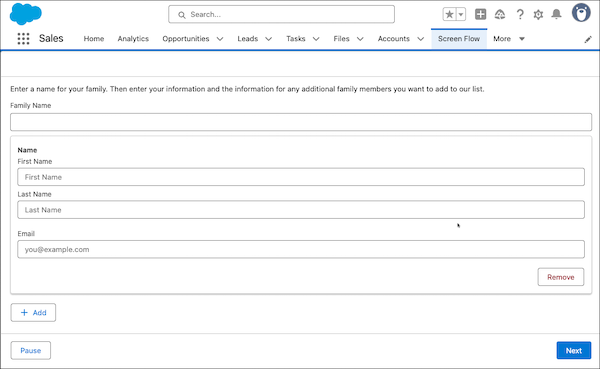
Users can go to the navigation tab in your org and run the screen flow from there.