---
schema_version: "1"
id: 67de726005f153e8b6dfff3ac938378f2a73a2c8d396746ce9200cb53b71618b
title: Send an Email in a Flow by Composing Content in the Send Email Action Element
collection: admin
version: current
locale: en-us
portal_url: https://docs.salesforce.com/admin/current/en-us/platform/264-0-0/automate_flow_build_send_email_from_a_flow.md
canonical_url: https://help.salesforce.com/s/articleView?id=platform.automate_flow_build_send_email_from_a_flow.htm&release=264.0.0&type=5
source_site: help.salesforce.com
content_type: documentation
content_hash: b778739bad2bd36f0814d11a3a0a99c4372e016a3fd06549b1b9a94ef6701e3d
description: Compose your email's subject and body directly in the Send Email action element, without an email template. You can send to any email address and use merge fields from any object in your org.
products:
- Flow Builder
- Salesforce Platform
release: "264"
---
# Send an Email in a Flow by Composing Content in the Send Email Action Element
Compose your email's subject and body directly in the Send Email action element, without an email template. You can send to any email address and use merge fields from any object in your org.
### Required Editions
To open, edit, create, activate or
deactivate a flow using all flow types, elements, and features available in Flow
Builder, including Einstein and Agentforce for Flow:
Manage Flow

Note You don't need to be an admin to have the Manage Flow permission. Ask your admin to add it to your profile or permission set.

Note If you want to send an email using an existing email template to a contact, lead, or person account, see [Send an Email from a Flow Using an Email Template](https://help.salesforce.com/s/articleView?id=platform.automate_flow_build_send_email_using_email_template.htm&release=264.0.0&type=5 "Use an existing email template with the Send Email action to send consistent, reusable email content from any flow type. Email templates support merge fields from the recipient, their organization, and sender records, and can be reused across multiple flows.").

Important To send email from Salesforce, the Send Email action in Salesforce Flow requires domain-level and user-level email verification. Email delivery fails if either the user's email address or the email-sending domain is unverified. See [Requirements to Send Email from Salesforce](https://help.salesforce.com/s/articleView?id=xcloud.security_email_verification_requirements.htm&language=en_US&type=5).
Use these steps when you want to write your email content directly in Flow Builder, without a pre-existing email template.
1. Open the Flows list view.
- From the Automation app, select the **Flows** tab.
- From the **Flows** tab in any Lightning app, click the actions menu and select **Open Flow**.
- From Setup, in the Quick Find box, enter Flows, and then select **Flows**.
Note that the Automation app and Flows tab options don't require Setup access.
2. Create the type of flow that you want to use.
- From the Automation app, click **New**, then click the category, and then the flow type. For example, to create a record-triggered flow, click **Triggered** | **Record-Triggered Flow**.
- From Setup, click **New Flow**, then click the category, and then the flow type. For example, to create a screen flow, click **Screens** | **Screen Flow**..
3. Configure the Start element if needed for the flow type.
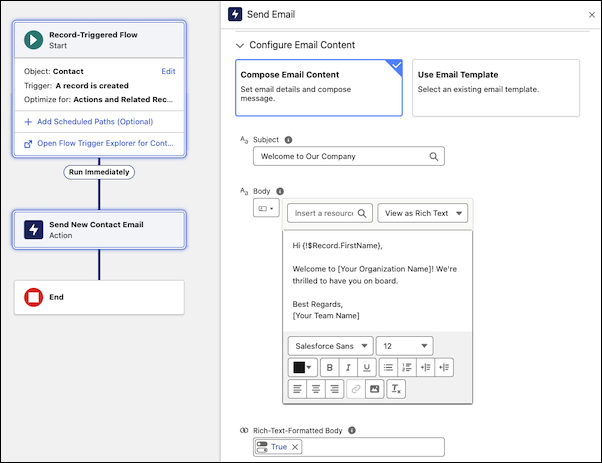
4. Add and configure a Send Email action element.
1. Click , and search for and click **Send Email**.
2. For Label, enter a name for your Send Email element. For example, Send Welcome Email. Let the API name autofill.
3. Configure the recipient information by entering a value or selecting a resource for Recipient Addresses or Recipient ID. For example, in Recipient Addresses, click **Triggering Contact**, and then search for and click **Email**.
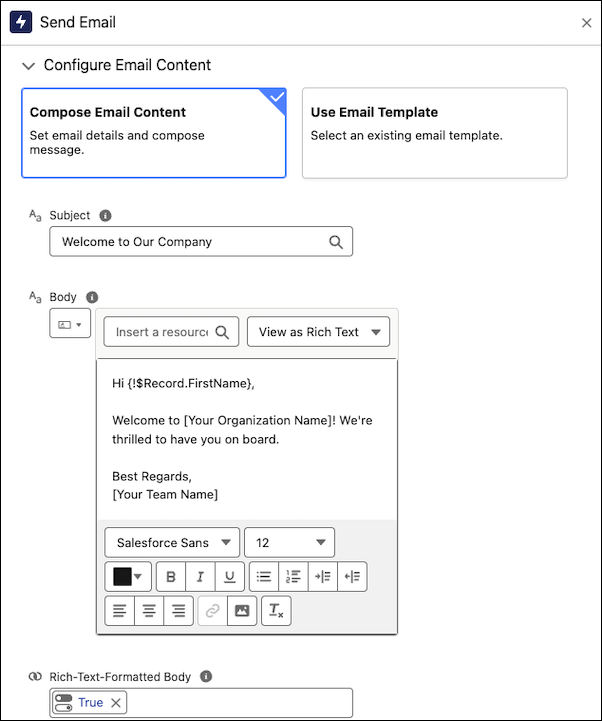
4. To add your email content, click **Compose Email Content**.
5. For Subject, enter a subject for your email. For example, Welcome to Our Company.
6. For Body, enter the body of your email. To add merge fields, click **Insert a resource...** and search for and click the resource that holds the field you want to add. For example, click **$Record** and then **First Name**. You can view the text in rich or plain format by using the **View as Rich Text** or **View as Plain Text** options.
7. For the Rich-Text-Formatted Body value, click **True**.
8. Optionally, add functionality to your email such as logging the email to a record or sending an attachment.
For all options and more information, see [Flow Core Action: Send Email](https://help.salesforce.com/s/articleView?id=platform.flow_ref_elements_actions_sendemail.htm&release=264.0.0&type=5 "Use the Send Email action in Flow Builder to send emails to individual recipients, apply email templates, add attachments, and optionally log emails to related records' activity timelines. For bulk email to audience segments, use the Send Email Message element instead.").
5. Save and name the flow.
6. To make sure that the flow works as expected, debug and test it by using different scenarios.
7. To start sending emails, activate the flow.

Important After migrating flows, always review and reconfigure the Send Email action to reference the new record IDs in the target Salesforce org. This step prevents broken references and makes sure that email delivery functions correctly after migration.
- **[Send an Email from a Flow Example](https://help.salesforce.com/s/articleView?id=platform.automate_flow_build_example_send_email_from_a_flow.htm&release=264.0.0&type=5)**
This example uses the Send Email action to send an email to a new contact. Your sales reps might forget to email new customers to welcome them, so you want to email the new contacts automatically with a flow.