---
schema_version: "1"
id: 62c4385c2acfb0b1b311a29469203a8dd63f372365a2627de8c1478f7789799d
title: Preview Screen Layout and Styles
collection: admin
version: current
locale: en-us
portal_url: https://docs.salesforce.com/admin/current/en-us/platform/264-0-0/automate_flow_build_preview_screen_layout_and_styles.md
canonical_url: https://help.salesforce.com/s/articleView?id=platform.automate_flow_build_preview_screen_layout_and_styles.htm&release=264.0.0&type=5
source_site: help.salesforce.com
content_type: documentation
content_hash: 1aae1286c8a8e97c97aa9107dea42dea2bf04cd0d2a79e2c394a664d9ca52a1d
description: See how your screen flows appear to users when the flows are added to Lightning Experience and Experience Cloud sites. Ensure that the flows match the look and feel of Lightning Experience or Experience Cloud sites before you activate the flows. Additionally, preview how your screen looks on different screen sizes.
products:
- Flow Builder
- Salesforce Platform
release: "264"
---
# Preview Screen Layout and Styles
See how your screen flows appear to users when the flows are added to Lightning Experience and Experience Cloud sites. Ensure that the flows match the look and feel of Lightning Experience or Experience Cloud sites before you activate the flows. Additionally, preview how your screen looks on different screen sizes.
### Required Editions
To open, edit, create, activate or
deactivate a flow using all flow types, elements, and features available in Flow
Builder, including Einstein and Agentforce for Flow:
Manage Flow

Note You don't need to be an admin to have the Manage Flow permission. Ask your admin to add it to your profile or permission set.
#### See Also
- [Customize the Theme of Your Experience Builder Site](https://help.salesforce.com/s/articleView?id=experience.community_builder_theme_customize.htm&type=5&language=en_US)
- [Brand Your Org in Lightning Experience](https://help.salesforce.com/s/articleView?id=xcloud.brand_your_org_in_lightning_experience.htm&type=5&language=en_US)
- [Add a Flow to a Lightning Page](https://help.salesforce.com/s/articleView?id=platform.flow_distribute_internal_lab.htm&type=5&language=en_US)
- [Add a Screen Flow to an Experience Builder Site Page](https://help.salesforce.com/s/articleView?id=platform.flow_distribute_external_community.htm&type=5&language=en_US)
## Preview How the Screen Looks in Lightning Experience and Experience Cloud Sites
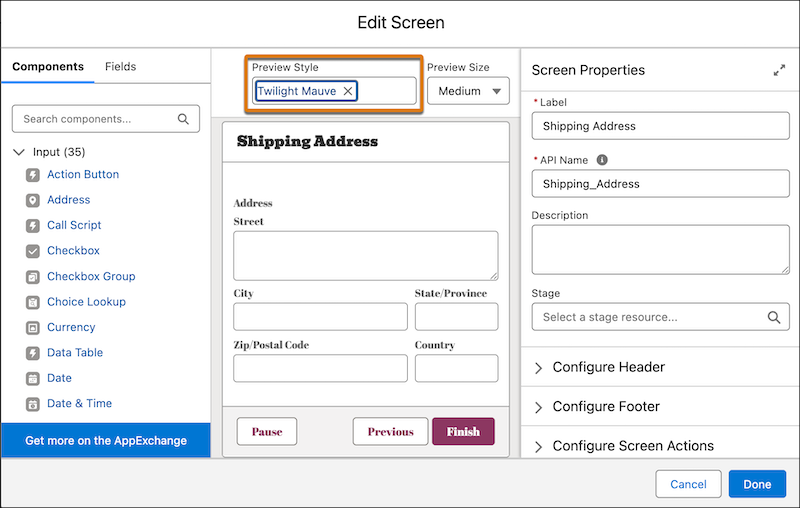
Previewing a style only simulates the appearance and doesn't affect the actual run-time theme or style settings of the screen or its components. The selected style applies to all screens in the screen flow and isn't saved after you close the flow. You can only apply SLDS1 Lightning themes to your screens. Additionally, you can apply style settings from Aura and Lightning Web Runtime (LWR) sites to your screens.
1. Create or edit a screen flow.
2. Add or edit a screen element.
3. To see how your screen appears on Lightning pages or Experience Cloud sites, under Preview Style, select a Lightning theme, or an Experience Cloud site.
Preview Style supports only SLDS1 Lightning themes.
If an Experience Cloud site theme doesn't appear in the Preview Style dropdown, publish the Experience Cloud site, then reload Flow Builder.
## Preview How the Screen Looks in Different Form Factors
See how your screen element appears on different screen sizes by using Preview Size. The run-time size of your screen or its components isn't affected by changes to the preview size for a screen in a screen flow. Preview Size only simulates the appearance of your screen on different screen sizes.
1. Create or edit a screen flow.
2. Add or edit a screen element.
3. Add or edit a screen component.
4. To preview your screen on devices of different sizes, under Preview Size, select **Large**, **Medium**, or **Small**.