---
schema_version: "1"
id: 2b8ffab1cb244b38b2845983d13cefbc54b53f1da088ba9d5045f3bad6562f93
title: Join Collections in a Flow
collection: admin
version: current
locale: en-us
portal_url: https://docs.salesforce.com/admin/current/en-us/platform/264-0-0/automate_flow_build_logic_transform_join.md
canonical_url: https://help.salesforce.com/s/articleView?id=platform.automate_flow_build_logic_transform_join.htm&release=264.0.0&type=5
source_site: help.salesforce.com
content_type: documentation
content_hash: a40ef12a6f5f14d0d98a50d8a7dfff5d52c4d6944e48a6db38cc9ec0fa289436
description: Combine source collections from related flow resources into one target collection.
products:
  - Flow Builder
  - Salesforce Platform
release: "264"
---
# Join Collections in a Flow

Combine source collections from related flow resources into one target collection.

### Required Editions

<table class="slds-table slds-table_bordered slds-max-medium-table_stacked slds-m-bottom_small edition"><colgroup><col></colgroup><tbody><tr class=""><td class="slds-cell-wrap" style="vertical-align:top;"><a href="https://help.salesforce.com/s/articleView?id=platform.flow_ref_supported_editions.htm&amp;release=264.0.0&amp;type=5" title="Learn about the editions and user interfaces that support Flow Builder. Some Flow Builder features integrate with other Salesforce products that require additional licenses.">View supported editions.</a></td></tr></tbody></table>

<table class="slds-table slds-table_bordered slds-max-medium-table_stacked slds-m-bottom_small permission">
        <colgroup>
          <col style="width:50%">
          <col style="width:50%">
        </colgroup>
        <thead class="slds-text-title_caps ">
          <tr class="">
            <th scope="colgroup" class="slds-cell-wrap" colspan="2" style="text-align:left;vertical-align:top;" id="d160776e61">User Permissions Needed</th>
          </tr>
        </thead>
        <tbody>
          <tr class="">
            <td data-label="User Permissions Needed" class="slds-cell-wrap" style="vertical-align:top;" headers="d160776e61 ">To open, edit, create, activate or
              deactivate a flow using all flow types, elements, and features available in Flow
              Builder, including Einstein and Agentforce for Flow:</td>

            <td class="slds-cell-wrap" style="vertical-align:top;" headers="d160776e61 ">Manage Flow</td>

          </tr>
        </tbody>
      </table>

![Note](https://sf-zdocs-cdn-prod.zoominsoftware.com/tdta-platform-platform_automation-264-0-0-production-enus/60568438-ec7e-4665-acd1-7c80dcbe60d5/images/icon_note.png)

Note You don't need to be an admin to have the Manage Flow permission. Ask your admin to add it to your profile or permission set.

Before you begin, understand the structure of your source and target data, such as whether the data contains multiple levels of collections within other collections. Mapping fields in a collection requires rules to preserve data integrity. See [Flow Element: Transform](https://help.salesforce.com/s/articleView?id=platform.flow_ref_elements_transform.htm&release=264.0.0&type=5 "Select the flow resources for mapping and transforming source data to target data. You can use the Transform element in screen flows, autolaunched flows with no triggers, and record-triggered flows.").

1. Add the Transform element to your flow.
2. Edit the generated label and description if needed. Flow Builder generates them based on the element's configuration, and the API name populates based on the label.
3. Configure the source and target resources.
    1. For Source Data, click the Add Resource button ![Add Resource button](https://sf-zdocs-cdn-prod.zoominsoftware.com/tdta-platform-platform_automation-264-0-0-production-enus/60568438-ec7e-4665-acd1-7c80dcbe60d5/platform_automation/images/flow/flow_transform_add_resource.png) and select the flow resource to transform the data.
        
        Select a resource that references a collection to join. The resource can be an object that references a collection.
    2. For Source Data, add another resource that references a collection to join.
    3. For Target Data, click the Add Resource button ![Add Resource button](https://sf-zdocs-cdn-prod.zoominsoftware.com/tdta-platform-platform_automation-264-0-0-production-enus/60568438-ec7e-4665-acd1-7c80dcbe60d5/platform_automation/images/flow/flow_transform_add_resource.png) and select the data type.
        
        Configure a resource that references a collection to store the combined data from the source collections. The resource can be an object that references a collection.
    4. If the resource is a collection, select **Allow multiple values (collection)**.
    5. For a Record or Apex-Defined data type, select the Apex class or object for the target data that the Transform element generates.
        
        For example, if you specified that the target data is a collection and that the record data type is the Account object, the Transform element generates an account collection. If you didn’t specify a collection, the target data is a single account.
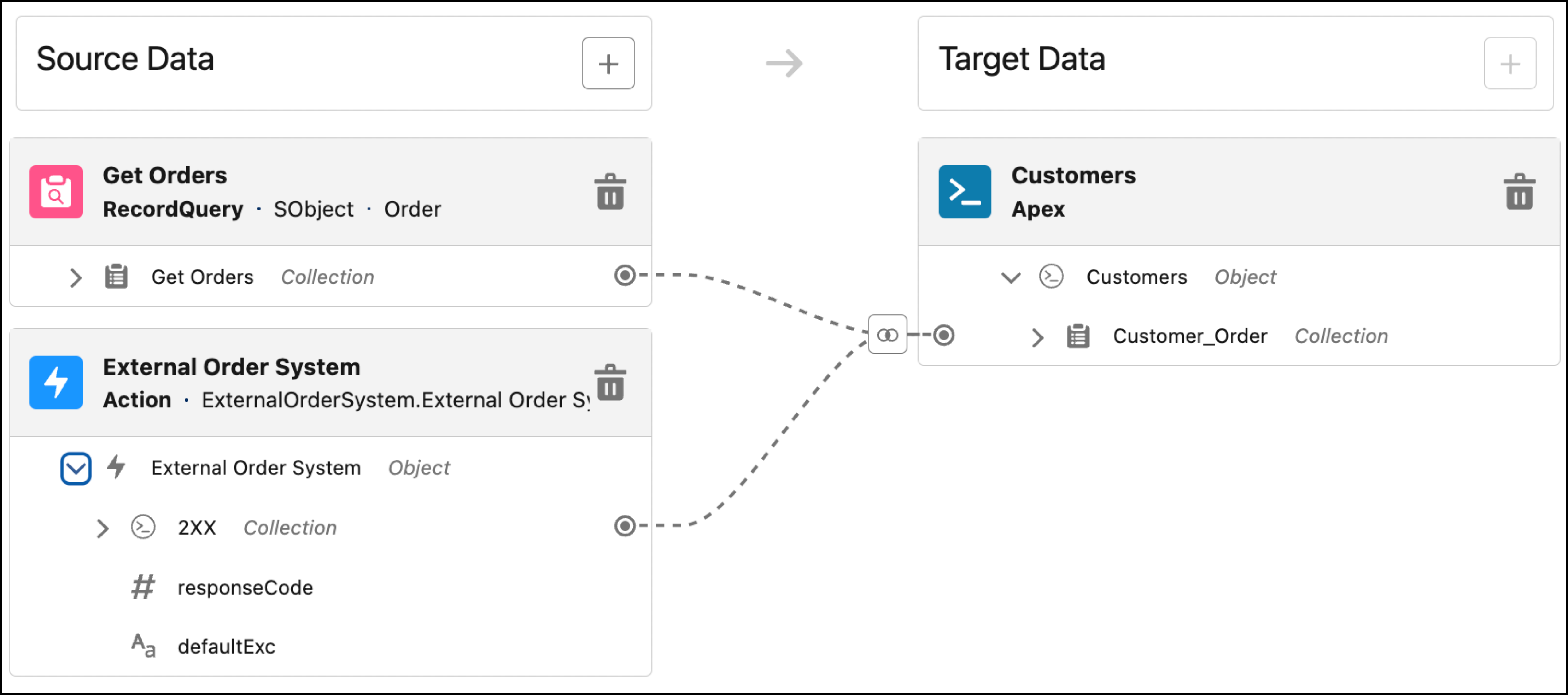
4. Map the source collections to the target collection.
    
    1. Hover over a source collection and click the Map button ![Circled bullet](https://sf-zdocs-cdn-prod.zoominsoftware.com/tdta-platform-platform_automation-264-0-0-production-enus/60568438-ec7e-4665-acd1-7c80dcbe60d5/platform_automation/images/flow/flow_transform_circled_bullet_blue.png).
    2. Next to the target collection, click the Map button ![Circled bullet](https://sf-zdocs-cdn-prod.zoominsoftware.com/tdta-platform-platform_automation-264-0-0-production-enus/60568438-ec7e-4665-acd1-7c80dcbe60d5/platform_automation/images/flow/flow_transform_circled_bullet_blue.png).
        
        If a target collection doesn’t have the Map button ![Circled bullet](https://sf-zdocs-cdn-prod.zoominsoftware.com/tdta-platform-platform_automation-264-0-0-production-enus/60568438-ec7e-4665-acd1-7c80dcbe60d5/platform_automation/images/flow/flow_transform_circled_bullet_blue.png), you can’t map to it.
    
    ![A mapping in the Transform element between two source collections and a target collection](https://sf-zdocs-cdn-prod.zoominsoftware.com/tdta-platform-platform_automation-264-0-0-production-enus/60568438-ec7e-4665-acd1-7c80dcbe60d5/platform_automation/images/flow_transform_mapping_join.png)
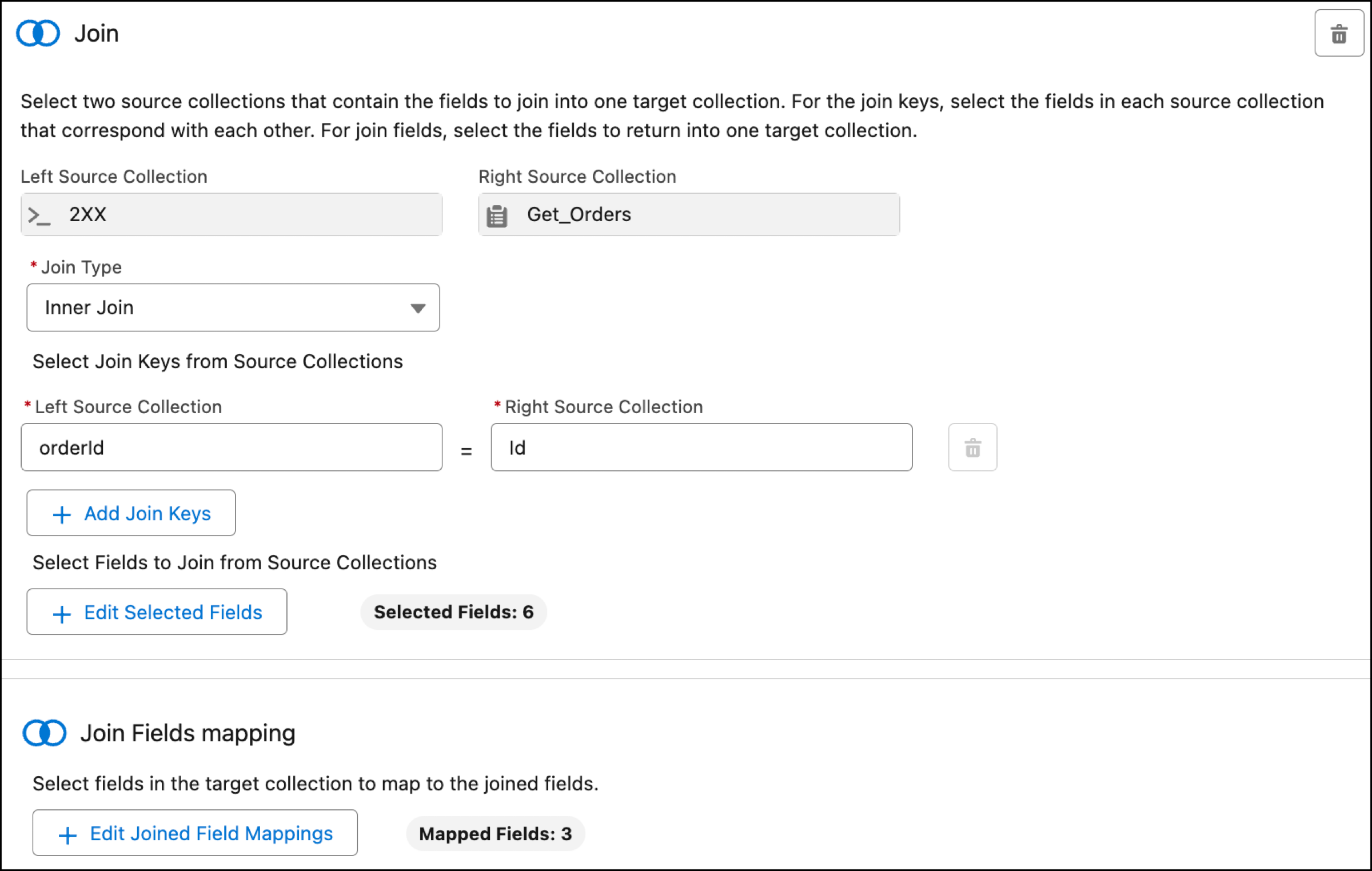
5. Select join keys in the left and right source collections.
    
    A join key is a field that uniquely identifies an item in a source collection. The join key in the left source collection corresponds with the join key in the right source collection. For example, to combine the orders, select the join keys that identify the same order in both source collections. The orderId field in the left source collection corresponds with the Id field in the right source collection. If more than one join key is required to identify an item in a source collection, add join keys.

    
    ![The Select Join Keys from Source Collections section in the Join panel with the orderId field selected for the Left Source Collection and the Id field selected for the Right Source Collection](https://sf-zdocs-cdn-prod.zoominsoftware.com/tdta-platform-platform_automation-264-0-0-production-enus/60568438-ec7e-4665-acd1-7c80dcbe60d5/platform_automation/images/flow_transform_join_keys.png)
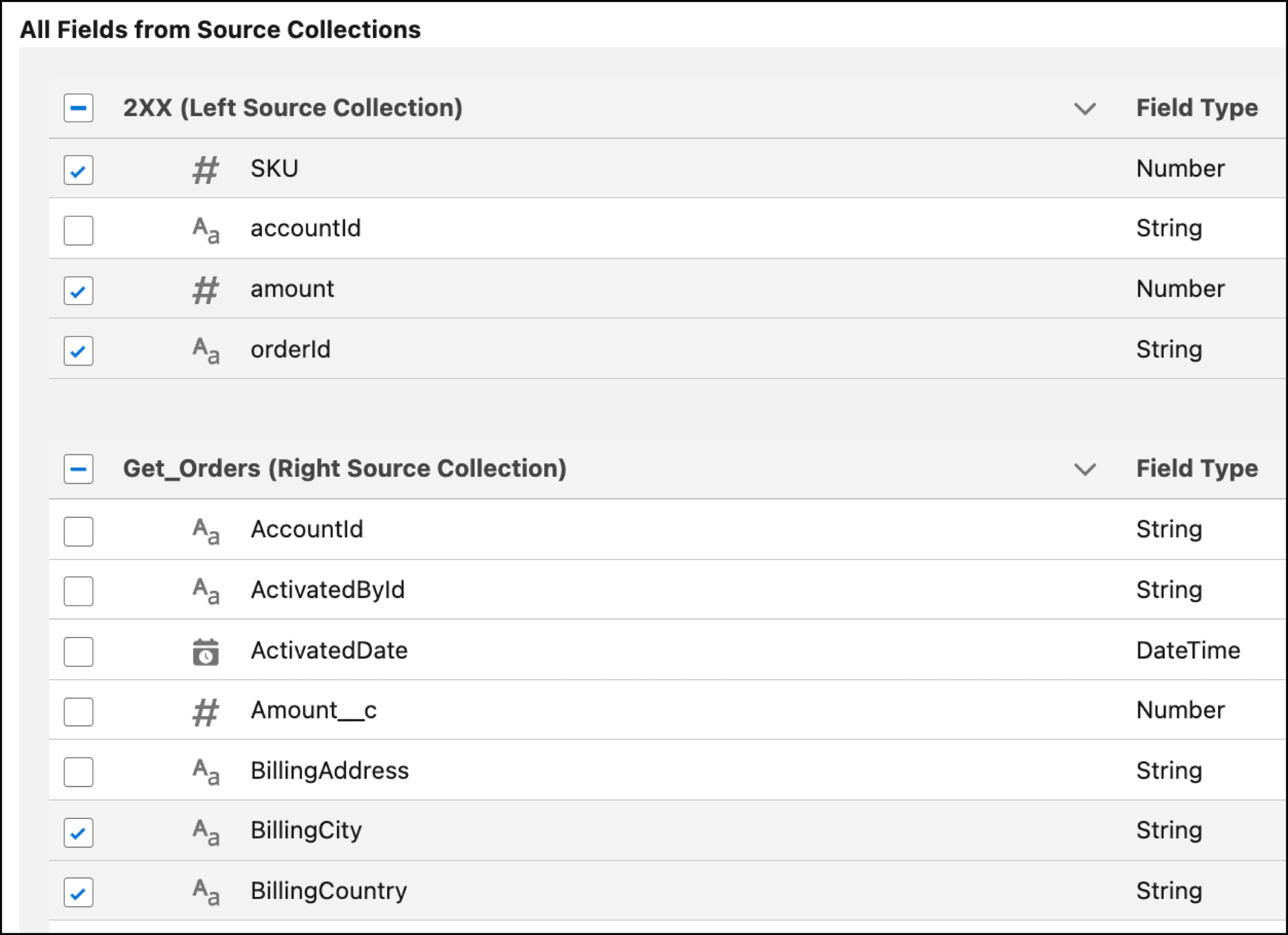
6. Select fields to join from left and right source collections.
    
    For example, select the SKU field from the left source collection because the right source collection doesn't contain that information. The combined data from the source collections provide a complete view of the order.
    
    1. Click **Select Fields**.
    2. Select the fields to combine in the target collection.
    3. Click **Set Fields**.
    
    ![The Select Fields window with fields selected in the Left Source Collection and Right Source Collection sections](https://sf-zdocs-cdn-prod.zoominsoftware.com/tdta-platform-platform_automation-264-0-0-production-enus/60568438-ec7e-4665-acd1-7c80dcbe60d5/platform_automation/images/flow_transform_join_fields.png)
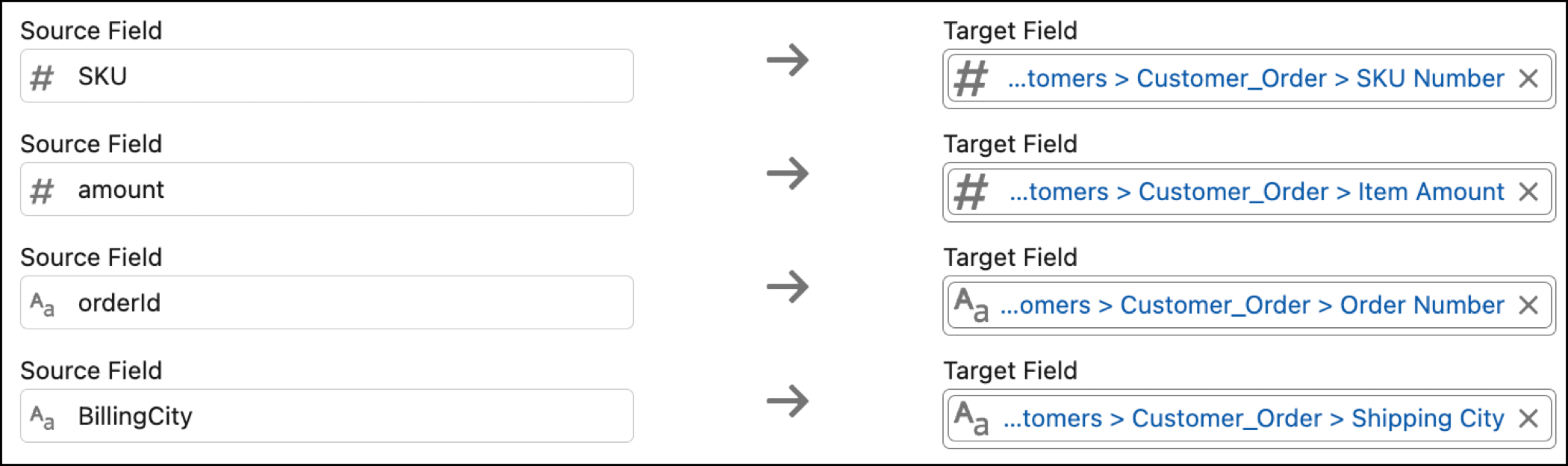
7. Select target fields to store the values from the selected source fields.
    1. Click **Select Joined Field Mappings**.
    2. For each Target Field, select the field in the target collection to store the value of the corresponding source field.
        
        For example, the SKU Number field in the target collection stores the value from the SKU source field.
        
        ![Selected source fields from the source collections that are mapped to their corresponding target fields in the target collection](https://sf-zdocs-cdn-prod.zoominsoftware.com/tdta-platform-platform_automation-264-0-0-production-enus/60568438-ec7e-4665-acd1-7c80dcbe60d5/platform_automation/images/flow_transform_join_mappings.png)
    3. Click **Set Mappings**.
8. Save your flow.

![Example](https://sf-zdocs-cdn-prod.zoominsoftware.com/tdta-platform-platform_automation-264-0-0-production-enus/60568438-ec7e-4665-acd1-7c80dcbe60d5/images/icon_example.png)

Example

Let’s create a flow that combines order records from an external order system with Salesforce orders to get a combined data structure that’s displayed in a data table in a flow screen. The flow screen shows each order along with the amount and the quantities.

Because the orderId field for the left source collection and the Id field for the right source collection identify the same order, we use those fields as the join keys. The join transformation contains 6 selected fields to join from the source collections. There are 3 mapped fields between the selected source fields and the target fields in the target collection.
![The Join panel that shows selected join keys and the Select Fields to Join from Source Collections section](https://sf-zdocs-cdn-prod.zoominsoftware.com/tdta-platform-platform_automation-264-0-0-production-enus/60568438-ec7e-4665-acd1-7c80dcbe60d5/platform_automation/images/flow_transform_join.png)

Next in the flow, the Screen element contains the Data Table component that displays the combined data in the target output from the Transform element.

#### See Also

- [Transform Element](https://help.salesforce.com/s/articleView?id=platform.flow_ref_elements_transform.htm&release=264.0.0&type=5 "Select the flow resources for mapping and transforming source data to target data. You can use the Transform element in screen flows, autolaunched flows with no triggers, and record-triggered flows.")
- [Data Table Screen Input Component](https://help.salesforce.com/s/articleView?id=platform.flow_ref_elements_screencmp_data_table.htm&release=264.0.0&type=5 "Display a collection of records in a table so that the user running the flow can select records. The flow stores the selected records as flow variables that the rest of the flow can act on.")