---
schema_version: "1"
id: 9b1f933492b280c73e0a9f860586341b8690c03d1b2f79793d038ef4a2fa2d8d
title: Keep Users Informed With a Message Screen Component
collection: admin
version: current
locale: en-us
portal_url: https://docs.salesforce.com/admin/current/en-us/platform/264-0-0/automate_flow_build_example_message_screencmp.md
canonical_url: https://help.salesforce.com/s/articleView?id=platform.automate_flow_build_example_message_screencmp.htm&release=264.0.0&type=5
source_site: help.salesforce.com
content_type: documentation
content_hash: 9aca142da127db013059a23d6c06dcf4a4461e5affd0942396229e661697cd04
description: Use a screen flow to collect contact and company information, then call an autolaunched flow to create account and contact records. Show a message to the running user about the new records by using a Message screen component. Then send the contact an email.
products:
- Flow Builder
- Salesforce Platform
release: "264"
---
# Keep Users Informed With a Message Screen Component
Use a screen flow to collect contact and company information, then call an autolaunched flow to create account and contact records. Show a message to the running user about the new records by using a Message screen component. Then send the contact an email.
### Required Editions
To open, edit, create, activate or
deactivate a flow using all flow types, elements, and features available in Flow
Builder, including Einstein and Agentforce for Flow:
Manage Flow

Note You don't need to be an admin to have the Manage Flow permission. Ask your admin to add it to your profile or permission set.

Important To send email from Salesforce, the Send Email action in Salesforce Flow requires domain-level and user-level email verification. Email delivery fails if either the user's email address or the email-sending domain is unverified. See [Requirements to Send Email from Salesforce](https://help.salesforce.com/s/articleView?id=xcloud.security_email_verification_requirements.htm&language=en_US&type=5).
## Create an Autolaunched Flow to Create an Account and Contact
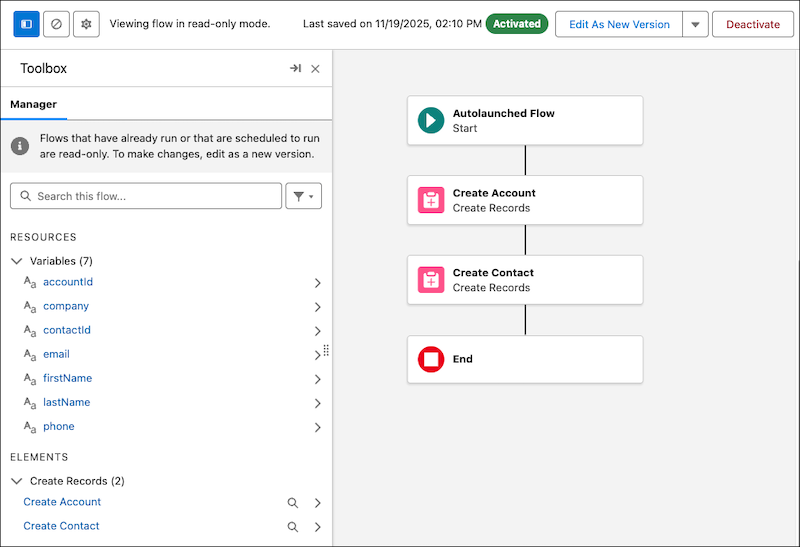
Create an autolaunched flow that accepts contact and company information as input, creates an account record, and then creates a related contact record.
1. Open the Flows list view.
- From the Automation app, select the **Flows** tab.
- From the **Flows** tab in any Lightning app, click the actions menu and select **Open Flow**.
- From Setup, in the Quick Find box, enter Flows, and then select **Flows**.
Note that the Automation app and Flows tab options don't require Setup access.
2. Create an autolaunched flow.
- From the Automation app, click **New** | **Autolaunched Automations** | **Autolaunched Flow (No Trigger)**.
- From Setup, click **New Flow** | **Autolaunched Automations** | **Autolaunched Flow (No Trigger)**
The new autolaunched flow opens in Flow Builder.
3. Create input variables to store the contact and company information collected from the screen flow.
1. To open the Toolbox, click .
2. Click **New Resource**, and then select **Variable**.
3. For API Name, enter firstName.
4. For Data Type, select **Text**.
5. Select **Available for input**.
6. Click **Done**.
7. Repeat steps 3 through 6 to create the following additional input variables with Data Type Text: lastName, email, phone, and company.
4. Create output variables to store the new contact’s ID to send back to the screen flow.
1. To open the Toolbox, click .
2. Click **New Resource**, and then select **Variable**.
3. For API Name, enter contactId.
4. For Data Type, select **Text**.
5. Select **Available for output**.
6. Click **Done**.
5. Create the account record with a Create Records element.
1. On the canvas, click , and select **Create Records**.
The Create Records panel opens.
2. For Label, enter Create Account.
The API name auto-fills.
3. For Description, enter Creates a new account record using the Company input variable.
4. For How to set record field values, select **Manually**.
5. For Object, select **Account**.
The Account Name field is added to the Set Field Values for the Account.
6. For Value, select the **company** variable.
6. Create the contact record with a Create Records element.
1. Click , and select **Create Records**.
The Create Records panel opens.
2. For Label, enter Create Contact.
The API name auto-fills.
3. For Description, enter Creates a new contact record associated with the newly created account.
4. For How to set record field values, select **Manually**.
5. For Object, select **Contact**.
The Last Name field is added to the Set Field Values for the Contact.
6. For Value, select the **lastName** variable.
7. Click **\+ Add Field**.
8. For Field, select **First Name**.
9. For Value, select the **firstName** variable.
10. Click **\+ Add Field**.
11. For Field, select **Email**.
12. For Value, select the **email** variable.
13. Click **\+ Add Field**.
14. For Field, select **Mobile Phone**.
15. For Value, select the **phone** variable.
16. Click **\+ Add Field**.
17. For Field, select **Account ID**.
18. For Value, select the **accountId** variable.
19. Select **Manually assign variables (advanced)**.
20. In the Store Contact ID in Variable section, for variable, select **contactId**.
This stores the ID of the new contact in the contactId variable.
7. Save the autolaunched flow.
1. Click **Save**.
2. For Flow Label, enter Create Account and Contact.
The Flow API name auto-fills.
3. For Description, enter Creates an account and an associated contact from input variables.
4. Click **Save**.
8. Test the flow.
1. Click **Debug**.
2. Enter test data for company, email, first name, and last name.
3. Click **Run**.
4. Expand the details for each element and check that the flow works as expected.
9. Activate the flow.
1. Click **Activate**.
## Create a Screen Flow With an Action Button to Call the Autolaunched Flow
Create a screen flow with a Lookup component, input fields, and an Action Button that triggers a screen action to call the Create Account and Contact autolaunched flow. The user searches for an existing contact, and if they don't find one, they can create a contact and associated account.
1. Open the Flows list view.
- From the Automation app, select the **Flows** tab.
- From the **Flows** tab in any Lightning app, click the actions menu and select **Open Flow**.
- From Setup, in the Quick Find box, enter Flows, and then select **Flows**.
Note that the Automation app and Flows tab options don't require Setup access.
2. Create a screen flow.
- From the Automation app, click **New** | **Screen Automations** | **Screen Flow**.
- From Setup, click **New Flow** | **Screen Automations** | **Screen Flow**
The new screen flow opens in Flow Builder.
3. Add a Screen element.
1. On the canvas, click , and select **Screen**.
The Screen panel opens.
2. For Label, enter Collect Contact and Company Information.
The API name auto-fills.
3. Open the Configure Footer section.
4. For Next or Finish Button, select **Use custom label**.
5. For Next or Finish Button Label, enter Done.
6. Click **Done**.
4. Add a Lookup component to the screen.
1. In the Components list, click **Lookup**.
The Lookup component is added to the screen.
2. For Field API Name, enter ContactId.
3. For API Name, enter ContactLookup.
4. For Label, enter Select Existing Contact.
5. For Object API Name, enter Case.
Lookup components mimic a lookup field on an object that you specify. We’re using the Case object here because this flow's org has a lookup field to the Contact object on the Case object.
5. Add a Checkbox component to the screen.
1. In the Components list click **Checkbox**.
2. For Label, enter Create new contact?.
The API name auto-fills.
6. Add a Name component to the screen.
1. In the Components list, click **Name**.
2. For API Name, enter Name.
3. Open the Set Component Visibility section.
4. For When to Display Component, select **All Conditions Are Met (AND)**.
A condition window opens.
5. For Resource, click **Collect Contact and Company Information** | **Create new contact**.
6. For Operator, select **Equals**.
7. For Value, select **True**.
This sets the component to only show when the Create new contact? checkbox is selected.
7. Add a Text component to the screen to collect the contact's company.
1. In the Components menu, click **Text**.
2. For Label, enter Company.
The API Name autofills.
3. Open the Set Component Visibility section.
4. For When to Display Component, select **All Conditions Are Met (AND)**.
A condition window opens.
5. For Resource, click **Collect Contact and Company Information** | **Create new contact**.
6. For Operator, select **Equals**.
7. For Value, select **True**.
8. Add an Email component to the screen.
1. In the Components list, click **Email**.
2. For API Name, enter Email.
3. Open the Set Component Visibility section.
4. For When to Display Component, select **All Conditions Are Met (AND)**.
A condition window opens.
5. For Resource, click **Collect Contact and Company Information** | **Create new contact**.
6. For Operator, select **Equals**.
7. For Value, select **True**.
9. Add a Phone component to the screen.
1. In the Components list, click **Phone**.
2. For API Name, enter Phone.
3. Open the Set Component Visibility section.
4. For When to Display Component, select **All Conditions Are Met (AND)**.
A condition window opens.
5. For Resource, click **Collect Contact and Company Information** | **Create new contact**.
6. For Operator, select **Equals**.
7. For Value, select **True**.
10. Add an Action Button component to the screen that the user can click to run the screen action that calls the autolaunched flow that creates a new account and contact.
1. In the Components list, click **Action Button**.
2. For Label, enter Create.
3. For API Name, enter CreateNewAccountContact.
4. For Flow, select **Create Account and Contact**.
This flow is the autolaunched flow you created.
The Configure Screen Action panel opens.
5. If the API Name doesn't auto-fill, for API Name, enter Create\_Account\_and\_Contact
11. Configure the screen action inputs to pass the values from the screen components to the autolaunched flow.
1. In the Set Input Values section, click the buttons to include all of the inputs.
2. For company, click **Collect Contact and Company Information** | **Company**.
3. For email, click **Collect Contact and Company Information** | **Email** | **Value**.
4. For firstName, click **Collect Contact and Company Information** | **Name** | **First Name**.
5. For lastName, click **Collect Contact and Company Information** | **Name** | **Last Name**.
6. For phone, click **Collect Contact and Company Information** | **Phone** | **Value**.
7. Open the Set Component Visibility section.
8. For When to Display Component, select **All Conditions Are Met (AND)**.
A condition window opens.
9. For Resource, click **Collect Contact and Company Information** and then click **Create new contact?**.
10. For Operator, select **Equals**.
11. For Value, select **True**.
This sets the action button to show only when the user has indicated that they want to create a contact.
The Action Button is now configured to call the autolaunched flow when clicked, passing the values from the screen input components.
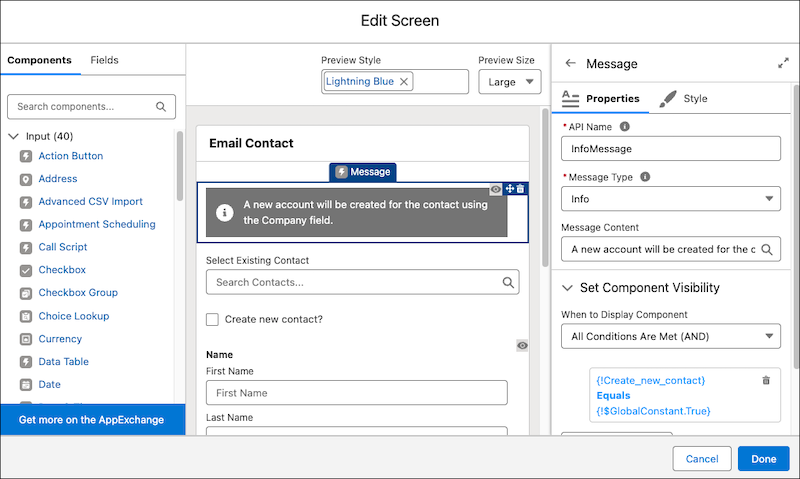
12. Add a Message component to the screen to notify the user that an account will be created in addition to the new contact.
1. In the Components list, click **Message**.
2. Drag the Message component to the top of the screen.
3. For API Name, enter InfoMessage.
4. For Message Type, select **Informational**.
5. For Message Content, enter A new account will be created for the contact using the Company field.
6. Open the Set Component Visibility section.
7. For When to Display Component, select **All Conditions Are Met (AND)**.
A condition window opens.
8. For Resource, click **Collect Contact and Company Information** | **Create new contact**
9. For Operator, select **Equals**.
10. For Value, select **True**.
This sets the message component to show only when the Create new contact? checkbox is selected.
11. Click **\+ Add Condition**
12. For Resource, click **Collect Contact and Company Information** | **Create Account and Contact (screen action)** | **Results** | **contactId**.
13. For Operator, select **Is Null**.
14. For Value, select **True**.
This sets the message component to also show only if the screen action hasn’t run and doesn’t have results.
15. Click **\+ Add Condition**
16. For Resource, click **Collect Contact and Company Information** | **Create Account and Contact (screen action)** | **In Progress**.
17. For Operator, select **Equals**.
18. For Value, select **False**.
This sets the message component to also show only if the screen action isn’t currently running.
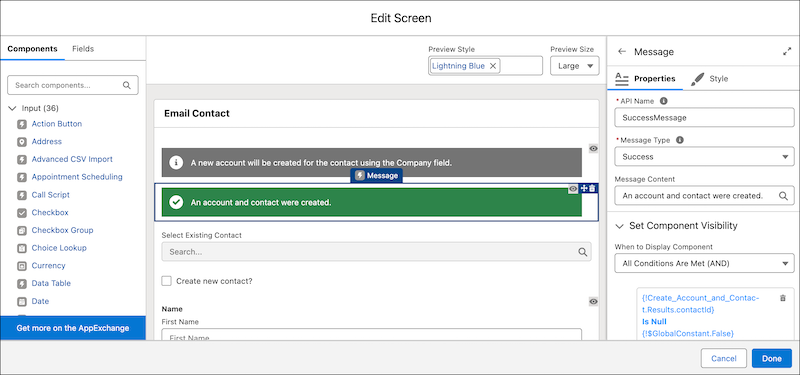
13. Add another Message component to the screen to notify the user that the records were created.
1. In the Components list, click **Message**.
2. Drag the Message component to the top of the screen.
3. For API Name, enter SuccessMessage.
4. For Message Type, select **Success**.
5. For Message Content, enter An account and contact were created.
6. Open the Set Component Visibility section.
7. For When to Display Component, select **All Conditions Are Met (AND)**.
A condition window opens.
8. For Resource, click **Collect Contact and Company Information** | **Create Account and Contact (screen action)** | **Results** | **contactId**.
9. For Operator, select **Is Null**.
10. For Value, select **False**.
This sets the message component to show only when the screen action was successful, created the records, and stored the contact ID in the contactId variable.
14. Click **Done**.
## Configure Screen Flow to Email Contact
Add a Send Email action element to the screen flow and email either the contact selected in the lookup component, or the new contact.
1. Create a Text variable to hold the email address of the contact to send an email to.
1. To open the Toolbox, click .
2. Click **New Resource**, and then select **Variable**.
3. For API Name, enter ContactEmail.
4. For Description, enter Stores the email address of the contact to send an email to.
5. For Data Type, select **Text**.
6. Click **Done**.
2. Add a Decision element to determine which email address to use.
1. On the canvas, click , and select **Decision**.
The decision panel opens.
2. For Label, enter Which Email Address?.
The API name auto-fills.
3. For Description, enter Determines whether to use the email from an existing contact or a new contact.
4. For Outcome Label, enter Lookup Contact Has Email.
The Outcome API Name auto-fills.
5. In the Condition Requirements to Execute Outcome section, for Execute Outcome When, select **All Conditions Are Met (AND)**.
6. For Resource, click **Collect Contact and Company Information** | **Select Existing Contact** | **Record ID**.
7. For Operator, select **Is Null**.
8. For Value, select **False**.
This outcome runs when the lookup component has a record ID value.
9. In OUTCOME ORDER, Click  to add another outcome.
10. For Outcome Label, enter New Contact.
The Outcome API Name auto-fills.
11. In the Condition Requirements to Execute Outcome section, for Execute Outcome When, select **All Conditions Are Met (AND)**.
12. For Resource, click **Collect Contact and Company Information** | **Email** | **Value**.
13. For Operator, select **Is Null**.
14. For Value, select **True**.
This outcome runs when the new contact email component has a value.
3. If there’s an existing contact, add a Get Records element to get the existing contact record and store their email address in the ContactEmail variable.
1. On the Existing Contact outcome path, click , and select **Get Records**.
The Get Records panel opens.
2. For Label, enter Get Existing Contact.
The API name auto-fills.
3. For Description, enter Get the contact selected in the lookup screen component.
4. For Object, select **Contact**.
5. In Filter Contact Records, for Field, select **Contact ID**.
6. For Operator, select **Equals**.
7. For Value, click **Collect Contact and Company Information** | **Select Existing Contact** | **Record ID**.
8. For How Many Records to Store, select **Only the first record**.
9. For How to Store Record Data, select **Choose fields and assign variables (advanced)**.
10. For Where to Store Field Values, select **In separate variables**.
11. For Field, select **Email**.
12. For Variable, select the **ContactEmail** variable.
This stores the existing contact's email in the ContactEmail variable.
4. If there’s a new contact, Add an Assignment element to store the new contact's email in the ContactEmail variable.
1. On the New Contact outcome path, click , and select **Assignment**.
The Assignment panel opens.
2. For Label, enter Store New Contact Email.
The API name auto-fills.
3. For Description, enter Assigns the email entered in the Email screen component to the ContactEmail variable.
4. For Variable, select the **ContactEmail** variable.
5. For Operator, select **Equals**.
6. For Value, click **Collect Contact and Company Information** | **Email** | **Value**.
7. Click **Done**.
5. After the flow paths meet, add a Send Email action element to send an email to the contact.
1. Click the  that's right before the End element, and search for and select **Send Email**.
The Send Email panel opens.
2. For Label, enter Send Email to Contact
The API name auto-fills.
3. For Description, enter Send an email to the existing or new contact.
4. In the Configure Recipient Details section, For Recipient Addresses, select the **ContactEmail** variable.
5. In the Configure Email Contact section, For Subject, enter We value your feedback!
6. For Body, enter You recently worked with one of our agents. Please visit our website and let us know how it went. Thank you for your business!
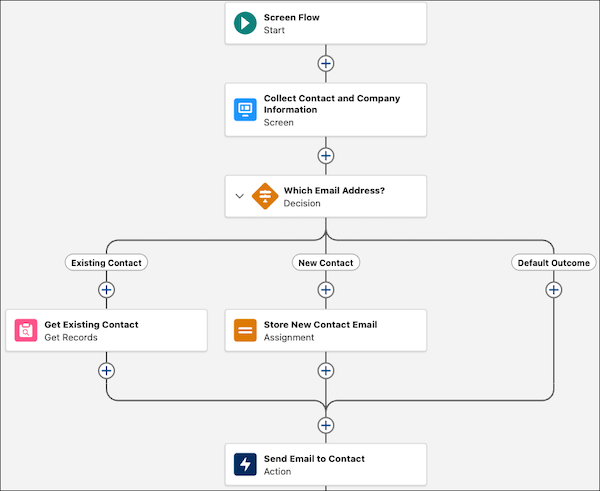
6. Save the screen flow.
1. Click **Save**.
2. For Flow Label, enter Email New or Existing Contact.
The Flow API Name auto-fills.
3. For Description, enter Look up an existing contact, or create a new account and contact, then send the contact an email.
4. Click **Save**.
7. Test the flow.
1. Click **Debug** and then **Run**.
2. Click the **Create new contact?** checkbox and enter test data.
3. Click **Run**.
4. Expand the details for each element and check that the flow works as expected.
8. Activate the flow.
1. Click **Activate**.
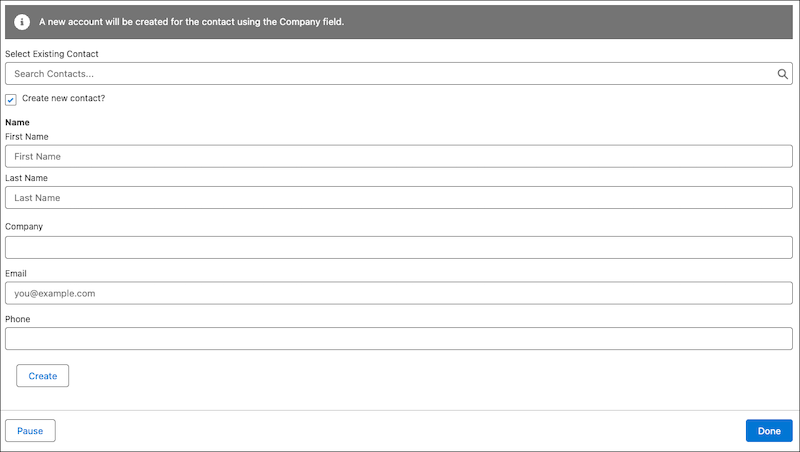
The screen flow at runtime.