---
schema_version: "1"
id: 2a1dfc81bd6546e261345e78157eba13f29f7cff04757e7a122599de283ad921
title: Create a Child Flow to Clone a Record
collection: admin
version: current
locale: en-us
portal_url: https://docs.salesforce.com/admin/current/en-us/platform/264-0-0/automate_flow_build_data_clone_in_child_flow.md
canonical_url: https://help.salesforce.com/s/articleView?id=platform.automate_flow_build_data_clone_in_child_flow.htm&release=264.0.0&type=5
source_site: help.salesforce.com
content_type: documentation
content_hash: b28e2cec77186f4047977366cb9557d639b4978c43786b4706a9f9eec8d95c83
description: Build a reusable autolaunched flow that accepts a record as input and creates a clone with all field values the running user can edit. A parent flow calls this child flow using a Subflow element and receives the cloned record as output. Complete this task before building the parent flow.
products:
- Flow Builder
- Salesforce Platform
release: "264"
---
# Create a Child Flow to Clone a Record
Build a reusable autolaunched flow that accepts a record as input and creates a clone with all field values the running user can edit. A parent flow calls this child flow using a Subflow element and receives the cloned record as output. Complete this task before building the parent flow.
### Required Editions
To open, edit, create, activate or
deactivate a flow using all flow types, elements, and features available in Flow
Builder, including Einstein and Agentforce for Flow:
Manage Flow

Note You don't need to be an admin to have the Manage Flow permission. Ask your admin to add it to your profile or permission set.
Before you begin, review [Read-Only Field Restrictions for Flow Record Processing](https://help.salesforce.com/s/articleView?id=platform.flow_considerations_readonlyfields.htm&release=264.0.0&type=5 "Fields the running user can't edit are inaccessible to the flow during record creation and updates. This happens when the user lacks field-level permissions or when the field is a system field.")
1. Open the Flows list view.
- From the Automation app, select the **Flows** tab.
- From the **Flows** tab in any Lightning app, click the actions menu and select **Open Flow**.
- From Setup, in the Quick Find box, enter Flows, and then select **Flows**.
Note that the Automation app and Flows tab options don't require Setup access.
2. Create an autolaunched flow.
- From Setup, click **New Flow**, select **Autolaunched Automations**, and then select **Autolaunched Flow (No Trigger)**..
- From the Automation app, click **New**, select**Autolaunched Automations**, and then select **Autolaunched Flow (No Trigger)**.
3. Add an input variable to store the record variable containing the original record.
1. To open the Toolbox, click 
2. Click **New Resource**, and then select **Variable**.
3. Enter an API name and description.
4. For Data Type, select **Record**.
5. For Object, select the object of the record to clone.
6. for Availability Outside the Flow, select **Available for input**.
For example, to clone a case record, add a caseToClone record variable.
| Field | Value |
| --- | --- |
| **API Name** | caseToClone |
| **Description** | Stores a case record that contains the field values of the original case record, and is passed into the flow. |
| **Data Type** | **Record** |
| **Object** | **Case** |
| **Availability Outside the Flow** | **Available for input** |
4. Add a record variable to store the new record values.
1. Click **New Resource**, and then select **Variable**.
2. Enter an API name and description.
3. For Data Type, select **Record**.
4. For Object, select the object of the record to clone.
5. For Availability Outside the Flow, select **Available for output**.
For example, create a variable to store a new case record and return it to the parent flow by adding a newCase record variable that available as output from the flow.
| Field | Value |
| --- | --- |
| **API Name** | newCase |
| **Description** | Stores the field values of the original case record and is available as output from the flow. |
| **Data Type** | **Record** |
| **Object** | **Case** |
| **Availability Outside the Flow** | **Available for output** |
5. Add an Assignment element to clear the value of the record’s ID.
1. Click , and select **Assignment**.
2. Edit the generated label and description if needed. Flow Builder generates them based on the element's configuration, and the API name populates based on the label.
3. For Variable, select the record variable that holds the new record.
4. For Operator, select **Equals**.
5. For Value, select the record variable that holds the record to clone.
6. Click **Add Assignment**.
7. For Variable, select the primary ID field of record variable that holds the new record.
8. For Operator, select **Equals**.
9. For Value, select **Blank Value (Empty String)**.
For example, to set the value of the new record variable to the record passed into the flow and to set its case ID to an empty string, add an Assignment element.
| Field | Value |
| --- | --- |
| **Label** | Set newCase Values |
| **API Name** | SetNewCaseValues |
| **Description** | Sets the newCase record variable to caseToClone, and then sets newCase’s case ID to an empty string. |
| **Variable** | **newCase > Entire Resource** |
| **Operator** | **Equals** |
| **Value** | **caseToClone > Entire Resource** |
| **Variable** | **newCase > Case ID** |
| **Operator** | **Equals** |
| **Value** | **Blank Value (Empty String)** |
6. Add a Create Records element.
1. Click , and select **Create Records**.
2. Edit the generated label and description if needed. Flow Builder generates them based on the element's configuration, and the API name populates based on the label.
3. For Object, select the object of the record to create.
4. For How Many Records to Create, select **One**.
5. For Record, select the record variable created in step 4.
For example, add a Create Records element and configure it to create a record using the field values stored in the newCase record variable.
| Field | Value |
| --- | --- |
| **Label** | Clone Record |
| **API Name** | CloneRecord |
| **Description** | Creates a copy of the record in newCase, and stores the result in the newCase record variable. |
| **How to set record field values** | **From a Record Variable** |
| **How Many Records to Create** | **One** |
| **Record** | **newCase** |
The Case ID field of newCase now contains the new record’s case ID.
7. Save the flow.
For example, click **Save** and then use these values to save the flow.
| Field | Value |
| --- | --- |
| **Flow Label** | Clone Record with All Fields |
| **API Name** | Clone\_Record\_with\_All\_Fields |
| **Description** | Creates a copy of the record passed into the flow, with all fields. |
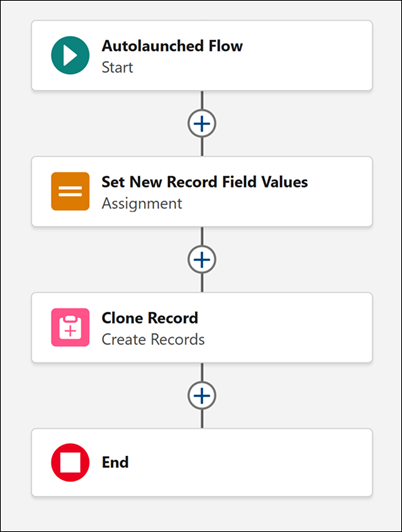
Click **Save**.
8. Activate the flow.
This child flow is now ready to be called by the parent flow using a Subflow element.