---
schema_version: "1"
id: e24ad10f5892c598c57a06bbb6cf9cc33b6dc191955218b2562f36ab88fa8c3e
title: Add Recall Actions to a Flow Approval Process
collection: admin
version: current
locale: en-us
portal_url: https://docs.salesforce.com/admin/current/en-us/platform/264-0-0/automate_automated_approvals_add_recall_path.md
canonical_url: https://help.salesforce.com/s/articleView?id=platform.automate_automated_approvals_add_recall_path.htm&release=264.0.0&type=5
source_site: help.salesforce.com
content_type: documentation
content_hash: cef67d8ae690c027ac3f63fc91c9eb7af433fa15cb62d7547a1ea9305a49f405
description: To run steps when an in-progress flow approval process is recalled, add a Recall path. A recall path can contain a single stage with background steps. When the submission is recalled, the stage that was in-progress and all of its steps that haven’t been completed are canceled. Open approval work items are also canceled. The stage in the recall path then runs. When the stage in the recall path is completed, the approval submission is recalled.
products:
- Flow Builder
- Salesforce Platform
release: "264"
---
# Add Recall Actions to a Flow Approval Process
To run steps when an in-progress flow approval process is recalled, add a Recall path. A recall path can contain a single stage with background steps. When the submission is recalled, the stage that was in-progress and all of its steps that haven’t been completed are canceled. Open approval work items are also canceled. The stage in the recall path then runs. When the stage in the recall path is completed, the approval submission is recalled.
### Required Editions
To open, edit, or create a flow approval process in Flow Builder:
Manage Flow
You can add a recall path to both autolaunched and record-triggered flow approval processes.
If Add Recall Path (Optional) isn’t visible in the start element in your flow approval process, click the Start element on the canvas.
1. On the Start element, click **Add Recall Path (Optional)**.
The Configure Start panel opens.
2. Click **Add Recall Path**.
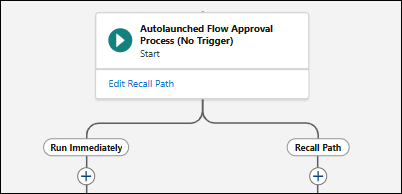
The flow approval process now has two paths: Run Immediately and Recall Path.
3. In the Recall Path, click , and then select **Stage**.
4. Enter a label, API name, and description.
5. (Optional) Under Select When to Complete the Stage, select a condition.
- To complete the stage when all its steps are completed, select **When all steps have been marked Completed, the stage is marked Completed**.
- To specify up to 10 requirements to meet before the stage can be completed, select **When the specified requirements are met, the stage is marked Completed**. Then configure the requirements.
- To use complex requirements to determine when the stage can be completed, select **When the specified evaluation flow returns True, the stage is marked Completed**. Then select an active evaluation flow.
6. In the stage element, click **\+ Add Step**, and select **Background Step**.
7. Enter a label, API name, and description.
8. (Optional) Under Select When to Start the Step, select a condition.
- To automatically start the step when the stage starts, select **When the stage starts, the step starts**.
- To start the step after another step is completed, select **When another step is marked Completed, the step starts**. Then enter the name of the step to be completed first.
- To specify up to 10 requirements to meet before the step can start, select **When the specified requirements are met, the step starts**. Then configure the requirements.
- To use complex requirements to determine when the step starts, select **When the specified evaluation flow returns True, the step starts**. Then select an active evaluation flow.
9. Under Select an Action to Run, select an active, autolaunched flow.
10. Under Select Who to Run the Action As, select an option.
- (Default) To run the step as the automated process user, select **Automated Process User**.
- To run the step as a specific user, select **A Selected User**. Then select the user to run the step as.
- To run the step as a user that’s determined at run time, select **A User Specified by a Resource at Run Time**. Then select the flow approval process text resource that contains the username of the person to run the step as at run time.
11. Repeat steps 6 to 10 for each background step.
12. Save your work.