---
schema_version: "1"
id: 1b9eb25745a114fea171b3bca4d9f0f54f116186a5f96d076e0773e53738434f
title: Add a Utility Bar to Lightning Apps
collection: admin
version: current
locale: en-us
portal_url: https://docs.salesforce.com/admin/current/en-us/platform/264-0-0/apps_lightning_utilities.md
canonical_url: https://help.salesforce.com/s/articleView?id=platform.apps_lightning_utilities.htm&release=264.0.0&type=5
source_site: help.salesforce.com
content_type: documentation
content_hash: 4e49db1522a57c480cce09efdb7bfff182e2866b7986bd6928379fae9822201a
description: The utility bar is a specialized type of Lightning page that gives your users quick access to common productivity tools, like Notes and Recent Items. It appears as a fixed footer that users can access to open utilities in docked panels. Some utilities support pop-out, which lets them open in a new browser window.
products:
- Salesforce Platform
- Security
release: "264"
---
# Add a Utility Bar to Lightning Apps
The utility bar is a specialized type of Lightning page that gives your users quick access to common productivity tools, like Notes and Recent Items. It appears as a fixed footer that users can access to open utilities in docked panels. Some utilities support pop-out, which lets them open in a new browser window.
### Required Editions
Available in: Lightning Experience
Available in: Contact Manager, Group, Professional, Enterprise, Performance, Unlimited, and Developer Editions
User Permissions
Needed
To view apps:
View Setup and Configuration
To manage apps:
Modify All Data
Utilities harness the power of Lightning components. When you set up a utility bar, you select which Lightning components to use as utilities.
Background utility items are added the same way as normal utility items, but don’t appear in the utility bar. The  icon appears next to background utility items on the utility item list. If you have only background utility items in your utility bar, the utility bar doesn’t appear in your app. You need at least one non-background utility item in your utility bar for it to appear.
You can add or edit a utility bar at any time.
1. From the Home tab in Setup, enter App in the Quick Find box, then select **App Manager**.
2. To edit or add a utility bar to an existing app, click **Edit** in the dropdown menu next to your app. To create a Lightning app with a utility bar, click **New Lightning App**.
3. Click the **Utility Items** tab and add the utilities you want.
Specify component and utility properties, like the height and width of the utility panel, and what label and icon to display in the utility bar. Some utilities have properties that can’t be changed.

Tip A Lightning page region can contain up to 100 components. We recommend adding no more than 10 utilities, and that you keep the utility labels short and sweet. You want your users to quickly find the tools and processes they need most.

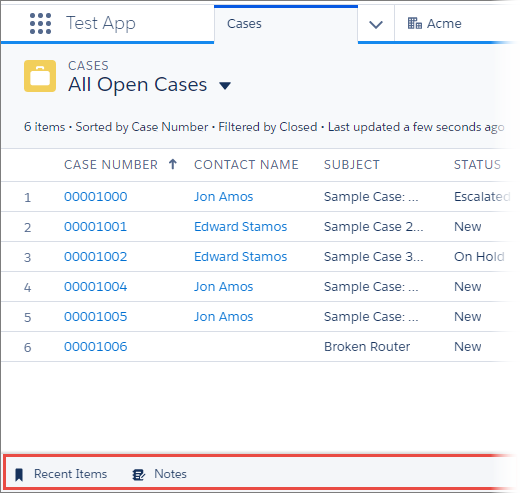
Example Here’s a utility bar with the Recent Items and Notes utilities.
When creating a utility bar for your app, keep these things in mind:
- Utility bars created using the Lightning App Wizard or in the Lightning App Builder can be assigned to only one Lightning app. However, utility bars created using the API can be assigned to multiple Lightning apps.
- The utility bar doesn’t support Visualforce pages or components.
- The utility bar doesn’t fully support the Chatter Publisher and Feed components.
- The History utility works in Lightning console apps only.
- The default utility bar alignment matches the user’s language setting alignment. For example, English is read left to right. If you select Default and a user’s language is set to English, the utility bar appears at the bottom of the left side of the screen. If you select Mirrored, the utility bar appears at the bottom of the right side of the screen.
#### See Also
- [Customize Your Lightning Console App with Utilities](https://help.salesforce.com/s/articleView?id=service.console_lex_custom_utilities.htm&type=5&language=en_US)
- [Create Lightning Apps](https://help.salesforce.com/s/articleView?id=platform.apps_lightning_create.htm&release=264.0.0&type=5 "As in Salesforce Classic, you can create apps in Lightning Experience, but with even more bells and whistles. You can brand and customize Lightning apps to help your users work more efficiently. For example, you can create a Lightning app for your finance department that includes all important items, including tabs, for users to complete common tasks. You can customize the navigation bar color, brand it with a logo, and make the app available in the App Launcher for the user profiles associated with the finance department.")
- [_Lightning Web Components Dev Guide:_ Configure a Component for the Utility Bar](https://developer.salesforce.com/docs/component-library/documentation/en/lwc/lwc.use_config_for_utility_bar)
- [_Salesforce Console Developer Guide:_ Using Background Utility Items](https://developer.salesforce.com/docs/atlas.en-us.api_console.meta/api_console/sforce_api_console_js_lightning_background_utility_item.htm)
- [_Salesforce Console Developer Guide:_ Using Pop-Out Utilities](https://developer.salesforce.com/docs/atlas.en-us.api_console.meta/api_console/sforce_api_console_lightning_utility_popout.htm)