---
schema_version: "1"
id: 3cb4af372066407e19c0a57557ad8fdbfefdd06436fe911eeddf7b1b3783639a
title: Send a One-to-One Email
collection: admin
version: current
locale: en-us
portal_url: https://docs.salesforce.com/admin/current/en-us/mktg/264-0-0/pardot_send_one_to_one.md
canonical_url: https://help.salesforce.com/s/articleView?id=mktg.pardot_send_one_to_one.htm&release=264.0.0&type=5
source_site: help.salesforce.com
content_type: documentation
content_hash: 16fbdb33ebb77c5ef60f466dde1f5262a09f4c88efae9a4b81cc2a965ea78281
description: You can send an email to a single prospect from the prospect record in Account Engagement. This feature is useful to test sending a one-to-one email. For communicating with leads and contacts, we recommend sending one-to-one emails in Salesforce rather than Account Engagement.
products:
- Marketing
- Marketing Cloud Account Engagement
release: "264"
---
# Send a One-to-One Email
You can send an email to a single prospect from the prospect record in Account Engagement. This feature is useful to test sending a one-to-one email. For communicating with leads and contacts, we recommend sending one-to-one emails in Salesforce rather than Account Engagement.
### Required Editions
Available in: All Account Engagement Editions
User Permissions Needed
To send a one-to-one email from Account Engagement:
Account Engagement Sales role or higher

Important To make an email template available to use in one-to-one emails, edit the Basic Info for the template.
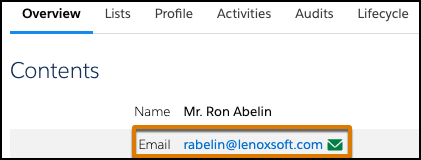
1. From a prospect record, click the email address.
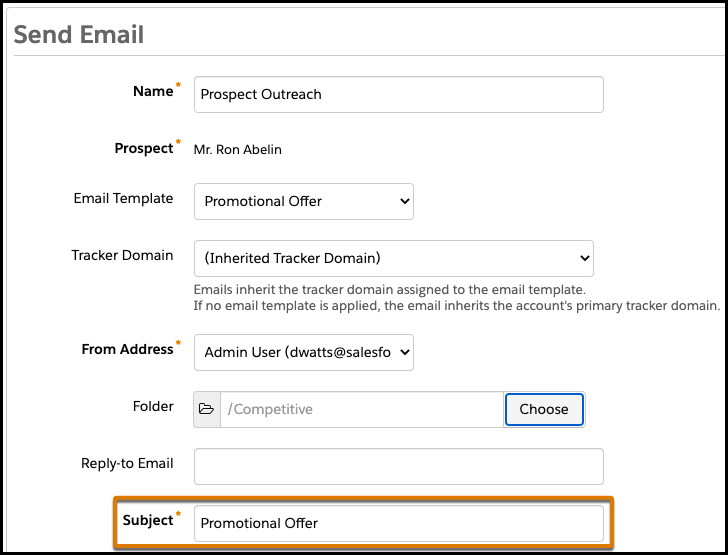
2. Enter a name for your email for internal reference. The prospect doesn’t see the name.
3. To use an existing design, select an email template.
4. Choose a campaign. If needed, select a folder and specify an email address to receive replies.
5. Enter a subject for your email. The subject line is what the prospect sees in their inbox.
6. Select the email format. An HTML email also includes a plain-text version by default.
7. Compose your email. To personalize your content, insert merge fields.
8. To get a general idea of how your email looks, click **Preview**.
9. Send your email directly to the prospect, or send a test email to an address that you specify.
Emails sent to prospects appear on the prospect record under Prospect Activities and on the sent emails list view.