---
schema_version: "1"
id: 38caa59e10cc053f0621d162efd7b567a213daa2a3b383ce342b3239a5783d3d
title: Access Reports in Account Engagement
collection: admin
version: current
locale: en-us
portal_url: https://docs.salesforce.com/admin/current/en-us/mktg/264-0-0/pardot_reports_access.md
canonical_url: https://help.salesforce.com/s/articleView?id=mktg.pardot_reports_access.htm&release=264.0.0&type=5
source_site: help.salesforce.com
content_type: documentation
content_hash: 6d07acd31d7e957257441876351493215387fe5520e67e8c01904fd25e260e78
description: Some reports are specific to your Account Engagement content and connectors. If you use Account Engagement Lightning App with Salesforce, you also have access to the Salesforce reports that are based on Salesforce objects.
products:
- Marketing
- Marketing Cloud Account Engagement
release: "264"
---
# Access Reports in Account Engagement
Some reports are specific to your Account Engagement content and connectors. If you use Account Engagement Lightning App with Salesforce, you also have access to the Salesforce reports that are based on Salesforce objects.
### Required Editions
Available in: All Account Engagement Editions
User Permissions Needed
To create, edit, and delete Account Engagement reports:
Account Engagement Administrator,
Marketing, or Sales Manager role
1. Open the Reports page.
- In Account Engagement, select **Reports**.
- In the Lightning app, select **Account Engagement Reports**.
2. Select a report from the navigation menu.
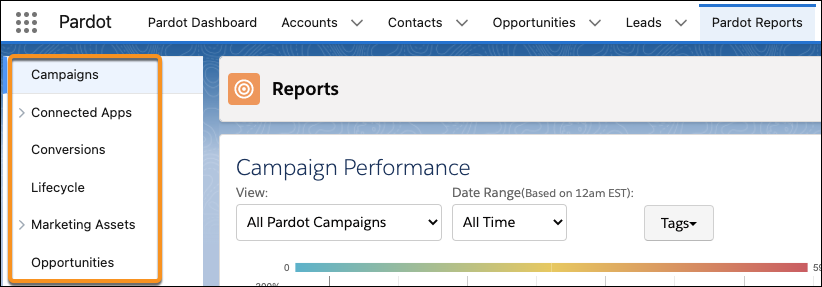
Looking for Salesforce reports? Users need the Create and Customize Reports system permission and read permissions on any objects included in a report. To access Salesforce reports, select the **Reports** tab in Account Engagement Lightning App. If the tab isn't visible, check the More tab or add the Reports tab to your toolbar.
#### See Also
- [Build a Report in Lightning Experience](https://help.salesforce.com/s/articleView?id=analytics.reports_build_lex.htm&language=en_US)