---
schema_version: "1"
id: 9ae4ad5e3c877f5adc9e1a293fe1301e663a23848282e274ba3208fa19b3b39a
title: Add a Form to Your Website
collection: admin
version: current
locale: en-us
portal_url: https://docs.salesforce.com/admin/current/en-us/mktg/264-0-0/pardot_forms_deploying_forms.md
canonical_url: https://help.salesforce.com/s/articleView?id=mktg.pardot_forms_deploying_forms.htm&release=264.0.0&type=5
source_site: help.salesforce.com
content_type: documentation
content_hash: c419ef59bf034610ef924e9015a260cd719cd35d5b2ba36e91ae24c3d4ddbccc
description: If you don’t want to use an Account Engagement landing page to host your marketing form, you can place a form on your website using an iframe.
products:
- Marketing
- Marketing Cloud Account Engagement
release: "264"
---
# Add a Form to Your Website
If you don’t want to use an Account Engagement landing page to host your marketing form, you can place a form on your website using an iframe.
### Required Editions
Available in: All Account Engagement Editions
User Permissions
Needed
To view a form’s code:
Account Engagement Administrator or Marketing
role
You can place an iframed form on any web page, but you can also limit iframing to specific domains or restrict it completely. [Learn how to control iframing restrictions](https://help.salesforce.com/s/articleView?id=mktg.mcae_admin_restrict_iframing.htm&language=en_US).
1. Open the Forms page.
- In Account Engagement, select **Marketing** | **Forms** | **Forms**.
- In the Lightning app, select **Content** | **Forms**.
2. Open the form you want to work with.
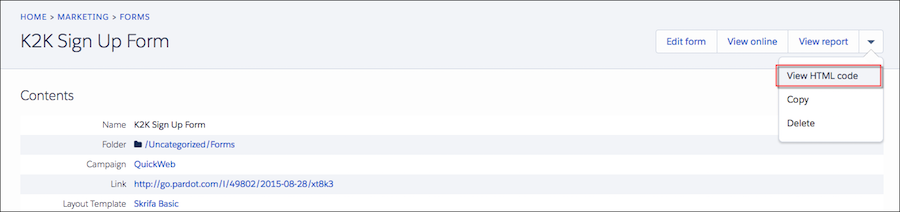
3. Click the arrow, and select **View HTML code** from the dropdown.
4. Copy the iframe code, and paste it into your web page source code.