---
schema_version: "1"
id: 96f26c481bde88ca7f5a5b76c05021aa3963fc9093b09471d93f7df0285b0c00
title: Add an External Action to a Marketing App Extension
collection: admin
version: current
locale: en-us
portal_url: https://docs.salesforce.com/admin/current/en-us/mktg/264-0-0/pardot_external_action_add_action.md
canonical_url: https://help.salesforce.com/s/articleView?id=mktg.pardot_external_action_add_action.htm&release=264.0.0&type=5
source_site: help.salesforce.com
content_type: documentation
content_hash: 26b1542690bdfa6c73bd839ec994a26d0cb4bfef0bef65029465625e5490abb3
description: To execute a task externally, add an action type and an invocable action to your marketing app extension. Standard invocable actions are available in Marketing Setup. You can also install an action from AppExchange or work with your developer to create one.
products:
- Marketing
- Marketing Cloud Account Engagement
release: "264"
---
# Add an External Action to a Marketing App Extension
To execute a task externally, add an action type and an invocable action to your marketing app extension. Standard invocable actions are available in Marketing Setup. You can also install an action from AppExchange or work with your developer to create one.
### Required Editions
Available in: Account Engagement Plus, Advanced, and Premium Editions
User Permissions Needed
To access Marketing Setup in Salesforce:
Customize Application
1. Open a marketing app extension record, and click **Related**.
2. Next to Action Types, click **New**.
3. Enter a name for the action.
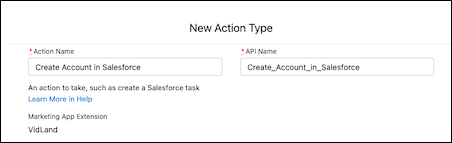
4. Enter an API name for your action, or you can use the name that’s generated when you enter the name of your action type.
5. Verify that the marketing app extension is correct.
6. Use the search bar to select a standard or custom invocable action.
After you select the invocable action, Salesforce generates the schema and parameters for you.
7. Leave Active in Automations deselected for now, and save your work.
After you save the action type record, review the next steps and make a plan for your external action. Contact your developer to customize the action schema to fit your needs.
#### See Also
- [External Actions: Next Steps](https://help.salesforce.com/s/articleView?id=mktg.pardot_external_actions_next_steps.htm&release=264.0.0&type=5 "After you have a marketing app extension, a business unit assignment, and an action type, work with a developer to customize the action for Engagement Studio. Control which inputs are required when the action is added as a step in an Engagement Studio program. You can also use HML merge fields to automatically populate certain fields when the action executes.")