---
schema_version: "1"
id: f48b0dffd0dca25a36552cf565a89f382d91fa9d708d375b282f887a014eee7d
title: Create Engagement Programs
collection: admin
version: current
locale: en-us
portal_url: https://docs.salesforce.com/admin/current/en-us/mktg/264-0-0/pardot_create_engagement_program.md
canonical_url: https://help.salesforce.com/s/articleView?id=mktg.pardot_create_engagement_program.htm&release=264.0.0&type=5
source_site: help.salesforce.com
content_type: documentation
content_hash: 4606d2fbe698974fcdcf43cde2fea1feb6cb703353f2e9bc8395579625734e04
description: After you segment your audience and finalize the content that drives your marketing, you’re ready to create an engagement program.
products:
- Marketing
- Marketing Cloud Account Engagement
release: "264"
---
# Create Engagement Programs
After you segment your audience and finalize the content that drives your marketing, you’re ready to create an engagement program.
### Required Editions
Available in: All Account Engagement Editions
User Permissions Needed
To create an engagement program:
Account Engagement Administrator or Marketing
role
1. Open Engagement Studio.
- In Account Engagement, select **Marketing** and then select **Engagement Studio**.
- In the Lightning app, select **Automations** and then **Engagement Studio**.
2. Click **\+ Add Engagement Program**.
3. Enter a name for internal use.
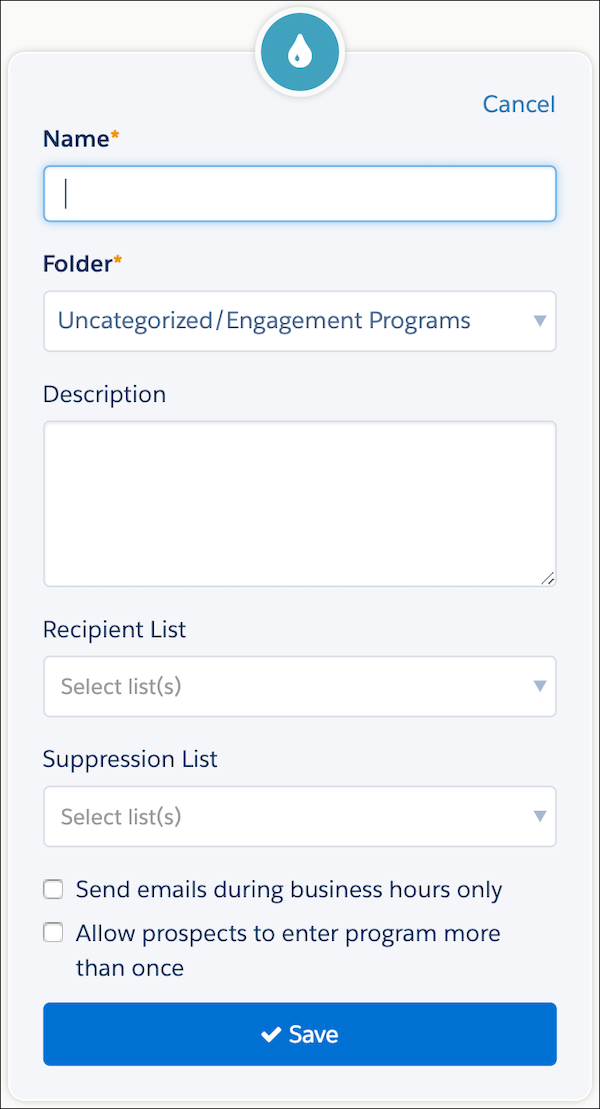
4. Choose a folder.
5. If needed, enter a description for internal use.
6. Click **Recipient Lists**, and select a list. You can also select a suppression list to exclude from your program.
7. Save the program.
After you save your program settings, you’re ready to add steps and build out your prospect paths.