---
schema_version: "1"
id: cf788b0d2ca9b170f6c8ba85193fb16cd826c88e0a14d3e2371dd4dd455fb988
title: Get a Complete View of the Marketing Schedule in Marketing Planning and Operations
collection: admin
version: current
locale: en-us
portal_url: https://docs.salesforce.com/admin/current/en-us/mktg/264-0-0/mktg_pln_oper_manage_calendar.md
canonical_url: https://help.salesforce.com/s/articleView?id=mktg.mktg_pln_oper_manage_calendar.htm&release=264.0.0&type=5
source_site: help.salesforce.com
content_type: documentation
content_hash: 355d7b366d6b67ec3642e3a3600cd980a7543a1ba0554a628d193616caf683a5
description: See your whole marketing plan on a page. Marketing leaders and managers can see when work runs across the hierarchy, in a timeline view and a calendar view that the Marketing Calendar powers. You can open it on marketing programs, on campaigns, and on the home page of the Marketing Planning & Operations app.
products:
- Marketing
release: "264"
---
# Get a Complete View of the Marketing Schedule in Marketing Planning and Operations
See your whole marketing plan on a page. Marketing leaders and managers can see when work runs across the hierarchy, in a timeline view and a calendar view that the Marketing Calendar powers. You can open it on marketing programs, on campaigns, and on the home page of the Marketing Planning & Operations app.
### Required Editions
The timeline view always appears, but the calendar view appears only when you have access to the Marketing Calendar. Both views leave out programs and campaigns without start and end dates.
## Timeline View
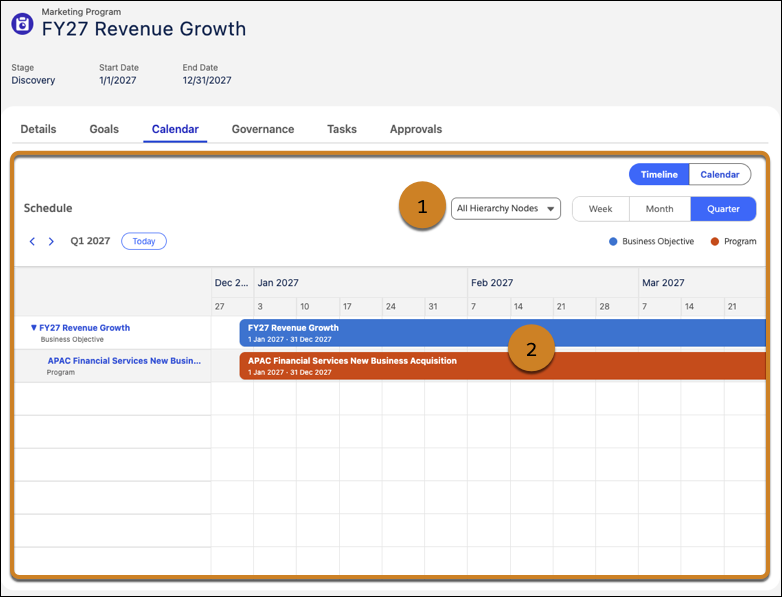
In the timeline view, these numbered callouts map to the actions you can take:
Callout
Available Actions
1
Filter what you want to view by:
The node in the program's marketing hierarchy
The type of campaign
2
Click an item on the timeline to view its details.
For marketing programs,
you can:
Edit its details, such as name and stage
View existing goals and add new ones
## Calendar View
Unlike the timeline view, which shows only programs and campaigns, the calendar view shows all of your marketing work, such as events and flows.
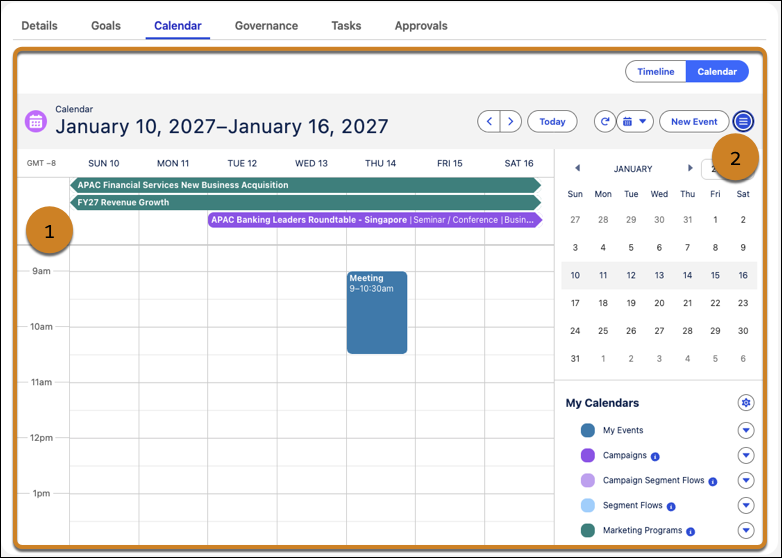
In the calendar view, these numbered callouts map to the actions you can take:
| Callout | Available Actions |
| --- | --- |
| 1 | Click an item on the calendar to view its details. |
| 2 | Manage and filter the calendar's view, and add events to the calendar. |
## What You See on Each Calendar
The calendar shows different items depending on where you open it.
- On a marketing program, it shows the program, its child programs, and their associated campaigns.
- On a marketing campaign, it shows the campaign and its child campaigns, and offers the timeline view only.
- On the home page of the Marketing Planning & Operations app, it shows all your programs and their campaigns.
#### See Also
- [_Salesforce Help:_ Manage Campaigns and Flows with Marketing Calendar](https://help.salesforce.com/s/articleView?id=mktg.mktg_track_campaigns_with_calendar.htm&language=en_US)