---
schema_version: "1"
id: c943ce7b4848cd3efb55bc03044df525edadf70fa5f7e9c8f4e3a05788797f8a
title: Create a Data Pipeline With Custom Data in TotalConnect
collection: admin
version: current
locale: en-us
portal_url: https://docs.salesforce.com/admin/current/en-us/mktg/264-0-0/mc_mi_totalconnect.md
canonical_url: https://help.salesforce.com/s/articleView?id=mktg.mc_mi_totalconnect.htm&release=264.0.0&type=5
source_site: help.salesforce.com
content_type: documentation
content_hash: 7d4a3eb40c77b11ee22f6015ef30fe3008001824ddbf2e25d9e4eed8a75f1f7b
description: Use TotalConnect to upload data from files or pull data directly from a Data Lake Object (DLO) into Marketing Intelligence, enabling flexible integration of custom datasets without an API connector.
products:
- Marketing
- Marketing Cloud Intelligence
- Marketing Cloud Next
release: "264"
---
# Create a Data Pipeline With Custom Data in TotalConnect
Use TotalConnect to upload data from files or pull data directly from a Data Lake Object (DLO) into Marketing Intelligence, enabling flexible integration of custom datasets without an API connector.
### Required Editions
Before you begin:
- To upload a file, make sure that the file is in CSV format and is 100 MB or less.
- If you use a Data Lake Object (DLO) as the source, the DLO must already exist in the data space you select. TotalConnect doesn’t create the source DLO.
Available in: Developer, Enterprise, Performance, and Unlimited editions.
User Permissions Needed
To create a TotalConnect pipeline:
Marketing Intelligence Admin
1. From the App Launcher, find and select Marketing Intelligence.
2. On the Data Management tab, under Data Pipelines, click **Create New**.
3. Select TotalConnect and then click **Next**.
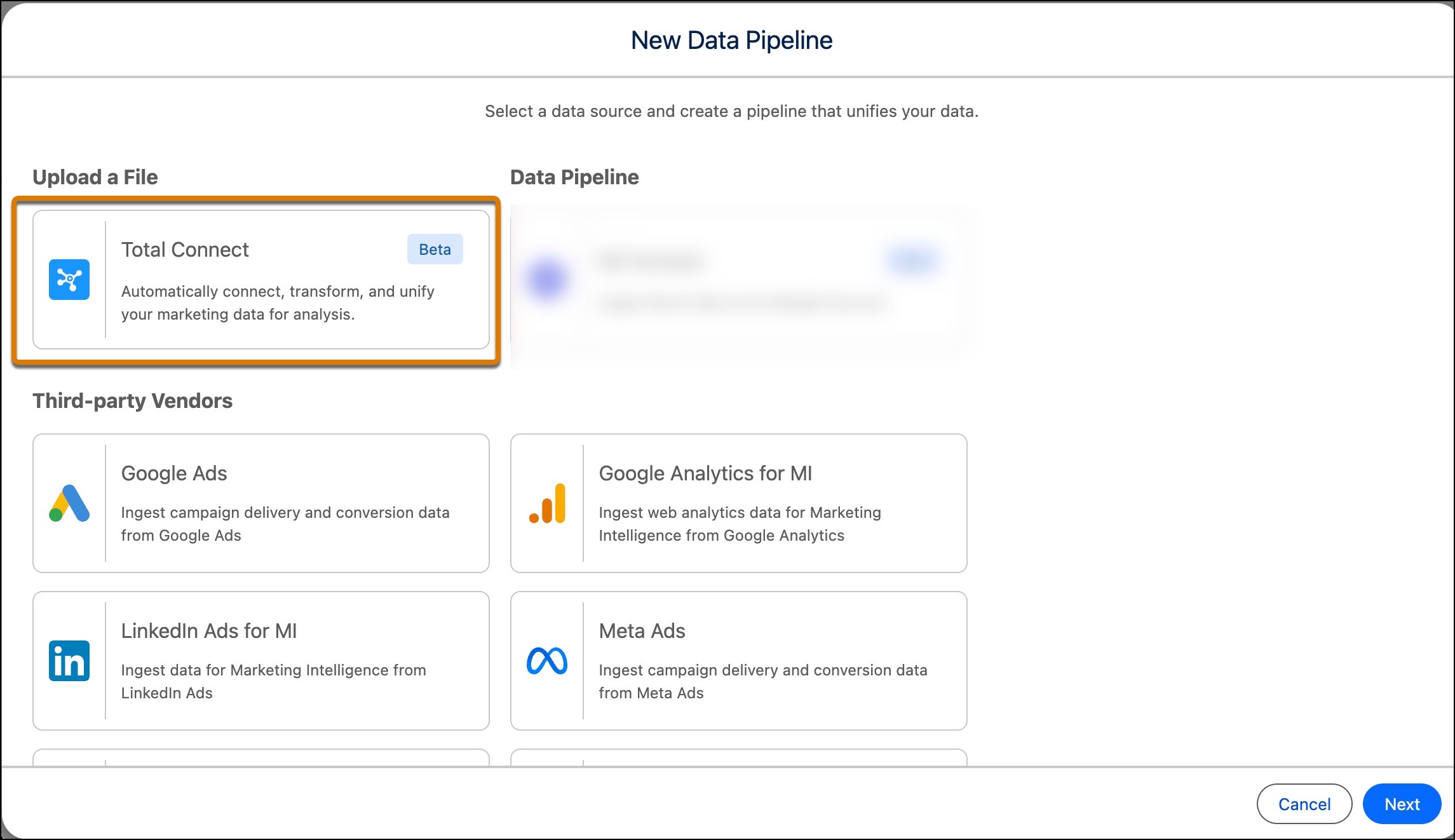
4. Select the data space.
5. Select the data source.
1. To upload a custom file, click **Upload File**, upload your file, and then click **Next**.
2. To use a Data Lake Object as the source, click **Data Lake Object**. Select the DLO and fields, and then click **Next**.
The list shows DLOs in the data space you selected. For how DLOs work with TotalConnect, see [Connect Your Data to Marketing Intelligence with Data Pipelines](https://help.salesforce.com/s/articleView?id=mktg.mc_mi_concept_pipeline.htm&release=264.0.0&type=5 "Data pipelines automate the collection, transformation, and organization of marketing data to prepare it for analysis in Marketing Intelligence in Marketing Cloud Next. By using a predefined API connector or TotalConnect, pipelines structure data with entities like data streams and transforms. This process ensures accuracy, consistency, and alignment with the Marketing Intelligence data model, delivering faster insights and more reliable campaign optimization.").
6. Preview the data and confirm the data type for each column—text, number, or date. Adjust data types as needed using the dropdown menu.
7. Click **Map Data**.
Automapping matches your data to the appropriate data model template and fields using names, synonyms, and data types. For details, see [Field Mapping in Marketing Intelligence](https://help.salesforce.com/s/articleView?id=mktg.mc_mi_automapping.htm&release=264.0.0&type=5 "Automapping streamlines data integration by automatically mapping source file or Data Lake Object (DLO) fields to the Marketing Intelligence data model. TotalConnect automatically creates the data transforms necessary to align input with the Marketing Intelligence semantic data model.").
8. Review and adjust the mappings.
1. Confirm that the data model template is correct. To select a different template, click **Switch Model**
2. To remove a mapping, click the arrow between the source and target fields, and then select **Delete**.
9. (Optional) If a source field doesn’t match the standard data model, add a custom object for mapping. This step doesn’t create a Data Lake Object.
1. Click **\+ New Object**. Enter a name and description, and then click **Add**.
The object is created with three default fields: ID, Currency, and Name. Map the fields as needed.
2. To add additional fields to the data object, click the **+** icon next to the object.
3. Enter a field name and description, select a data type and then click **Add**.
The field is added to the object and is available for mapping.

Note
The formula output type must match the target field’s data type.
10. (Optional) To transform data during mapping, create a mapping formula.
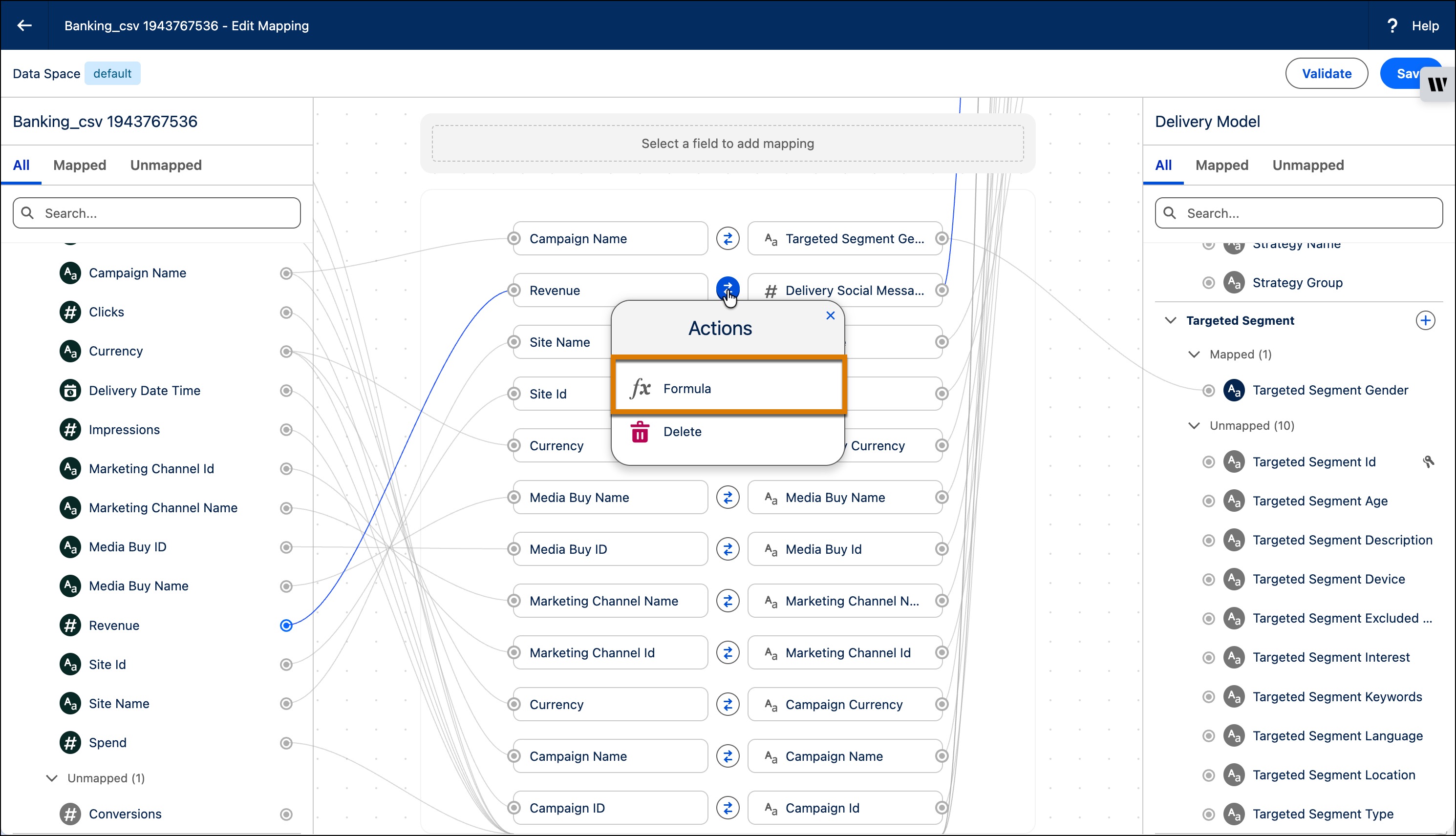
1. For an existing mapping, click the arrow between the source and target fields, and then select **Formula**.
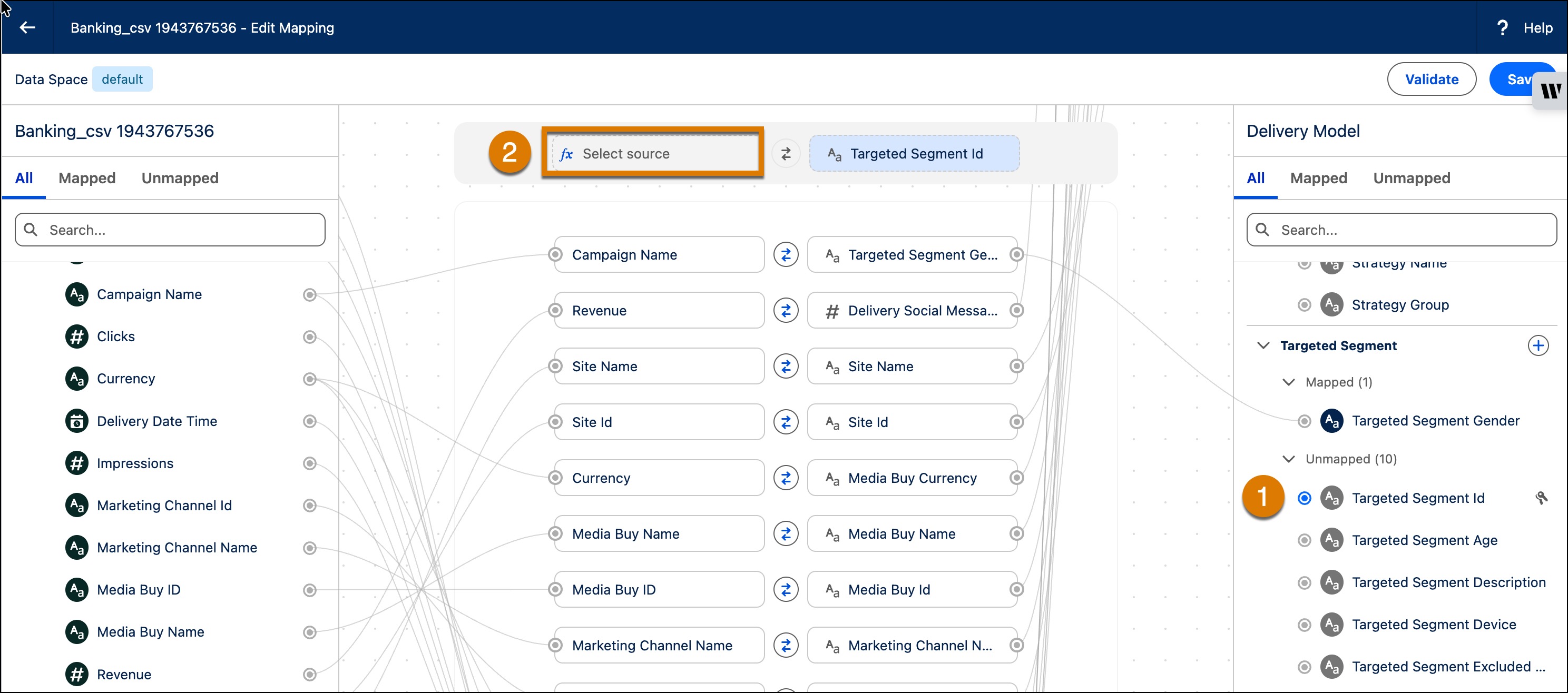
2. For an unmapped target field, select the target field (1), and then click the Formula (fx) icon (2) next to Select source.
3. Review the field name and output type, and update them if needed. For an existing mapping, these values and the selected source field are filled in automatically.
4. Build the formula by adding source fields from the **Fields** tab and supported functions from the **Functions** tab.
5. Click **Preview** to validate the formula and review the results.
6. If the results are correct, click **Apply**.

Note
To apply mapping formulas to an existing pipeline, edit the pipeline’s mapping.
11. Click **Validate** and resolve any errors.
12. Click **Save and Deploy**, and then confirm the mappings on the mapping preview screen.
Your data appears in the data pipeline table where you can verify data integration and run reports. Pipeline creation can take a few minutes. Check the status column for updates.
- **[Automate Data Retrieval in Marketing Intelligence](https://help.salesforce.com/s/articleView?id=mktg.mc_mi_data_retrieval.htm&release=264.0.0&type=5)**
Configure automated data retrieval for TotalConnect data pipelines to regularly import data from Amazon S3 or email sources into Marketing Intelligence.
#### See Also
- [Mapping Formulas in Marketing Intelligence](https://help.salesforce.com/s/articleView?id=mktg.mc_mi_mapping_formulas.htm&release=264.0.0&type=5 "Mapping formulas transform source data during ingestion, before it’s stored in Marketing Intelligence. Use them to clean, standardize, and enrich incomplete, inconsistent, or incorrectly formatted data without editing the source files. Unlike calculated fields in the semantic layer, which apply logic at runtime, mapping formulas permanently change the stored values.")