---
schema_version: "1"
id: 911a64f4e22de4c12dd183d8ea7dbd2f4c0536c1e38a21b6a8a367a6d9b7cd5a
title: Create a Data Enrichment With a File
collection: admin
version: current
locale: en-us
portal_url: https://docs.salesforce.com/admin/current/en-us/mktg/264-0-0/mc_mi_enrich_file.md
canonical_url: https://help.salesforce.com/s/articleView?id=mktg.mc_mi_enrich_file.htm&release=264.0.0&type=5
source_site: help.salesforce.com
content_type: documentation
content_hash: 7e6c3a0141c2833f5d73d8ae5a552221d8dc94bafa1f18fb852f3d5d3dc146e3
description: You can enhance your data in Marketing Intelligence using multiple methods. Use a data enrichment file to normalize your data for better consistency and insights.
products:
- Marketing
- Marketing Cloud Intelligence
- Marketing Cloud Next
release: "264"
---
# Create a Data Enrichment With a File
You can enhance your data in Marketing Intelligence using multiple methods. Use a data enrichment file to normalize your data for better consistency and insights.
### Required Editions
Available in: Developer, Enterprise, Performance, and Unlimited editions.
User Permissions Needed
To enrich your data using an enrichment file:
Marketing Intelligence Admin
1. From the App Launcher, find and select **Marketing Intelligence**.
2. On the Data Management tab, select **Data Enrichment**.
3. Click **New Enrichment**, and select **Enrichment Source**.
4. Select a data space, name the enrichment, select the dimension, add an optional description, and then click **Next**.
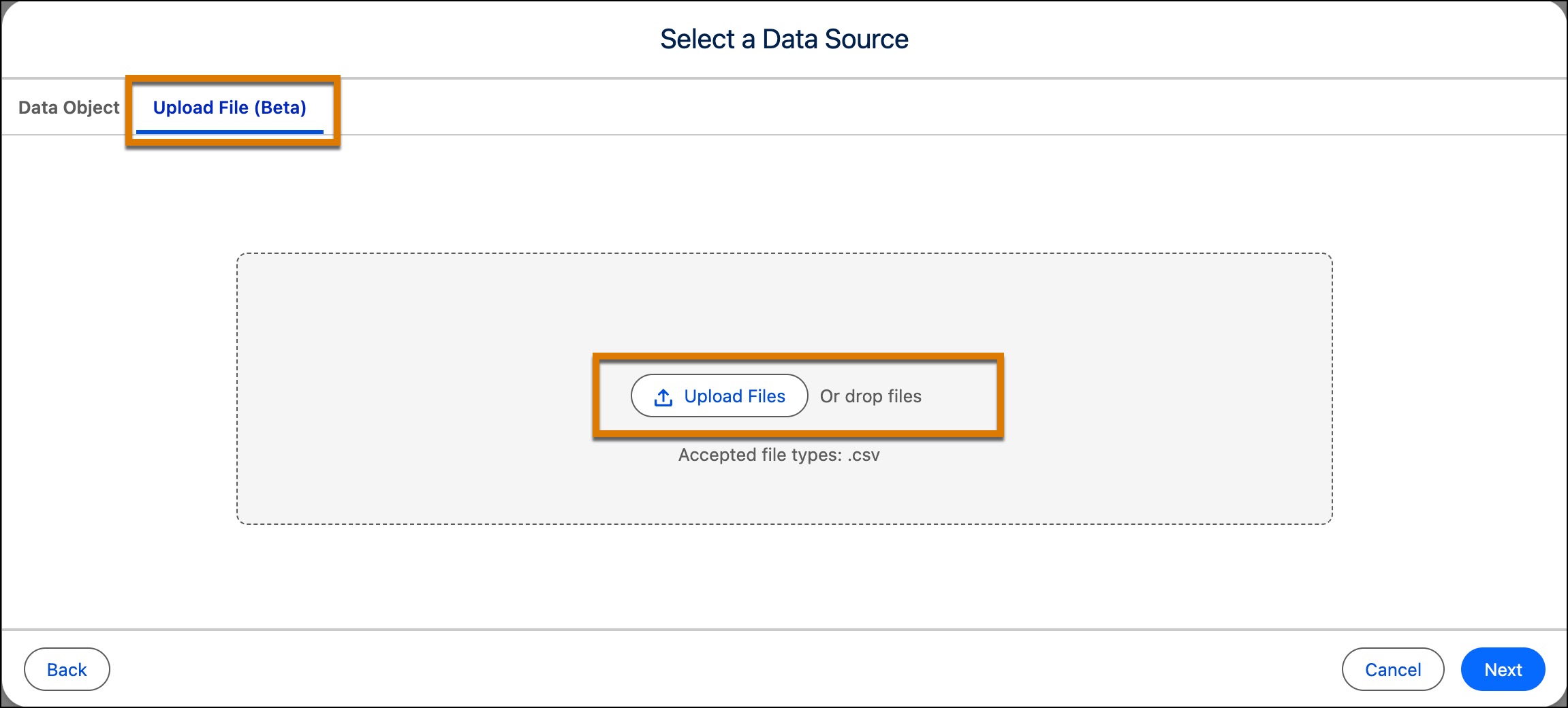
5. On the Upload File tab, click **Upload file**, select a file and click **Next**.
6. Preview the enrichment. You can edit the column names or set a dimension as a key.
The key determines how enrichment data joins the data model object (DMO). By selecting a key, each enrichment row maps correctly to the corresponding DMO records, allowing new fields to be added and used for analysis.
7. To specify how a raw value appears in your data, expand Enrichment Properties and edit the values.
8. Preview your data, and click **Create**.
Your enriched data is available on the Data Enrichment tab for reporting, dashboard visualization, and analysis.