---
schema_version: "1"
id: e0676c6cbc257a11a3170ad337accf00c367576fd4ed52993390450dab41cba8
title: Create Users and Assign Permissions
collection: admin
version: current
locale: en-us
portal_url: https://docs.salesforce.com/admin/current/en-us/mktg/264-0-0/mc_mi_create_users.md
canonical_url: https://help.salesforce.com/s/articleView?id=mktg.mc_mi_create_users.htm&release=264.0.0&type=5
source_site: help.salesforce.com
content_type: documentation
content_hash: 15e3d576d0a15c819cc0330cc809ca12e4ab13694ed789a20224a9e0269c38f6
description: Create users and provide access to Marketing Intelligence features. Assign a single Permission Set Group containing all required permissions, instead of individual permission sets.
products:
  - Marketing
  - Marketing Cloud Intelligence
  - Marketing Cloud Next
release: "264"
---
# Create Users and Assign Permissions

Create users and provide access to Marketing Intelligence features. Assign a single Permission Set Group containing all required permissions, instead of individual permission sets.

### Required Editions

Before you install Marketing Intelligence, admins must assign themselves the required permissions. Installation won't proceed without them.

![Note](https://sf-zdocs-cdn-prod.zoominsoftware.com/tdta-mktg-mc_mi-264-0-0-production-enus/1b98e128-929e-4c79-a9f3-86e27aefc8d6/images/icon_note.png)

Note

When Data 360 is enabled, standard permission sets apply only to the default data space. To grant access to other data spaces, update the associated data space. All permission sets—including standard and custom ones—must be manually associated with non-default data spaces

See [_Associate a Permission Set with a Data Space_](https://help.salesforce.com/s/articleView?id=data.c360_a_data_spaces_associate_perm_sets.htm&type=5&language=en_US).

<table class="slds-table slds-table_bordered slds-max-medium-table_stacked slds-m-bottom_small edition"><colgroup><col></colgroup><tbody><tr class=""><td class="slds-cell-wrap" style="vertical-align:top;">Available in: <strong>Developer</strong>, <strong>Enterprise</strong>, <strong>Performance</strong>, and <strong>Unlimited</strong> editions.</td></tr></tbody></table>

<table class="slds-table slds-table_bordered slds-max-medium-table_stacked slds-m-bottom_small permission">
        <colgroup>
          <col>
          <col>
        </colgroup>
        <thead class="slds-text-title_caps ">
          <tr class="">
            <th scope="colgroup" class="slds-cell-wrap" colspan="2" style="text-align:center;vertical-align:top;" id="d4593e93">User Permissions Needed</th>
          </tr>
        </thead>
        <tbody>
          <tr class="">
            <td data-label="User Permissions Needed" class="slds-cell-wrap" style="vertical-align:top;" headers="d4593e93 ">To create users and assign permissions:</td>

            <td class="slds-cell-wrap" style="vertical-align:top;" headers="d4593e93 ">Marketing Intelligence Admin</td>

          </tr>
        </tbody>
      </table>

![Tip](https://sf-zdocs-cdn-prod.zoominsoftware.com/tdta-mktg-mc_mi-264-0-0-production-enus/1b98e128-929e-4c79-a9f3-86e27aefc8d6/images/icon_tip.png)

Tip Use Permission Set Groups for streamlined access management. Ensure users have the required licenses before assigning groups.

<table class="slds-table slds-table_bordered slds-max-medium-table_stacked slds-m-bottom_small ">
        <colgroup>
          <col style="width:25%">
          <col style="width:25%">
          <col style="width:50%">
        </colgroup>
        <thead class="slds-text-title_caps ">
          <tr class="">
            <th scope="col" class="slds-cell-wrap" style="text-align:left;vertical-align:top;" id="d4593e130"><strong>User Type</strong></th>
            <th scope="col" class="slds-cell-wrap" style="text-align:left;vertical-align:top;" id="d4593e134"><strong>Permission Set Group</strong></th>
            <th scope="col" class="slds-cell-wrap" style="text-align:left;vertical-align:top;" id="d4593e138"><strong>Individual Permission Sets</strong></th>
          </tr>
        </thead>
        <tbody>
          <tr class="">
            <td data-label="User Type" class="slds-cell-wrap" style="text-align:left;vertical-align:top;" headers="d4593e130 ">Admin User</td>

            <td data-label="Permission Set Group" class="slds-cell-wrap" style="text-align:left;vertical-align:top;" headers="d4593e134 ">MI Admin</td>

            <td data-label="Individual Permission Sets" class="slds-cell-wrap" style="text-align:left;vertical-align:top;" headers="d4593e138 ">
              <p>The MI (Marketing Intelligence) Admin group includes:</p><a name="mc_mi_create_users__ul_admin_perms"><!-- --></a>
              <ul id="mc_mi_create_users__ul_admin_perms">
                <li>Marketing Intelligence Admin</li>

                <li>Tableau Next Admin</li>

                <li>Tableau Unmetered Admin</li>

                <li>Data Cloud Architect</li>

              </ul>
            </td>

          </tr>
          <tr class="">
            <td data-label="User Type" class="slds-cell-wrap" style="text-align:left;vertical-align:top;" headers="d4593e130 ">Data Specialist User</td>

            <td data-label="Permission Set Group" class="slds-cell-wrap" style="text-align:left;vertical-align:top;" headers="d4593e134 ">MI Data Specialist</td>

            <td data-label="Individual Permission Sets" class="slds-cell-wrap" style="text-align:left;vertical-align:top;" headers="d4593e138 ">
              <p>The MI Data Specialist group includes:</p><a name="mc_mi_create_users__ul_specialist_perms"><!-- --></a>
              <ul id="mc_mi_create_users__ul_specialist_perms">
                <li>MI Marketing Data Specialist</li>

                <li>Tableau Next Platform Analyst</li>

                <li>Tableau Unmetered Platform Analyst</li>

                <li>Data Cloud Activation Specialist</li>

              </ul>
            </td>

          </tr>
          <tr class="">
            <td data-label="User Type" class="slds-cell-wrap" style="text-align:left;vertical-align:top;" headers="d4593e130 ">Marketing Manager User</td>

            <td data-label="Permission Set Group" class="slds-cell-wrap" style="text-align:left;vertical-align:top;" headers="d4593e134 ">MI Marketing Manager</td>

            <td data-label="Individual Permission Sets" class="slds-cell-wrap" style="text-align:left;vertical-align:top;" headers="d4593e138 ">
              <p>The MI Marketing Manager group includes:</p><a name="mc_mi_create_users__ul_manager_perms"><!-- --></a>
              <ul id="mc_mi_create_users__ul_manager_perms">
                <li>Marketing Intelligence Manager</li>

                <li>Tableau Next Self-Service Consumer</li>

                <li>Tableau Unmetered Self-Service Consumer</li>

                <li>Data Cloud User</li>

              </ul>
            </td>

          </tr>
        </tbody>
      </table>

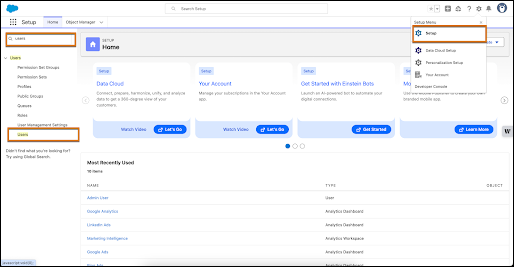
1. In Setup, in the Quick Find box, enter **Users**, then under User Management Settings, select **Users**.
    
    ![Setup page with Users selected](https://sf-zdocs-cdn-prod.zoominsoftware.com/tdta-mktg-mc_mi-264-0-0-production-enus/1b98e128-929e-4c79-a9f3-86e27aefc8d6/mc_mi/images/mc_mi_permissions.png)
2. Click a user name, or click **New User** to create a new user.
3. Click **Permission Set Group Assignments** and then click **Edit Assignments**.
4. Select the appropriate Permission Set Group, such as **MI Admin**, **MI Data Specialist**, or **MI Marketing Manager** and then click **Add**.
5. Save your work.
    
    To assign permissions manually instead of using Permission Set Group Assignments, click **Permission Set Assignments** and add each individual permission set listed in the table above.
    
    Repeat these steps for each user that needs access to Marketing Intelligence.

![Note](https://sf-zdocs-cdn-prod.zoominsoftware.com/tdta-mktg-mc_mi-264-0-0-production-enus/1b98e128-929e-4c79-a9f3-86e27aefc8d6/images/icon_note.png)

Note

Existing users with individual permission sets are not impacted by new group permissions and continue to work as before.