---
schema_version: "1"
id: f5669f5db8cbf352aef851abf91eacfa4e8e724b0b6821fc9f4355413c03452f
title: Share Dashboard Pages and Widgets via Slack
collection: admin
version: current
locale: en-us
portal_url: https://docs.salesforce.com/admin/current/en-us/mktg/264-0-0/mc_dat_share_slack_share.md
canonical_url: https://help.salesforce.com/s/articleView?id=mktg.mc_dat_share_slack_share.htm&release=264.0.0&type=5
source_site: help.salesforce.com
content_type: documentation
content_hash: faae73208a4a0d2c82978b0c0738562d978a5577d39d74fad11dcad4e98c3b52
description: In order to share your dashboard pages and widgets through Slack you need to set up your Intelligence Reports Insights for Slack Integration in the Setup tab. After you set up the integration you can track and monitor your campaigns and collaborate with Slack. Slack is permission based, only users with permissions and access to the business unit or collection can share dashboard pages and widgets.
products:
- Marketing
- Marketing Cloud Intelligence
release: "264"
---
# Share Dashboard Pages and Widgets via Slack
In order to share your dashboard pages and widgets through Slack you need to set up your Intelligence Reports Insights for Slack Integration in the Setup tab. After you set up the integration you can track and monitor your campaigns and collaborate with Slack. Slack is permission based, only users with permissions and access to the business unit or collection can share dashboard pages and widgets.
### Required Editions
Available in: Intelligence Reports and Intelligence Reports Advanced
User Permissions Needed
To share dashboard pages and widgets in Slack:
Access, View & Export, Schedule, Create & Edit
1. Select the dashboard page or widget that you want to share.
2. Click **Share**, and then click **Slack**.

Note You can’t share to a private channel or by direct messaging.
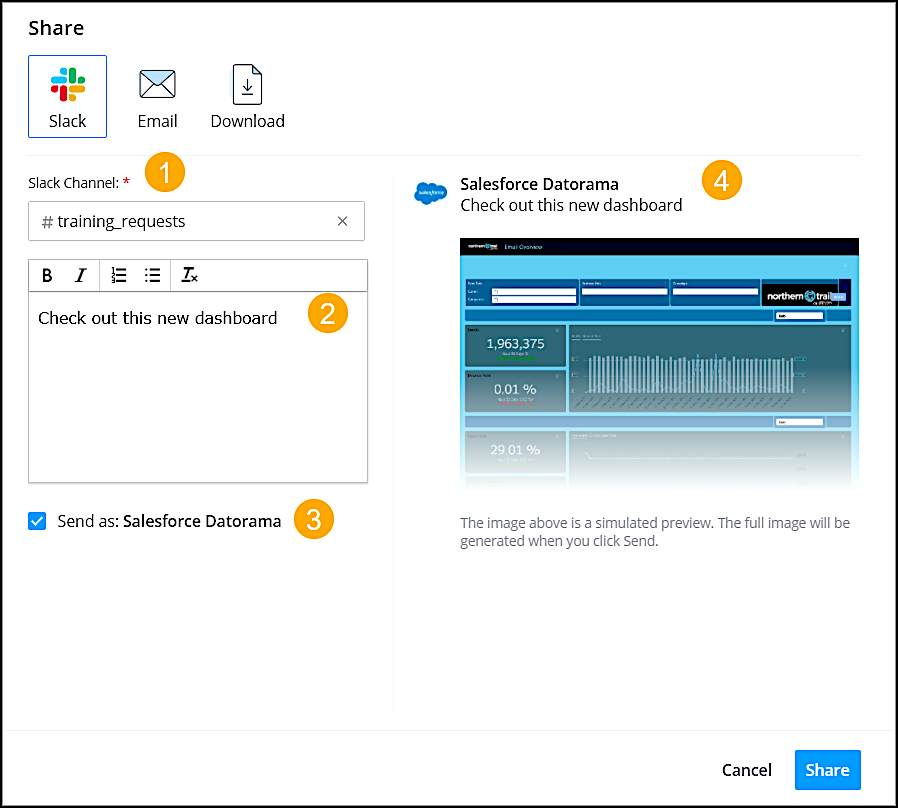
Enter the Slack channel (1), and enter a message that describes what you’re sharing (2). To send the message with a predefined name, select **Send as** (3). This option appears only when defined in the configuration settings. Preview what you’re sending (4).
3. Click **Share**.

Note If your message fails, make sure that the channel name is correct. In the notification, click **Edit settings** and enter the correct name.