---
schema_version: "1"
id: c2e9b351a587e89ac403f0dfcc4c8aba0a8946c4f5e6e6da4e2090b9df045bad
title: Find and Replace Calculated Dimensions
collection: admin
version: current
locale: en-us
portal_url: https://docs.salesforce.com/admin/current/en-us/mktg/264-0-0/mc_dat_setup_calc_mgmt_find.md
canonical_url: https://help.salesforce.com/s/articleView?id=mktg.mc_dat_setup_calc_mgmt_find.htm&release=264.0.0&type=5
source_site: help.salesforce.com
content_type: documentation
content_hash: 062ecaaace0a73685ecd0aa6f92a60d05b0c9d1216fe2d973a6a9afd31d782f0
description: You can use the find and replace function to search for a specific dimension, edit and replace the edited dimension across your entire business unit. You can do this without searching for the location of the calculated dimension, which is especially useful when creating a calculated dimension that is meant to replace an existing dimension.
products:
- Marketing
- Marketing Cloud Intelligence
release: "264"
---
# Find and Replace Calculated Dimensions
You can use the find and replace function to search for a specific dimension, edit and replace the edited dimension across your entire business unit. You can do this without searching for the location of the calculated dimension, which is especially useful when creating a calculated dimension that is meant to replace an existing dimension.
### Required Editions
Available in: Intelligence Reports Advanced
User Permissions Needed
To Find and Replace a Calculated Dimension:
Create & Edit
1. From Analytics Builder, select **Intelligence \[Datorama\] Reports**.
2. Select the **Setup** tab.
3. Expand **Calculated Dimensions**.
4. Select a calculated dimension from the table.
5. Click the **Find and Replace** icon.
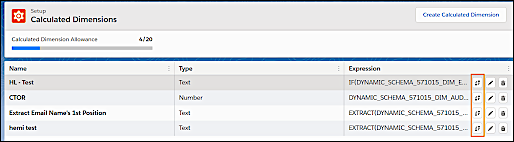
In the Find & Replace window (3), you can see where the selected calculated dimension is used across your business unit. For example, widgets, reports, or pivot tables.
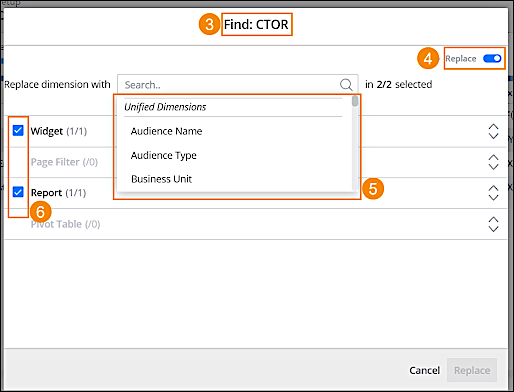
Toggle on the **Replace** feature (4). From the dropdown, select the dimension that you want to replace the current calculated dimension with (5).
You can uncheck any location that you don’t want to replace. For example uncheck a specific widget or report (6).
6. Click **Replace**.