---
schema_version: "1"
id: 47eeabc9085afa727152f7ab06c374a750cbb00bd41bb536e452ac7fbfa50b41
title: Create a Pivot Table from a Widget
collection: admin
version: current
locale: en-us
portal_url: https://docs.salesforce.com/admin/current/en-us/mktg/264-0-0/mc_dat_pivot_table_widget.md
canonical_url: https://help.salesforce.com/s/articleView?id=mktg.mc_dat_pivot_table_widget.htm&release=264.0.0&type=5
source_site: help.salesforce.com
content_type: documentation
content_hash: 337b92ea176373007674a4a32e8b716cde8dd5d3485ca9eb4849d618f239adf9
description: Transform a widget into a pivot table to get insights on your data. You can customize the pivot table, apply filters, and even share it with others.
products:
- Marketing
- Marketing Cloud Intelligence
release: "264"
---
# Create a Pivot Table from a Widget
Transform a widget into a pivot table to get insights on your data. You can customize the pivot table, apply filters, and even share it with others.
### Required Editions
Available in: Intelligence Reports and Intelligence Reports Advanced
User Permissions Needed
To create a pivot table from a widget:
Create & Edit
1. In Analytics Builder, select **Intelligence Reports**.
2. On the Dashboards tab, select the widget that you want to convert to a pivot table.
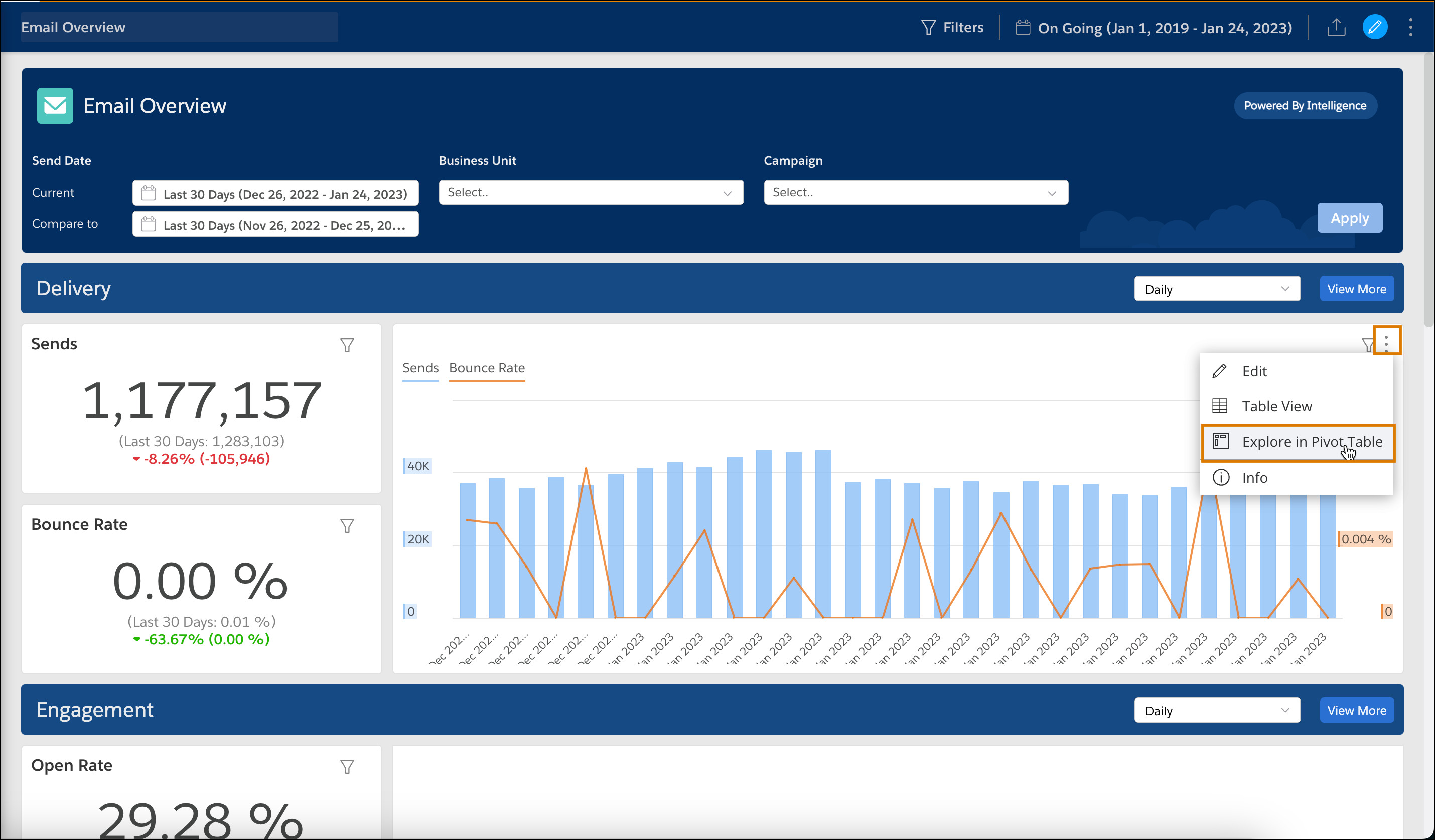
3. Click the **Options** icon and select **Explore in Pivot Table**.
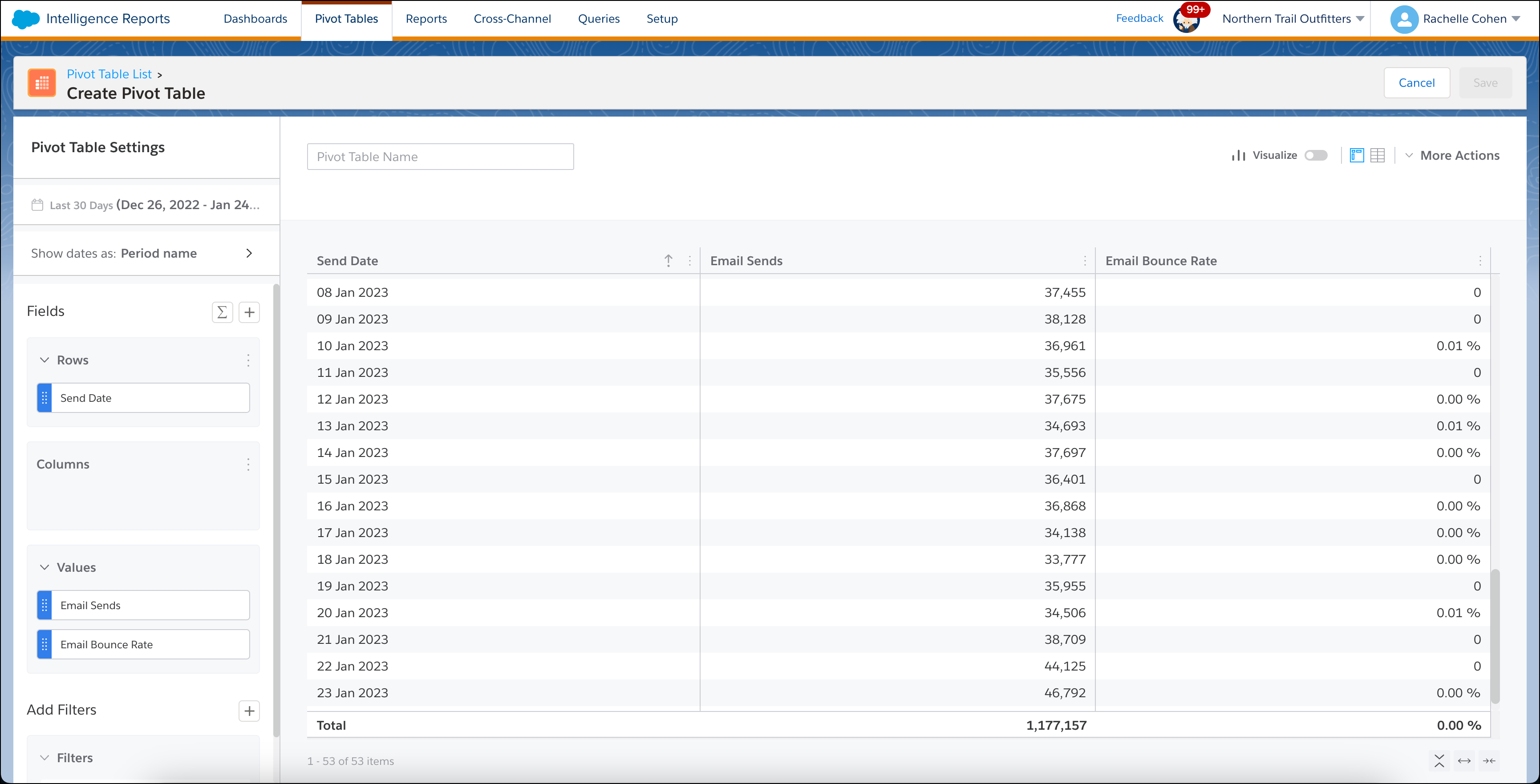
You’re redirected to the Pivot Tables tab, and the data now appears in a pivot table.
#### See Also
- [Create a Pivot Table in Intelligence Reports](https://help.salesforce.com/s/articleView?id=mktg.mc_dat_create_a_pivot_table.htm&release=264.0.0&type=5 "Use a pivot table to explore and extract data. For example, you can get sends and open rates for all your emails to see how well a specific email performed. You can also export a pivot table locally or use it to create a scheduled report.")