---
schema_version: "1"
id: 4402b66d1e831fe8796687aa0d06e1d1b3ab4a8ff3a45698e9342f58f0327a9c
title: Create a Query with a Data Extension
collection: admin
version: current
locale: en-us
portal_url: https://docs.salesforce.com/admin/current/en-us/mktg/264-0-0/mc_dat_data_extension_query.md
canonical_url: https://help.salesforce.com/s/articleView?id=mktg.mc_dat_data_extension_query.htm&release=264.0.0&type=5
source_site: help.salesforce.com
content_type: documentation
content_hash: 872f48eaf738a0158a5a3ef3bbf39faadbcbfaf08db6d32b9d6d5c901a173e08
description: Create a query with data extensions to view your engagement data with your data extension data. For example, view total clicks per region.
products:
- Marketing
- Marketing Cloud Intelligence
release: "264"
---
# Create a Query with a Data Extension
Create a query with data extensions to view your engagement data with your data extension data. For example, view total clicks per region.
### Required Editions
Available in: Intelligence Reports Advanced
User Permissions Needed
To Create a Query:
Create & Edit
To query the data extension you can use SQL or the Query Builder. If you’re using SQL, you can create complex use cases. If you’re using the Query Builder and you want to query both engagement data and extension data in the same query, you must make sure you created a join before creating the query.
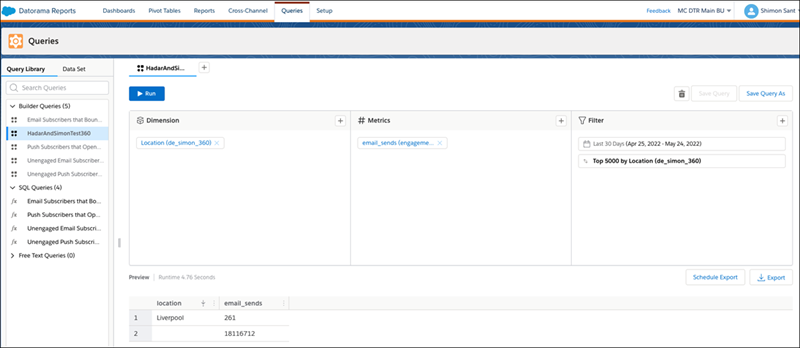
In this example, you can see how to query engagement data and data extension data using the Query Builder.
1. On the Queries tab, click **Create New Query**.
2. Name your query.
3. Select **Builder**, and click **Create**.
4. Build your query.
For example, create a query to view total clicks per region. In this example, the dimension is Location (taken from the data extension) and the measurement is email\_sends (taken from the engagement data).
5. If you’re using SQL, here’s an example of a join that produces the same results.
```
select data_extension.Region, sum(data_extension.email_unique_clicks)
from engagement_data left join data_extension on engagement_data.subscriber_id = data_extension.ID
group by data_extension.Region
```
6. To run the query, click **Run**