---
schema_version: "1"
id: 3204da128e8a6bd777098abdbd52ae344335f3302d8205a9102829a7ecb1dc7f
title: Connect to a Data Extension
collection: admin
version: current
locale: en-us
portal_url: https://docs.salesforce.com/admin/current/en-us/mktg/264-0-0/mc_dat_data_extension_connect.md
canonical_url: https://help.salesforce.com/s/articleView?id=mktg.mc_dat_data_extension_connect.htm&release=264.0.0&type=5
source_site: help.salesforce.com
content_type: documentation
content_hash: 089bf1da8dcac18962578baad4bf8b50b8e1fc7ef0e696a00afc7f96a2ddf1c4
description: Connect to a data extension to pull in additional attributes along with your engagement data. You can connect to any data extension that’s in your business unit and is below 50 million rows.
products:
- Marketing
- Marketing Cloud Intelligence
release: "264"
---
# Connect to a Data Extension
Connect to a data extension to pull in additional attributes along with your engagement data. You can connect to any data extension that’s in your business unit and is below 50 million rows.
### Required Editions
Available in: Intelligence Reports Advanced
User Permissions Needed
To Connect to a Data Extension:
Create & Edit

Note
- SendLog and synchronized data extensions aren’t supported.
- Make sure your data extension doesn’t contain these columns: date\_id, location\_id, dat\_account\_currency, dat\_exchange\_rate, pacing\_period, pacing\_end\_date, row\_count, or brand\_id.
- Make sure the data extension doesn’t use the same column name more than once.
- You can connect to up to 30 data extensions.
While connecting, create a join between engagement and data extension data to ensure the data appears correctly. After you connect to a data extension you can then create a query with the data extension’s fields. For more information, see [Queries](https://help.salesforce.com/s/articleView?id=mktg.mc_dat_data_extension_query.htm&release=264.0.0&type=5 "Create a query with data extensions to view your engagement data with your data extension data. For example, view total clicks per region.")
1. From Analytics Builder, select **Intelligence \[Datorama\] Reports**.
2. Select the **Setup** tab.
3. Expand **Connected Data Extensions**, and then click **Connect Data Extension**.
All data extensions that exist in your business unit appear in folders, just like they’re set up in Marketing Cloud Engagement.
4. Expand the folders until you reach the data extension you’re connecting to.

Note You can only connect to data extensions that haven’t been connected, if the data extension is already connected you can’t move onto the next step.
5. Click **Next**.
6. Ensure that all fields are correct, and then click **Next**.
7. To create a join between your engagement data and data extension data, select the fields you want to connect.

Note This step is only necessary if you want to query your data extension data together with your engagement data using the Query Builder. For more information, see [Create a Join Between Engagement and Data Extension Data](https://help.salesforce.com/s/articleView?id=mktg.mc_dat_data_extension_join.htm&release=264.0.0&type=5 "While connecting to a data extension, you can create a connection between the data extension and engagement data. This way when querying, you’re pulling in data from both datasets.").
8. Select the **Join** method you require.
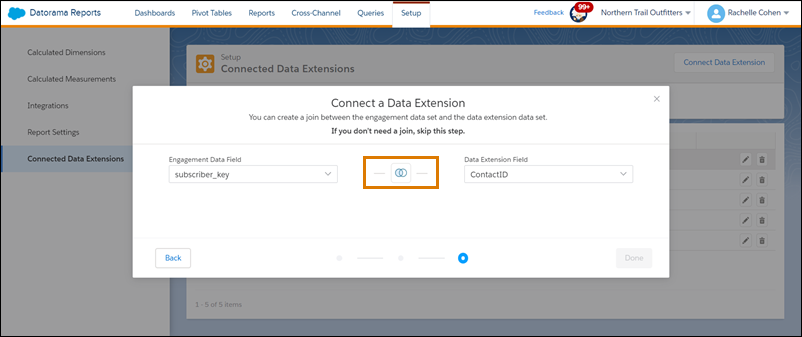
By default, the platform queries data based on the Left Join method. Only matching data from the left table is returned when querying.
9. To return all rows that are found from both tables, even if no match is found, select **Full Join**.
10. Click **Done**.
11. After the data extension is connected, you can create a query with the fields from the data extension.