---
schema_version: "1"
id: 7ea0dc83c5e3bc8644d91d6521b0e8d19e412c5dbc908b3baf2775673b761564
title: Create a Personalized Triggered Send
collection: admin
version: current
locale: en-us
portal_url: https://docs.salesforce.com/admin/current/en-us/mktg/264-0-0/mc_co_create_personalized_triggered_send.md
canonical_url: https://help.salesforce.com/s/articleView?id=mktg.mc_co_create_personalized_triggered_send.htm&release=264.0.0&type=5
source_site: help.salesforce.com
content_type: documentation
content_hash: 33028d71baa1d6dced241628edf0f53b7ff0e311a98e1c95845f7029af82baf6
description: For this Marketing Cloud Connect for Marketing Cloud Engagement tutorial example, create a triggered send with personalization from a case and a custom object.
products:
- Marketing
- Cross Cloud
release: "264"
---
# Create a Personalized Triggered Send
For this Marketing Cloud Connect for Marketing Cloud Engagement tutorial example, create a triggered send with personalization from a case and a custom object.
1. From Sales or Service Cloud, go to the Marketing Cloud tab.
2. Click **Triggered Sends**.
3. Click **New**.
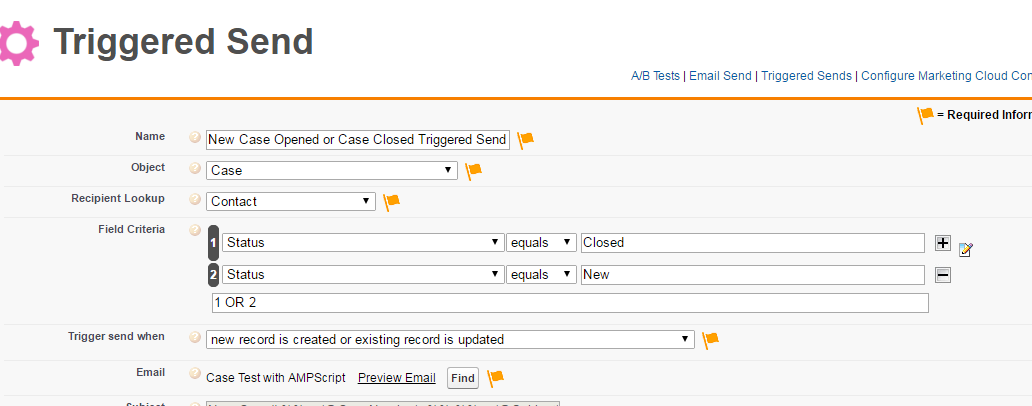
4. Enter a name.
5. Select **Case** for the Object.
6. Select **Contact** for the Recipient Lookup.
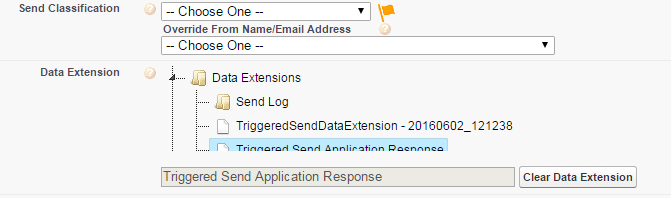
7. Select the newly created triggered send data extension.
8. To create a triggered send that is sent when a new Case is opened or closed, set your Field Criteria to: **Status** **equals** **Closed** **OR** **Status** **equals** **New**
9. Enter 1 OR 2 for Filter Criteria filter logging.
10. Include an if/else statement in your email content.
```html
%%[Set @mySObject = SObjectSet @myRecordId = RecordIdset @Case = RetrieveSalesforceObjects(SObject,"Subject,Status,Priority,CaseNumber","Id", "=", RecordId)Set @CaseRow = Row(@Case, 1)Set @Subject = FIELD(@CaseRow,"Subject")Set @Status = FIELD(@CaseRow,"Status")Set @Priority = FIELD(@CaseRow,"Priority")Set @CaseNumber = FIELD(@CaseRow,"CaseNumber")]%%
%%[ if @Status == "New" then ]%%A new case has been created.%%[ else ]%%Your case has been updated.%%[ endif]%%
Case #:%%=v(@CaseNumber)=%%
Case Subject:%%=v(@Subject)=%%
Case Status:%%=v(@Status)=%%
```
This code creates a dynamic triggered send that is sent for both new and closed cases, generated from one triggered send definition and one email.
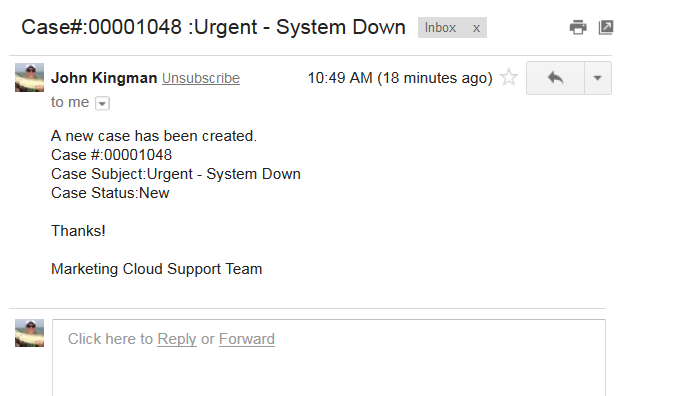
This example email displays a new case created with the status of New.
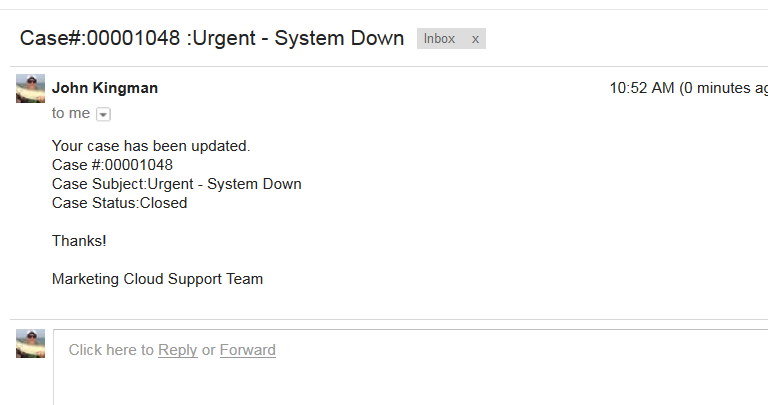
This example email displays an existing case updated to the status of Closed.