---
schema_version: "1"
id: ad3a904425020b64ff07d24086d4b8a9f085c0274db6e8ab369a756ba69926a4
title: "Query: Opens in Last 30 Days"
collection: admin
version: current
locale: en-us
portal_url: https://docs.salesforce.com/admin/current/en-us/mktg/264-0-0/mc_as_query_opens_in_last_30_days_ref.md
canonical_url: https://help.salesforce.com/s/articleView?id=mktg.mc_as_query_opens_in_last_30_days_ref.htm&release=264.0.0&type=5
source_site: help.salesforce.com
content_type: documentation
content_hash: 1b1cd98d778675826361823b11ff8d1f12a20fddf5a6c851147c40f9daa679ad
description: Find all unique opens for a specific email over the last 30 days. Or, modify this query to find sends, clicks, bounces, complaints, or unsubscribes for an email during a specific time frame.
products:
- Marketing
- Marketing Cloud Engagement
release: "264"
---
# Query: Opens in Last 30 Days
Find all unique opens for a specific email over the last 30 days. Or, modify this query to find sends, clicks, bounces, complaints, or unsubscribes for an email during a specific time frame.
## Before You Begin
To use this example, you need a working knowledge of SQL. You can copy and paste the code samples, but you must configure them for your setup.
## Create a Target Data Extension
In Contact Builder or Email Studio, create a standard data extension with these properties and fields. This data extension is the destination for your query's data output.
| Target Data Extension | OpensIn30Days |
| External Key | OpensIn30Days |

Note If you create the data extension in Email Studio, the Nullable column replaces the Required column. If a field isn’t required, select **Nullable**. If a field is required, don’t select Nullable.
| Primary Key | Name | Data Type | Required | Length | Default Value |
| --- | --- | --- | --- | --- | --- |
| | JobID | Number | X | | |
| | EmailName | Text | X | 100 | |
| | SendTime | Date | X | | |
| | OpenTime | Date | X | | |
| | EmailAddress | EmailAddress | X | 254 | |
| | SubscriberKey | Text | X | 254 | |
## Create a Query Activity
In Automation Studio, create an SQL query with these properties.
| Query Name | OpensIn30Days |
| External Key | OpensIn30Days |
## Sample Query
Copy and paste this query.
```
SELECT j.jobid,
j.emailname,
j.deliveredtime AS SendTime,
o.eventdate AS OpenTime,
s.emailaddress,
s.subscriberkey
FROM [_job] AS j
INNER JOIN [_open] AS o
ON j.jobid = o.jobid
INNER JOIN [_subscribers] AS s
ON o.subscriberid = s.subscriberid
WHERE o.isunique = 1
AND o.eventdate > Dateadd(day, -30, Getdate())
AND j.emailid = MY_EMAIL_ID
```
## Finalize the Query Activity
Customize the query. Use the line numbers in Automation Studio to identify which lines to modify.
- On the last line, replace `MY_EMAIL_ID` with the ID of your email. If you don’t know your email ID, go to Content Builder, select the email, and view its details.
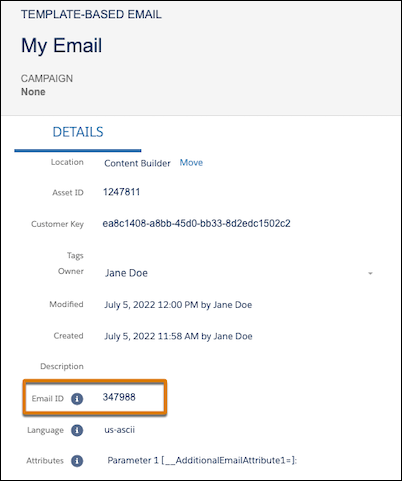
- If you’re querying from the child business unit of an Enterprise 2.0 account, modify line 10 to add the `ent.` prefix.
- Original: `INNER JOIN [_subscribers] AS s`
- Modified: `INNER JOIN ent.[subscribers] AS s`
Link the query to the target data extension.
| Target Data Extension | OpensIn30Days |
| Data Action | Overwrite |
Save your query activity, and then create and activate an automation that uses the activity.
## Query Variation: Capture a Different Time Frame
To capture data for a different time frame, use any number of days up to 180. For example, we modified line 13 in this query to retrieve 14 days of data.
```
SELECT j.jobid,
j.emailname,
j.deliveredtime AS SendTime,
o.eventdate AS OpenTime,
s.emailaddress,
s.subscriberkey
FROM [_job] AS j
INNER JOIN [_open] AS o
ON j.jobid = o.jobid
INNER JOIN [_subscribers] AS s
ON o.subscriberid = s.subscriberid
WHERE o.isunique = 1
AND o.eventdate > Dateadd(day, -14, Getdate())
AND j.emailid = MY_EMAIL_ID
```
To pull a specific range, such as 30–60 days ago, use this code.
```
SELECT j.jobid,
j.emailname,
j.deliveredtime AS SendTime,
o.eventdate AS OpenTime,
s.emailaddress,
s.subscriberkey
FROM [_job] AS j
INNER JOIN [_open] AS o
ON j.jobid = o.jobid
INNER JOIN [_subscribers] AS s
ON o.subscriberid = s.subscriberid
WHERE o.isunique = 1
AND o.eventdate BETWEEN Dateadd(day, -60, Getdate()) AND
Dateadd(day, -30, Getdate())
AND j.emailid = MY_EMAIL_ID
```
Depending on how much data you’re retrieving, a query spanning more than 30 days can time out and fail. If your query times out, try a shorter time frame.
## Query Variation: Capture Sends
To capture sends instead of opens, use this code.
```
SELECT j.jobid,
j.emailname,
se.eventdate AS SendTime,
s.emailaddress,
s.subscriberkey
FROM [_job] AS j
INNER JOIN [_sent] AS se
ON j.jobid = se.jobid
INNER JOIN [_subscribers] AS s
ON s.subscriberid = se.subscriberid
WHERE se.eventdate > Dateadd(day, -30, Getdate())
AND j.emailid = MY_EMAIL_ID
```
## Query Variation: Capture Clicks
To capture clicks instead of opens, use this code. You must also add a field for ClickTime to your target data extension.
```
SELECT j.jobid,
j.emailname,
j.deliveredtime AS SendTime,
c.eventdate AS ClickTime,
s.emailaddress,
s.subscriberkey
FROM [_job] AS j
INNER JOIN [_click] AS c
ON j.jobid = c.jobid
INNER JOIN [_subscribers] AS s
ON c.subscriberid = s.subscriberid
WHERE c.isunique = 1
AND c.eventdate > Dateadd(day, -30, Getdate())
AND j.emailid = MY_EMAIL_ID
```
## Query Variation: Capture Bounces
To capture bounces instead of opens, use this code. You must also add a field for BounceTime to your target data extension.
```
SELECT j.jobid,
j.emailname,
b.eventdate AS BounceTime,
s.emailaddress,
s.subscriberkey
FROM [_job] AS j
INNER JOIN [_bounce] AS b
ON j.jobid = b.jobid
INNER JOIN [_subscribers] AS s
ON s.subscriberid = b.subscriberid
WHERE b.eventdate > Dateadd(day, -30, Getdate())
AND j.emailid = MY_EMAIL_ID
```
## Query Variation: Capture Complaints
To capture complaints instead of opens, use this code. You must also add a field for ComplaintTime to your target data extension.
```
SELECT j.jobid,
j.emailname,
c.eventdate AS ComplaintTime,
s.emailaddress,
s.subscriberkey
FROM [_job] AS j
INNER JOIN [_complaint] AS c
ON j.jobid = c.jobid
INNER JOIN [_subscribers] AS s
ON s.subscriberid = c.subscriberid
WHERE c.eventdate > Dateadd(day, -30, Getdate())
AND j.emailid = MY_EMAIL_ID
```
## Query Variation: Capture Unsubscribes
To capture unsubscribes instead of opens, use this code. You must also add a field for UnsubscribeTime to your target data extension.
```
SELECT j.jobid,
j.emailname,
u.eventdate AS UnsubscribeTime,
s.emailaddress,
s.subscriberkey
FROM [_job] AS j
INNER JOIN [_unsubscribe] AS u
ON j.jobid = u.jobid
INNER JOIN [_subscribers] AS s
ON s.subscriberid = u.subscriberid
WHERE u.eventdate > Dateadd(day, -30, Getdate())
AND j.emailid = MY_EMAIL_ID
```
#### See Also
- [Create a Data Extension in Contact Builder](https://help.salesforce.com/s/articleView?id=mktg.mc_cab_create_a_new_data_extension.htm&type=5&language=en_US)
- [Create a Data Extension in Email Studio (Enhanced)](https://help.salesforce.com/s/articleView?id=mktg.mc_es_create_data_extension.htm&type=5&language=en_US)
- [Build a SQL Query Activity](https://help.salesforce.com/s/articleView?id=mktg.mc_as_use_the_sql_query_activity.htm&release=264.0.0&type=5 "In Automation Studio, build a SQL query activity that retrieves the data that you’re interested in, and then add it to an automation.")
- [Optimizing a SQL Query Activity](https://help.salesforce.com/s/articleView?id=mktg.mc_as_optimize_the_query_activity.htm&release=264.0.0&type=5 "SQL query activities time out after 30 minutes. You can prevent timeouts and failures by optimizing your SQL query activities. If your query consistently runs longer than 10 minutes, we recommend using a different tool, such as Salesforce Customer Data Platform, to transform your data.")
- [SQL Reference](https://help.salesforce.com/s/articleView?id=mktg.mc_as_sql_reference.htm&release=264.0.0&type=5 "Get SQL query information for Automation Studio’s SQL Query activity at a glance.")